Showing posts with label assignments. Show all posts

Thursday, December 15, 2016

Digital Portfolios with Google Tools

I realized that I was over complicating matters and making things too complex when it came to creating digital portfolios with my 9th grade ELA students. I am passionate about technology integration in my class, but I am mindful of how/why we use the technology. As I flip the learning in my class, it is easy to get inundated with the myriad of edtech tools and sites that are available. So, keeping things very simple, and sticking with what we know, I decided to capitalize on the power of Google Docs and hyperlinks to create digital portfolios with my students.

The portfolio is one Google Doc on which the student will list and link to each of the writing pieces, as well as write a brief reflection of what was learned about the process of writing.

The Quick Steps:

  1. In Google Docs, create a template hyperdoc of the portfolio.
  2. In Google Slides, create a slide deck that walks students through the set-up process.
  3. In Google Classroom create an assignment and attach the slide deck ("anyone can view") and template doc ("generate an editable copy for each student"). 
  4. Allocate time in class for students to work on the portfolio. 
  5. Score the portfolio each marking period.

The Template

If you haven't picked up a copy of The Hyperdoc Handbook, you better do so NOW. Author Lisa Highfill and all share strategies for creating Google Docs with an enhanced visual design.  The template I created for the portfolio is organized by inserting tables to create title areas and lists of assignments. Also, I changed the background color of the page and the fill color of each table section. By changing the visual design from the usual white Google Doc, I am influencing students' initial reaction to the doc: because the portfolio doc looks differently than the other docs they've seen, they will react to it differently.

Students are allowed to personalize the doc and change the fonts and colors, but I want to make sure that they have a consistent theme to their visual design.  Color palette generator such as Coolors  and other activities that teach students about visual design facilitate the process.
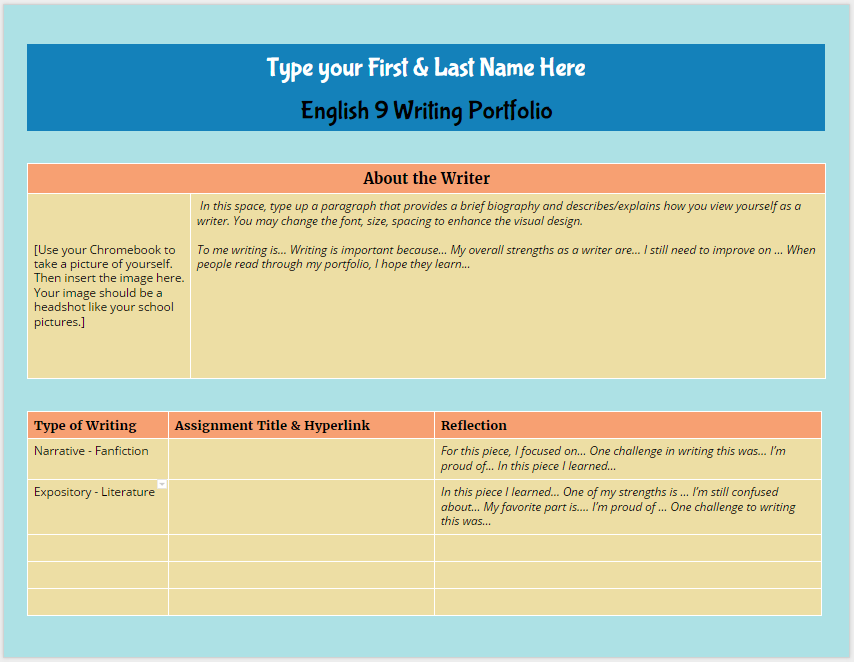
Open the doc and go to FILE, MAKE A COPY to create
your own editable version of my template.


The sections of the portfolio doc include a heading area for the student's name, an about the Author section, and a list of the assignments that include a label for the type of writing, the assignment title and link to the student's writing piece, and an area for reflection on the specifics of the writing task. The most important area is the reflection. If I want students to act like authors, then I need them to think about the intention of their writing and reflection on the process of creation. 


Setting Up the Portfolio

To lead students through the set up process in a flipped instructional manner, I created this slide deck that walks students through the process.


You'll notice that I also included the rubric for scoring the portfolio with in the slide deck. More on scoring later in this post.


Google Classroom Assignment

If you aren't using Google Classroom yet for your Google Docs workflow with students, you are missing out! Google Classroom makes managing student docs so much easier.  For each assignment I create, I can attach resources and templates. Each attachment can be set to view only or editable by all, or I can have Google generate an individual copy for each student that has the file name and sharing permissions automatically created. No more untitled docs!

For the Digital Writing Portfolio Assignment in Google Classroom, I attached the slide deck (set to view only) and had Google generate an editable copy of the portfolio doc for each individual student.  All docs created are housed in the folder for this assignment in my Classroom folder in my Google Drive. 


As we finished up individual writing pieces, I allocated class time so that students could add the latest assignment. The beauty of using hyperlinks for each assignment is that my students are not just limited in creating Google docs of their assignments: anything that they create that is housed on the web can be linked to their digital portfolio doc.

Scoring the Portfolios

At the end of each marking period, I give students time to finalize their digital portfolio. In Google Classroom, the students click DONE to submit their assignment, thus removing editing privileges on the doc. I score the portfolio with the rubric below using the Doctopus and Goobric add-on in Google Sheets. After all portfolio docs are scored, I return the files to the students. At the end of the next marking period, they revise the portfolio doc and hit DONE on the same assignment I first created-- no need to create a new assignment for each marking period! 

Philosophically, I am against putting grades on writing, but working within a system that mandates grades on assignments, I focus on providing feedback and ample opportunity to revise assignments until the student (and I) feel that the piece has met the objectives while also finding a way to get a numeric grade on the assignment. 


If you notice, the rubric adds up to 100 points, but the columns for scoring are equivalent to a specific percentage and letter grade that aligns with the grade breakdown of my district:

A = 100-92
B = 91-83
C = 82-75
D = 74-70
F =  69-0

20/20 = A
18/20 = B
15/20 = C
12/20 = F

I do not give half scores or use other numbers for each column listed above. The numbers are the numbers, but you will see a greater range of scores when you look at the permutations of the possible rubric scores and what score shows mastery versus lacks proficiency.


Rubric design and scoring will have to be saved for another post. But, if you look at the permutations above, because I made set each column score to a specific number that aligns on the 100 percent/point scale, I've allowed for more possible passing scores than failing scores. As Rick Wormeli will tell you, the 100 point scale (especially in my district with 100-70 as passing) puts way too much emphasis on failing grades. My scoring flips this dynamic and puts the emphasis on the upper range.


BUT, the whole purpose of the digital writing portfolio is to de-emphasize grades and focus on publishing student work in a manner that is organized, reflective, and on-going, and using Google Docs as the housing system of students assignments is a method that is simple and sustainable. I don't have to worry about a special website or an app closing down in a few years, and students can easily replicate this process after high school graduation with their own personal Google Doc accounts to create portfolios for college and career.




Tuesday, August 12, 2014

#Flipclass Workflow

With the start of the new school year looming, a favorite topic of discussion among #flipclass teachers is workflow.  Rookies want to know how to make flipping work with class procedures, and veterans are always tweaking what they do. Edmodo, Curriculet, and Google Drive are essential to productive workflow in my class.

Essentially, this is what I do:

  • Organize students into classes on Edmodo with all resources, agendas, links to edtech tools, assignments, and quizzes are completed in Edmodo.
  • Students go to Curriculet for reading texts.
  • Students use Google Docs for typing up essays and other assignments.


Edmodo

Edmodo is my online classroom space. Everything that I do face to face with students is also completed via Edmodo.  From posting the daily agenda to taking quizzes to connecting with others, everything is done in Edmodo as you can see from the list below and public folder of classroom examples.  

I create a main classroom group for each level I teach because I want to promote the online PLN experience.  So all of my Honors 9 students are in one group regardless of period and all of my English 12 students are in another group. Students interact with others that they may see in class or merely pass in the the hall. When I name my groups I always use the following naming convention:  School Year & Level.  For example, 2013-14 English 9 or 2014-15 Honors English 9. 

  • The daily agenda is posted as a Note with any attachments needed. I always date it and put a heading in all caps as well as a numbered list of activities for the day. I type up my lesson plans in a Google Calendar which is posted on my class website, and merely copy/paste from my plans to create the daily agenda.  Click here to see a sample.
  • All work is turned in via Edmodo Assignments.  Whether it is a final project or an online activity or a photo of a paper worksheet, students turn in their work on Edmodo because the assignment is automatically added to Edmodo's gradebook or Progress area which keeps a spreadsheet record of all assignments assigned to that group. This spreadsheet is my working gradebook and replaces the students' three-ring binder. Students still keep a notebook using any method they choose, but I no longer have to do paper-notebook checks.  When parents, counselors, or administrators have a question about a student's performance, I have a record of the student's work at my fingertips.  I can also see the student's performance in relation to other classmates. I transfer by hand scores to my district's gradebook as applicable.
  • Preparing for digital assessments, students complete quick Edmodo Snapshot assignments. Snapshot provides students with standards-aligned assessments for math and ELA. I can quickly choose the standards I want to assess and assign the questions to my students.  Edmodo takes care of the rest from selecting the passage to writing the questions. I set the due date and track student progress, assigning later Snapshots to address deficiencies. Snapshot will be a weekly automatic assignment for my students in the coming school year. 
  • Students access Edmodo apps for automated tasks or projects. The No Red Ink Edmodo app is added to my Edmodo groups so that I can quickly assign students grammar tasks without having the students log in to another site or make more work for me.  Students also have access to other apps such as Powtoon, Pixton, Audioboo, and Dogo News for other online projects. I often ask my student to "Show Me" what they know using any online tool. 
  • Students communicate and peer review in Edmodo small groups.  I break up each main classroom group into smaller sub groups.  I just go right down the roster and select students in alphabetical order.  The small groups then becomes a place to share work that is turned in or complete online small group tasks.  I may ask students to find a resource about parallel structure and post it to their small group or have them share copies of essays for peer review.  By posting in small groups, we are keeping the main classroom page relatively clean.
  • Students are added to other main groups throughout the year. I will create other Edmodo groups for collaborating with others or delivering content in an asynchronous manner. When collaborating with other teachers and students across the country or globe, I (or the collaborating teacher) will create a new main group to which we add our students for sharing their work or completing collaborative tasks.  I'm excited to try out a Writer's Corner group with California teacher Beth Oing and Maine teacher Natalee Stotz.  This group will be an informal space for students to share whatever they are writing for peer review and feedback.  For delivering content in an asynchronous manner, I will create a separate group for each unit.  Check out this post on how I gamified The Odyssey using Edmodo. 

Curriculet

Curriculet is my go-to tool for reading instruction.  From uploading my own documents or articles found on the web to reading canonical texts to preparing students for PARCC assessment, Curriculet is essential to tracking my students' reading progress online. I've successfully flipped reading Romeo and Juliet and A Tale of Two Cities with my students. We've also read Great Expectations, Pygmalion, and current event articles related to the Great Depression and The Olympics. With Curriculet's premium library of contemporary texts being released this Fall, I'm excited to get my students reading more.

To use Curriculet, I create classes and give my students the classroom code.  I'm not worried about my students having too many log ins because they click on the "Sign in with Google" button since we are a Google Apps for Education school. Their Google credentials can be used to create and sign into a Curriculet account.  I assign an entire text to my classes and post a reminder in Edmodo for students to access Curriculet.  The students read the text at home or in school on smartphones, tablets, Chromebooks, or computers, answering questions and quizzes embedded in the text to check their understanding.  To see the student view, watch this quick video.


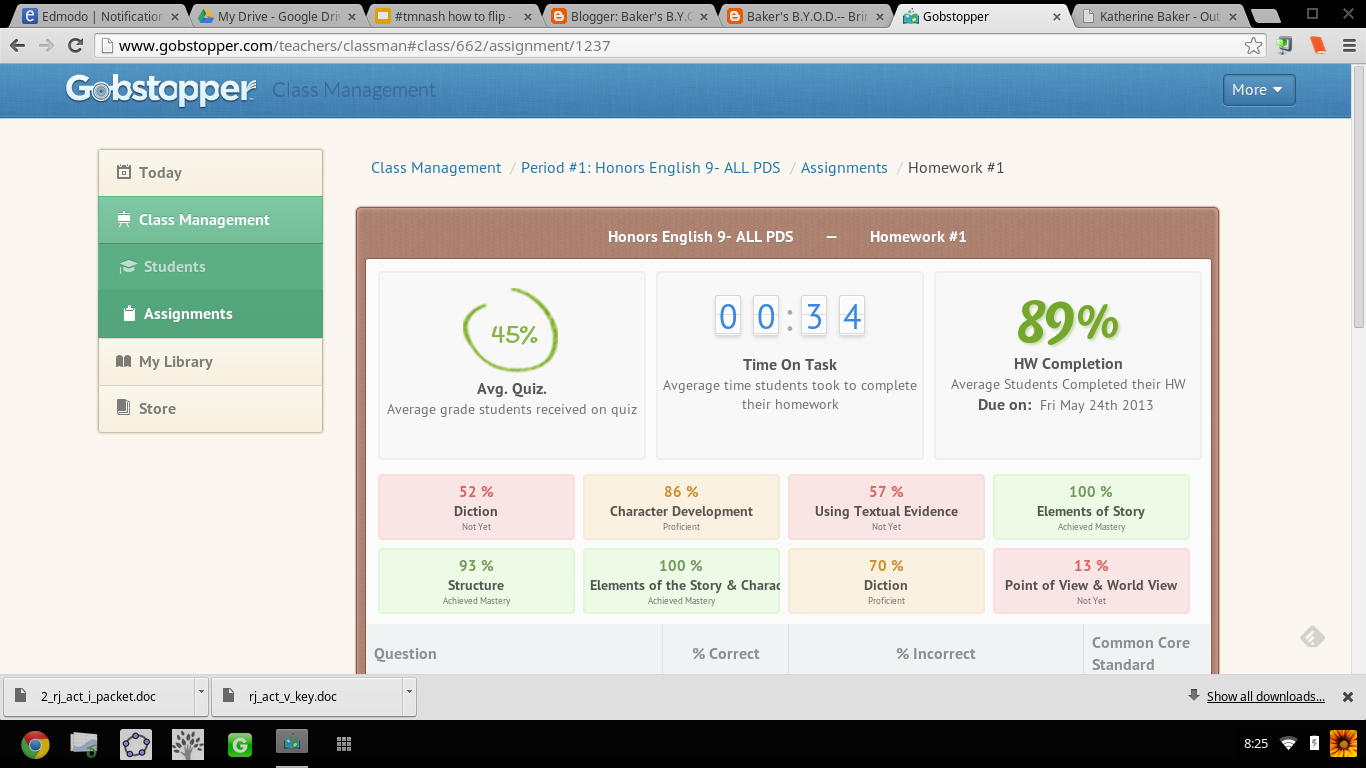
I use Curriculet's data analytics for formative assessment-- my students are allowed to make mistakes without too much penalty.  I take a look at their time on task and their accuracy for answering the questions and quizzes and give the students' a holistic score in my gradebook.  Using the OSU rubric, students receive Outstanding (100%) if they completed the task in an average amount of time and with an accuracy rate over 88%.  Students receive a score of Satisfactory (88%) if their accuracy was in the range of 78-87%, and Unsatisfactory (75%) if they completed the reading too quickly (ie. they clicked through the questions instead of reading) and scored below 78% on questions and quizzes. All summative assessments are completed in Edmodo as either an Edmodo Assignment or Edmodo Quiz. I allow students to have Curriculet open in another browser window while completing the summative assessments.

To see behind the scenes in my Curriculet account, view this video.


Curriculet is also available as an app in Edmodo, but since many of my students have smartphones as part of my district's BYOD initiative and Edmodo apps are only accessible on computers and iPads, I do not utilize the Edmodo app version of Curriculet at this time. For elementary schools or 1:1 iPad districts, I would recommend accessing Curriculet through Edmodo.


Google Drive

Google Docs has replaced Microsoft Word in my classroom. While I still access files I created in Word or PowerPoint, my students primarily create documents and slides using Google Apps.  We will have access to Microsoft 365 this year, but the simplicity and versatility of Google Apps have won my students over.  I needed a word processing option for students on smartphones and Google Drive fulfills the need. Students can complete notes, Do Now activities, quick writes or other journal writing on their smartphones through the Google Drive apps. 

We are a Google Apps for Education school, so the workflow is seamless. Students have accounts already created through school, so getting started is easy. Even though student Google Docs are shared with me, I still have my students turn in the link to their document in an Edmodo assignment.  Again, I keep a record of all things in Edmodo.  I'm excited to see what Google Classroom will do in terms of streamlining sharing documents with students, but in the meantime, this is how I used Google Drive with my students.

  • For assignments, I used Autocrat and Google Forms to deliver individual documents to students. Learn more by reading these posts: A Gaggle of Google Docs and Creating Certificates with Autocrat.
  • Daily directions, assignments, or Do Now activities are on Google Slides with the link to each presentation posted in Edmodo. Information is nicely chunked on each slide and it is easier for students to read than a lengthy Google Doc assignment.

Instructional Design

Edmodo is the hub of my classroom with Curriculet and Google Apps forming the spokes of our wheel of learning.  

The daily schedule may vary, but essentially I follow this routine in our 43 minute class periods:
  • 5 mins. Do Now Activity and review of answers-- as students walk into class they get started
  • 3 mins. recap of objectives and timeline
  • 25 mins. asynchronous activities or group work
  • 5 mins. wrap up 

This is my general plan per week:
  • Tuesday: introduce a new concept
  • Wednesday thru Thursday: work asynchronously or in groups applying the new concepts
  • Friday: whole class teacher-led activity reviewing and synthesizing  the material
  • Monday: assessment on the previous week's content

Last year I was 1:1 with the Chromebook cart on Mondays, so I liked having students take Edmodo quizzes or finish up individual digital work on Mondays because we had guaranteed access.  Sometimes I could get the cart mid-week, but it was never a guarantee as I shared the cart with four other teachers (each teacher taking a different day). So our mid to end of week activities featured BYOD, paper, and face to face tasks. While I do not let technology drive the learning in my class, technology is a vehicle for learning so our access to technology does factor in to our schedule.


I'm interested to read what others are doing with their students. So please reply with your questions, comments about #flipclass workflow methods.

Tuesday, November 5, 2013

Voki: A Tool for Bringing Characters to Life

Voki is a free web 2.0 tool used to create talking avatars.  Characters can be customized to look like historical figures, animals, cartoons, and even one's self. For a fee, users can join Voki Classroom for more access to options and the ability to control privacy settings. Vokis are limited to 60 second recordings of either a user's voice or a computer generated voice, so I use Voki for quick assignments or part of a larger project.

Creating a Voki is very easy and can be done quickly. Even in the free version there are a plethora of options and characters to choose from. Users can change the background image and customize the look of the stock characters. Publishing Vokis is easy too and users can publish directly to sites as well as copy/paste a hyperlink or embed code.

My 9th grade Honors students incorporated Voki as part of their Create a Hero Project, creating a profile of their hero character and give him/her life using Voki. Students provided an overview or teaser for their hero's journey stories and published the Vokis on their student blog pages by embedding the Voki into their Hero Stories. I was able to show my students how to embed in HTML without having to go over the basics of coding-- something I have yet to learn. Students also shared their Voki with others in their Edmodo small groups.

Here are some examples from my students. Click on the PLAY icon in the bottom left corner of each one to hear a preview of their stories.


 My students could also create Vokis of characters explaining concepts taught in class or summarizing chapters in a novel. World Language teachers could use Voki for recording students speaking short passages. History teachers could have students bring historical figures to life. Voki is an easy to use and versatile classroom tool for any subject area. For other lesson ideas, visit Voki's Lesson Plan Page.

Sunday, October 27, 2013

The SUM of an Amazing Summer

This summer has been amazing, revitalizing, evolutionary, and ... and ... and... for my professional development. I could have written 20 posts about the events this summer, but I had no time to write! So, I will just sum it all up here.... I'm still having trouble slowing down my brain to get the thoughts on this page. Stop me in the hall, catch me on Edmodo, tweet to me, and I will just start gushing out of control.

Between attending FlipCon 2013, EdcampHome, EdmodoCon 2013, Google Apps Training & TeachMeetNJ, working with the Gobstopper folks, AND having the release of my first ever contribution-to-a-third-party-published-book (Flipping 2.0) AND meeting face to face with some amazing folks from my PLN, I couldn't have asked for a better summer.  Seriously.

When I look at how much I have evolved as a professional educator in the past year, I am astounded at the exponential rate at which I have learned so much from the talented educators I've had the pleasure of collaborating and interacting with on Twitter, Edmodo, and this blog. Sounds redundant, "professional educator," but really it isn't--everything I have been doing has been outside of the classroom, yet still grounded in my teaching practice.

I constantly get asked, "When do you sleep? How do you have time for all of this?" I make time because I love it, and I honestly go to bed at 10 pm every night.

Thursday, May 30, 2013

May this Gobstopper (Now Called Curriculet) be Ever Lasting!


UPDATE AS OF 1/15/14:  
The company Gobstopper has changed its name to Curriculet, but this update hasn't changed how I use Curriculet with my students. The stories and information in the below post still hold true despite the change in company name.


While I've written quite a bit about assessing writing (ad nauseum) via digital means, reading instruction and assessment have remained a primarily paper-based enterprise in my class. While students can create projects, take quizzes, write responses digitally via BYOD and 1:1 using Google forms and docs, I've been missing a digital method for close reading of texts in my bag of instructional tricks. I've tried incorporating e-texts, PDF's, Google doc versions of texts and encouraged my students to use the Kindle Cloud Reader app on their devices and home computers, but I've been lacking a method for reading to be interactive as a whole class. I could not figure out a way to accomplish close textual analysis in an efficient and digital manner...  UNTIL NOW!


I can't tell you how ridiculously THRILLED I was when an article on Gobstopper appeared in my Techcrunch feed on Feedly.  I almost dropped my phone. Gobstopper is an e-reader platform that allows teachers to input and customize annotations, resources, questions, and quizzes linked to the Common Core Standards directly into a public domain text, and provides the students with immediate feedback, and the teacher with analytic data on student and class performance. Canonical texts found on the public domain are available in Gobstopper for FREE. And pair Gobstopper texts with FREE public domain Librivox audiobook recordings of the texts and you will strike gold with digital reading instruction.

Seriously?!  YES!  JACK.... POT!!! Don't believe me? Try out the student demo.

AND THERE IS MORE....  Gobstopper also offers a summer reading program. Available texts are already embedded with annotations, quizzes, and questions. The content creation is already done; all the teacher has to do is assign the books. No wonder Gobstopper's name alludes to Charlie and the Chocolate Factory, because this is SWEET!

From Flowergirl to Dutchess


Appropriate, considering the themes of identity and transformation in the play, I first used Gobstopper with Shaw's Pygmalion. While on the public domain, Pygmalion was not listed as a text in the Gobstopper store, with an email request to Gobstopper support, the text was quickly added and I could begin customizing the "curriculet" with my own annotations and questions. The process was fairly simple: highlight the text, choose the option, enter the content.  Questions, annotations, and quizzes can be loaded anywhere in the text and the teacher can choose to have the corresponding excerpt highlighted as well as select the appropriate Common Core Curriculum Reading Standard for each question. For annotations, I embedded  screencasts I've created, links to Librivox recordings,YouTube videos, Google Forms, Google Docs, webpages, Edcanvas ... the list is never ending; anything living on the web can be linked in an annotation. Quizzes for each reading section were also easy to create. Students received their reading assignment and due dates, and I would check on their progress and accuracy.

In addition to Pygmalion, my students also read Romeo and Juliet via Gobstopper. My instruction for both texts though differed: Pygmalion was read independently out of class while we watched excerpts of My Fair Lady and West Side Story in class, and Romeo and Juliet was read synchronously as a whole class.

Prior to Gobstopper, the students were given a packet of worksheets and materials for understanding Shaw's play and we focused more so on projects that connected to the theme of the play as opposed to close textual analysis. I was never really sure if the students actually read, truly understood Shaw's play or just opted for reading the Sparknotes and viewing the film online. Pairing the Librivox recording of Pygmalion with the enhanced Gobstopper text, I had clear indicators for student performance and understanding. By hearing the text, they were able to better read along and understand, and with the Gobstopper curriculet, they could demonstrate understanding while reading instead of having to answer questions on a worksheet at the end of each act.


"Never was a story of more woe..."


For Romeo and Juliet, prior to using Gobstopper,  students read the text that I put in a Word doc with arrows and boxes pointing to what I wanted the students to know. Students would pick parts (aka me coerce students into volunteering). We'd read together in class; I'd  try to get students to act their parts, and stop every page and scene to go over the answers to the questions in the boxes, as well as explain to them the nuances and artistry of the language. While we got through the reading, it wasn't until that I would show the movie clips that students "got it" and understood the language. WHY? Because Shakespeare is meant to be performed not read statically sitting in an uncomfortable student desk, and seeing the actors' movements solidified understanding. While I would encourage students to act their parts out, what that really amounted to was them standing in the front of the room reading monotonously from the text. I was asking them to do too much at once: read, comprehend, and synthesize into a performance. We were also taking at least 1 week to get through each act. With 5 acts in R&J, that amounts to 5 weeks of reading-- in case you didn't know, the play is only 2 hours long....   5 weeks vs 2 hours: no wonder students couldn't remember the opening brawl scene when we finally got to end, we were reading slower than Friar John riding a donkey in the Zeffirelli version.

Flipping the reading of Romeo and Juliet using Gobstopper and Librivox, students read asynchronously in class. I signed out the mobile lab and a class set of headphones, and assigned an act a day. What was not finished in class was for homework. I reviewed the class report the day at the beginning of the next class and clarified any misunderstandings, then let them return to reading independently.  If a student had a question in class, I was able to speak to him/her one on one and address his/her concerns as needed. This process was much more successful then demanding students to be compliant and pay attention as we read together. No longer did I hear complaints of "you're going too fast!" or "can't we just move on already?!" Now that the reading of the play took only a week, we had time for creative projects that included group performances of chosen scenes and skyping with an author (that's for another blog post!).

Gobstopper allows me to efficiently and effectively flip reading instruction from synchronous and static instruction to asynchronous, supported, and student paced. By embedding instructional elements in the text and linking it to an audiobook, students can listen to people read who already understand the text and control the pace of their learning while reading. Independent and whole-class reading of complex texts while aligning with Common Core Standards is no longer a Sisyphean endeavor when using Gobstopper.

I like Gobstopper so much, I shared it at #EdCampPhilly. Photo credit: K.Jarrett


-----------------------------------------------------------------------------------------------------

UPDATE UPDATE UPDATE UPDATE as of 8/8/2013

I will be writing more about using Gobstopper in the very near future, but I couldn't wait to share this...

Curriculets are now share-able   Let me SHOW YOU!
Sign up/in to Gobstopper first, then click on this link, and you can see the curriculet I made for A Midsummer Night's Dream.

...AND, the feature I have been waiting for! Gobstopper is MOBILE!
That is some sweet candy to have in your pocket! 


Gobstopper employs some awesome people, too! I got to meet Jason, Sean, and Marika at EdmodoCon 2013. A highlight of my experience!

From Left to Right: Sean, Marika, and I at the EdmodoCon
after party.  Where's Jason? 


Saturday, April 6, 2013

Writing about Grading Writing (Again)

I'm constantly writing about the dilemmas of student writing and how to grade student academic writing in an efficient and effective manner. This is probably borderline obsessive... but, I am the type of learner who when faced with an issue/problem/question, obsesses until ... ...  ....


Options for Grading Writing:

  1. Traditional: teacher does all the grading and marking up of students' writing. 
  2. Progressive:  students peer edit and self assess using guided structure provided by teacher
  3. Techie Traditional: teacher uses Google forms with the Autocrat, Doctopus, and  Goobric scripts, as well as other online rubric tools to assess student work.
  4. Techie Progressive:  teacher designs the rubric and assessment process on a Google form using the Autocrat script and the students peer edit each other.
  5. Ungraded: the teacher does not grade the writing.

Options #1-3 require time and effort in class and by the teacher.  I have happily peer edited on paper with my students, but there was just too much paper and it took up time in class.

Option #4 can be completed in and out of class, but it takes time to set up the forms, feedback docs, and scripts. BIG HUGE THANKS to Cheryl, Karl, Troy & all the Twitter peeps (Again & AGAIN) for walking me through creating this process, and the creator of the Autocrat script, Andrew Stillman, for answering my gazillion questions. I'm working on ways to better streamline the process (and not split my infinitives), but trust me, it is well worth the effort to guide students through troubleshooting their writing.

But, Option #5 I'm stealing (again) from Cheryl Morris. :-)


Un-grading Student Writing


In our #ElaFlip Hangout talking about assessing writing, Cheryl stated that she tries to detach grades from student writing. I forgot to ask if she was talking about creative writing or academic writing, but should it matter? 


Art & Academic Writing


Picture from J. Kronenber'g's Blog Post "I Can't Explain  It"
I completely agree with not scoring creative writing. I have never been comfortable putting a grade on creativity and therefore have never sought out teaching a creative writing course-- it is art and art is subjective: one critic might give Ellsworth Kelly's Blue Panel an A+ and another might give it an F. The simplest question in assessing the art is, "Does it hold meaning for me as the viewer?" The same subjective scoring can be used on student creative pieces.

I know, I know, some will say, rubrics make the scoring objective, but really? Rubrics turn writing into objects that sit on shelves. Rubrics are limiting!   Students only strive to hit the points on the rubric and not beyond.  They become complacent when they get the grade, and whose grade is it when the teacher designed the rubric?

I know, I know, I could get my ninth grade students to design the rubric with me, but they are just learning how to write, so do they know what to even put on the rubric? And me leading them for what to put on the rubric is still me, the teacher, controlling the rubric. I could use my O-S-U rubric (again) or use standards based grading and score for mastery, but does the grade on the paper push the student to continue writing? No! As Cheryl and the other ELA flippers (Andrew, Katie, Dave, & many more) will agree, as soon as a student receives the grade, he/she thinks the process is done. The point should be about keeping students writing until ...  ... ...

I fondly remember the yearly high school trip to The Metropolitan Museum of Art in NYC, and every time we flew through the exhibits just to sit in front of that blue panel and "critique" it.  My naive teenage friends and I would mimic high brow folks and comment in horrendously fake British accents on the composition, scale, and other fancy art terms, nicknaming it, "The Blue Rhombus of Life". Granted, our obsession with this painting was seemingly in a joking manner, but the fact remains that painting is still hanging in Gallery 915.

"I have worked to free shape from its ground, and then to work the shape so that it has a definite relationship to the space around it; so that it has a clarity and a measure within itself of its parts (angles, curves, edges and mass); and so that, with color and tonality, the shape finds its own space and always demands its freedom and separateness."- Ellsworth Kelly

But, this got me thinking: is this why I've had so much trouble scoring student academic writing? Every method I have used, revolves around my expectations: how well did the student follow my directions, display the knowledge I taught, and use the conventions the students have been taught throughout their academic career? I can lead the students through trouble shooting and revising their essays. I can score them on participation  meeting checkpoints, and being held accountable for the process, but do I, the teacher, really have to put a final grade on the essay?

During the #ELAFlip hangout, Katie Reagan explained that her students peer edit with other classes and students not at her school.  Getting students out of their comfort zone certainly motivated them to perform. What about an even greater audience on the web?  What about publishing their work for a bigger audience than my two hazel eyes to see? Wouldn't that "grade" the piece? It is so simple:  Is the writing ready for publication and to be "hung in a gallery"? And wouldn't that prospect motivate the student to perform well? Isn't that better than any grade I could put on the page or in my gradebook?

To adapt Kelly's words, writing is also about playing with the "color and tonality" of words so that words take shape and have a "definite relationship" that has "clarity and measure". Creative writing is an obvious form of art, and academic writing should also be considered no less an art, but many teachers and students drown in the red ink and forget the art of academic writing.

So, stop grading and focus on crafting, molding, and painting with words. 

Turn your student writers into artists.


Post Script:  Check out my next post, #OdysseyExperts, because I put into practice my ideas about showcasing writing.


Thursday, January 17, 2013

A Gaggle of Google Docs

My district has enabled students and teachers to begin using Google Apps for Education. HURRAY!!!! I know GAFE is old news for many of you, but this is a big deal for my district. The roll out process has been slow and methodical so that issues can be prevented and addressed.  I've been given the privilege of testing GAFE out with my 9th and 12th grade students, and I'm figuring out how to best keep the Google Drive organized.

If you, dear reader, have any additional tips or tricks PLEASE, oh PLEASE, share them!

Creating Class Lists

The first step in getting organized is creating class lists in my Google contacts. We use Genesis as our online grade book system, and by creating a student email report, I made a spreadsheet of students in my class, copy/pasted their email addresses into the groups I created in Google contacts. No need to search through the school directory: a  very quick copy/paste and my classes are listed in my Google contacts in less than 30 seconds. This is very helpful for sharing documents and folders: I just type in the name of the group and all the students are sent the document/folder.

Shared Folders

I created a shared folder for each of my classes for delivering collaborative class or group documents that are to be used during period. The shared folder is just for documents that I create and deliver to the students, not individual documents that they will turn in to me. Think of the class folder as a one way street. I also post the link to the document on the class page in Edmodo.  With multiple ways of finding the document, students have no reason not to get the task completed.

Following the instructions provided, shared folders can be customized to create class and student folders that have viewing and editing permissions automatically enabled.  While I like having the ability to do this, I am afraid of being inundated with folders.  Also, I use Edmodo for turning in all assignments and by having the students link their Google Drive account to their Edmodo backpack, I don't need the various drop box folders for students since Edmodo organizes assignments for me.


Google Doc Assignment Delivery

Using the Autocrat script in a Google spreadsheet, students can fill out a Google form that will delivery a Google doc that has the file name, heading, and sharing permissions already configured (Thanks Cheryl for helping me with the set up!).  For all the years we have been using word processing, my students have never internalized how to appropriately name a file. I have drilled and drilled them on using file naming conventions and there are always a few students who send me files named "Essay" or "English."  The Autocrat script prevents this from happening. Yes, I want students to learn how to properly name files and I'm hopeful that by seeing the process modeled using the Autocrat script that eventually they will internalize the file naming conventions. 

I'm am using Autocrat for two things:
  1. Delivering a general blank Google doc that student can type the assignment on. The Google form that delivers the document can be used infinitely ad nauseum. All student files will be organized in the same folder following the naming convention I specify: Pd Last First Assignment.
  2. Delivering a specific Google doc that includes a template (for example a chart) for the student to complete. A new form/spreadsheet will have to be created and the autocrat script configured for each specific Google doc. All student documents will be in a folder for each assignment and the naming convention is again completed for the students.
At first, I was very worried about having too many files in a folder when it came time to grade the assignment, but having the students link their Google account to Edmodo and then turning in the assignment through Edmodo keeps things organized for me when it comes time to grade.  I can insert comments and make changes on the Google Docs as I can in Drive, but I don't have to worry about searching the Drive folders for the specific assignment.

I'm also exploring how to use the same Autocrat script to provide individualized feedback on student assignments (Thanks Troy for sharing this!). I haven't played with this yet, but I am just realizing the possibilities!

What About Archiving?

What I haven't figured out yet is how to archive all the student files at the end of the year, and do I need to archive them?  I know I can just un-share the folder or delete the assignments within a folder at the end of the year, but the packrat in me is leery of just deleting all the students' work.

What do you, Sir and Madame Reader, recommend when the school year concludes? 


Monday, December 10, 2012

Integrating Technology in the Classroom

Using Screencast-O-Matic and Windows Live Movie Maker, here is a "quick" tour of how I integrate technology in my classroom.  Be sure to check out the complete list of projects and resources by clicking on the Integrating Technology tab.


Sunday, December 2, 2012

My Notes on Classroom 2.0 - Technology and the Developmental Needs of Adolescents

As a 14 year veteran of teaching 9th grade, there have been times when I get caught up in the curriculum and keeping pace with standardized testing, but Stephen Davis, the Featured Teacher for the November 17, 2012 Classroom 2.0 LIVE show,  has numerous links to resources for meeting the Technology and the Developmental Needs of Adolescents in and out of the classroom.


What are the developmental needs of adolescents?

    Developmental Needs = PIES

  • Physical
  • Intellectual
  • Emotional 
  • Social


All lesson plans take into account the PIES because as Davis explains, "Focusing too much on state standards created lessons that are like a museum: perfect and static." Consider the layout of the classroom and the activities within the lessons: teachers do not have to present themselves as perfect because that is not reality. Using the PIES, "creates lessons that are like a house that is lived in: comfortable and realistic."


To meet physical needs in the classroom:

  • Use SCVNGER to go on a scavenger hunt
  • Use You Tube to watch and mirror movements in plays, sports, dancing, and musicians
  • Use Nike BOOM and iFitness to workout or lift weights


To meet intellectual needs in the classroom and execute abstract thought processes:

  • Veritasium - showing science concepts to people on the street 
  • The Onion - experience and learn satire (not all age appropriate)
  • Philosophy- play games that are philosophical in nature


To meet emotional needs of adolescents and deal with the paradox of trying to be an adult but stay relevant to peers:

  • Deviant Art - artistry, but not all school appropriate
  • Jammit - learn an instrument, download music from favorite band and have music notation on computer and can play along (can also slow down pace without affecting pitch & even isolate one instrument)
  • Instagram - photography, use filters to represent tone & mood in one or a series of pictures-- can see patterns of emotions in photographs (reflect to see the pattern)


To meet the social needs of adolescents who want to be alone, yet also want to be part of a group:

  • Social Voice - student writing on controversial and debatable issues
  • Instagram - moments become memories
  • Wallwisher - for exit slips 


Why do teachers need to meet the needs of adolescents? According to Davis, he is ....

                "Trying to effect change not demand change"

                                  "Helping the students equip themselves"

                                                  "Bring[ing] back humanity to education"


When students feel that they are seen as humans and not some repository for information, a cup to filled, and they have a personal connection to their education, they will do more than just earn an A+.


Collaborative Digital Information Projects

My students used their phones to create voice recorded projects and I'd like to continue evolving their skills into eventually being comfortable doing collaborative digital presentations. Technology can easily be used to facilitate student presentations and overcome the fear of public speaking and provide valid opportunities for reflection and collaboration.

In this video, Kate Summers explains how her science students use collaborative tech tools for creating projects that teach concepts to other students.


In order for this project to work, students need access to tech and inter-personal skills to effectively and efficiently work with others.  With our Google integration almost ready for roll out in the coming month, I could have students engage in such activities and have them post the projects to Edmodo for sharing and review.  

In the Spring, we will be working on Homer's The Odyssey and Shakespeare's Romeo and Juliet, both of which are heavy with historical information. In the past, I've divided students into groups and they would research a topic and then later jig-saw to share the information. Completed using paper and having students present in class, time constraints and preparation became an issue. By digitizing the projects, students can work in or out of class and presentations can be viewed multiple times online ensuring all information is absorbed.


Thursday, November 29, 2012

Idioms, Not Idiots, for Promoting Speaking Skills

Students often view presenting in front of the whole class with the same disdain as facing a firing squad or are so self-conscience that they act like idiots. Additionally, finding precious time for whole class presentations can eat into high-paced curricular calendars.  We are still trying to get back on track from Hurricane Sandy, so this project was a quick way to get students to present and share without the stress of being in front of the class or take up class time. Students need to be able to present to audiences in person, but I do not agree with a "sink or swim" approach. This is an initial project for scaffolding the teaching of presentation skills.

Using OMM & BYOD for Recording Student Voices


As an introductory activity for John Steinbeck's novella, Of Mice and Men, students worked in groups to record a quick conversation using idioms (not idiots) from the 1930's.

Open those ears and try to figure out what they are talking about in those hackney country accents (I apologize to those of you who live in the country).


Equipment Needed

  • One student in the group needed a device (smartphone or ipod) with a voice recorder. I recommend encouraging students to use a free MP3 voice recorder instead of a standard voice recorder that saves files as .m4a for easier integration into Edmodo. 
  • If students record in .m4a format, files can be converted using a free web program such as Fileminx (just be mindful of the pin-up ladies in the background if you direct students to the site). I did the conversions for the students.

The Process

Edmodo easily embeds MP3's- just click play
(on Edmodo, not on this picture), no downloading!
  1. In groups of no more than 4, students reviewed a list of idioms used in OMM and drafted a script on paper.
  2. Students used one smartphone/ipod per group to record about a 30 second conversation. In some cases, I even let a few groups use my Android phone to record.
  3. The recordings were emailed me to me because they would not upload directly to Edmodo from students' phones. We tried a few different techniques (go through Google Drive and Edmodo's library), but none seemed to work. I also wanted to minimize clogging the class' main page with too many posts. 
  4. I saved the files and converted as needed and then uploaded groups of them to Edmodo as a note. I didn't save the students' names to each project, just give each recording a different number.
  5. Students listen to the recordings and reply with comments. No grading for this assignment because the focus is on the process, but feedback was provided about how to improve performances.
Alternatively, for sharing audio files using YouTube instead of on Edmodo, I created title slides in PowerPoint which I saved as JPEG's, and used Windows Movie Maker to combine the visual and audio elements. It only took a few minutes of trial and error to create the video above.  

I'm not keen on uploading the audio files to Youtube without some sort of proper visual, but the visual needs to not be distracting or too complex because the emphasis is on the audio for this project. I did not want to create a video, but to share the student recordings on this blog, I needed to.  I'm figuring out the BYOD as I go, so if you, dear reader, have more efficient techniques, please share! 

Projecting Future Presentations

For the first time using this process, the collaboration and anonymity of the project allowed reluctant students to get into character and enjoy the project.  Students didn't have to feel like self-conscience idiots because no one other than their other group members could recognize their voices and listeners would be too focused on figuring out the idioms.  

When students record an oral presentation again (this went so well that I guarantee we will do this again!), they will be solo and identified. The next project will eventually lead into a group video using their devices and finally an individual video or screencast.  


Tuesday, November 20, 2012

How to (Not) Fill a Blank White Page

Working with Ms. MorrisMr. Lindgren-Streicher, and Mr. Thomasson back in August and similar in concept to Google's 20% time projects, the Blank White Page Project was conceived as a way to connect students and teachers through questioning and self-directed learning. While we are implementing this within the confines of the continental US, this project could be adapted to include classrooms around the globe.

The Process

  1. The class discusses types of questions and students make a list of questions they have always wondered about. The questions should be open-ended and require research and creativity to answer. 
  2. One of the teachers in the group creates a Google form for recording and a Google site for housing the questions. 
  3. Students go to the BWP site and record their questions.
  4. The teacher moves the questions entered by his/her students on the Google form to the various categories on the BWP site.
  5. Students return to the site and peruse the questions, choosing one to answer. 
  6. Students create "an answer" to the question, share it with the teacher, and the teacher posts it to the site. Answers can be in any form as long as they address the question.

Students can complete the BWP project individually or in groups comprised of members from their own school or elsewhere. Using Edmodo, Twitter (#BWP12), Skype or Google Hangouts, students can collaborate on creating and sharing answers. This process can be continually repeated throughout the year and additional teachers and classes can be added to the site. Additional participants could be found via networking on Twitter with other educators-- just pop into a #flipclass chat on Monday nights-- or via posting a request to one of the communities on Edmodo. I've met teachers online from all over the country, Canada, and Australia, many of whom are interested in connecting their classes.


Grading

Since this is project based learning, students could be scored with rubrics on the use of technology and creativity and effort in answering the chosen question. Self evaluation and reflection is also an important piece of the assessment process.  Students could also be additionally evaluated on their communication skills and ability to collaborate. The objective is for students to take ownership of their learning, so they should "own" the grade, not the teacher.


----------------------------------------------------------------------------------------

MY Implementation Issues


This has really been bothering me. I was so excited to begin this project (and I STILL AM excited to continue it), but I have met with some set-backs this year that have impeded the process and participation. I'm very frustrated by these set backs and not being able to better connect with the other teachers and classes.

  1. "Hey guys, wait for me!" Not all schools are on the same schedule. My collaborative colleagues began classes in August, and my school year did not begin until after Labor Day in September. I was the last one in the group to get my students started. Between mandatory diagnostic testing and getting the school year rolling, I wasn't able to get started on BWP until mid-September, a full month and a half behind the other participants. 
  2. "We can't get in the computer lab today."  While we have computer labs, media centers, and now a solid wi-fi infrastructure for BYOD in my district, we are not as far along with integrating technology on a daily basis in the classroom as compared to a 1:1 district. I am bound by scheduling constraints and access to the computers themselves. We have 6 computer and mobile labs for 2000+ students right now and students' home access is inconsistent.
  3. "What's a Google Site?"  I may be a MS Word wizard, but I haven't earned my wings yet flying through the cloud.  I didn't learn about Google Sites and how to create Google Forms until this summer and, other than using Microsoft programs, my students have also had limited exposure to technology in the classroom. This September was the first time many of my students have filled out a Google Form. My district is on the cusp of emerging from a ground-based school to one in the clouds as more teachers integrate web 2.0 tools in the classroom, and (after much delay) we are finally becoming a Google school and students will have their own Google Drive and access to collaborative apps. We are all learning as we go! 
  4. "We got walloped by a hurricane."  Seriously, walloped. I was all set three weeks ago to get students started on answering questions for BWP, and then we got hit by Hurricane Sandy and school was closed for two weeks to be an evacuation shelter for our regional community. Numerous teachers and students were and currently are displaced and the past week has been about the recovery efforts and supporting the community. I can't complain about a change in plans considering the circumstances. 


Thinking Ahead


For any collaborative project that extends beyond the bounds of the physical classroom, teachers need to consider the following logistics: 

  • Infrastructure: Does the school/classroom have the ability to connect to others? Does the school have available technology for completing the project and staying in contact?
  • Timing: How will the school calendars and schedules hinder communication and the process?  What are the timelines for the project?
  • Participants: Are all participants on the same page? Do all have the same expectations? Are all participants able to give the same level of commitment?  

If I've had issues on a national-scale, these could be compounded when applied to a global project. It is important to be proactive and prevent issues from occurring so that the project will be a success. I want the BWP to be a success because I know that it is a valuable self-directed project for my students, as well as myself. So, after much delay, we are ready to move ahead.


We all have so much to learn! 


"Be patient toward all that is unsolved in your heart and try to love the questions themselves. Do not now seek the answers, which cannot be given you because your would not be able to live them. And the point is to live everything. Live the questions." 
- Rainer Maria Rilke


Friday, November 16, 2012

QR Codes for Imagery Writing

This activity will appeal to students who are kinestetic and visual learners. Using BYOD, students will bring to class their personal device and use a QR code reader to access pictures on the web. Students will then incorporate sensory details to write a short creative response based on each picture.

The Process:

  1. The teacher creates QR codes of various pictures found on the web and saves the codes in his/her files. Using a QR Coder and a Google Image search, pictures can easily be found. The pictures should invoke descriptive writing. 
  2. Prior to class, the teacher prints out the QR codes and places them around the classroom.
  3. Students circulate around the room and use a QR code reader on their smartphone or tablet to access the pictures and either write their descriptions on paper or use the voice recorder on their device to record the student's description of the picture. Students who do not have their own device will team up with another student who has a device.
  4. When all pictures have been written about, students share their responses with their neighbor and the teacher asks for volunteers to share with the whole class.
  5. The teacher will then project each picture on the big screen in the front of the room and the teacher will discuss the pictures with the class. Students will then revise their responses to include details that could not been seen on the smaller device screens or those sparked by comments made by classmates. Students can share their responses with their neighbor and discuss writing options.
  6. Students choose one response from the set to revise and turn in for review by the teacher.

Grading

The initial writing responses will not be graded, but instead used for formative assessment. The final revised response can be scored using a rubric, but as I've stated in previous posts, I'm reluctant to put a score on students' writing. I'd rather read the response, annotate, conference with the student and offer constructive feedback for further improvement.

Take a look...


Thursday, November 15, 2012

Beware of Teachers Speaking About Greeks

I am a fanatic about Homer's Odyssey and all things related to the epic poem. I am such a fanatic that I convinced my colleagues the past 4 years to let me give a 2-day lecture to the entire 9th grade on background information associated with the Trojan War.  I cram 10 years of war and mythology into two 45 minute periods (repeated 7 times for the various class periods).  It is an epic task that I love. I may be the sage on the stage, but I use engaging story-telling techniques so that students can practice auditory processing. For the visual learners, my lecture is supplemented with a PowerPoint presentation and complimentary handouts.

For those students who are absent and those who want to review the presentation at home or on devices in class, I created a video version of the PPT with enhanced notes that students can pause and rewind to gain understanding.  


After the 2-day lecture has concluded, students return to their respective classrooms and complete review activities of the material via review sheets on paper and on Edmodo and group Socrative Space Races. All of this culminates in a multiple choice test taken on Edmodo on the characters and plot of the Trojan War. Once students have demonstrated understanding of the material, study of the text of The Odyssey begins.


Tuesday, November 13, 2012

If We Could Write 10,000 Words...

I've been thinking about writing and how to evolve my students into better writers, but to be honest, I don't really consider myself an accomplished writer. The irony should be slapping you, dear reader, in the face:  I am an English teacher, so shouldn't I be an accomplished writer? Other than the publishing I've done on the copier at school, what I've written here on this blog and starting to write for Teachercast, the answer, sadly, is no.

English teachers are the jacks of all trades in the academic world: we juggle reading, writing, analysis, standardized testing with a myriad of texts and techniques. While the Common Core Curriculum Standards are supposed to provide English teachers with a common core of skills and texts, English classes are not standardized because the scope is too broad.  Writing gets sandwiched in context with the literature taught in class, and while I've written before about the merits of peer editing, I still feel as if there isn't enough time to get the students to become better writers.

The same dilemma is mirrored in my own life. Here I am typing on my laptop perched on the counter next to the onions caramelizing on the stove and surrounded by my daughter's first grade homework marooned on the kitchen island. And there's dishes and lunch boxes scattered about waiting to be corralled. But here I am, striking while the iron is hot, typing up this post.  I'd like to think that I'm producing quality work, but I'm sure I will be editing this piece when I am less "distracted".

How can students become better writers when they too are distracted ... hold on I got to stir the onions...  by all the other "stuff" that is covered in class?

I came across a FaceBook post by David Blixt, an author I've been reading and following online.

I've been asked, due to how much I'm able to produce, if I sleep. Yeah. I need 7 hours, or I'm pretty useless. And my productivity has plummeted since I became a father (that's not a complaint). Back when I banged out The Master Of Verona, I had a lot of 10,000 word days. My best was a 22,000 word day. These days 5,000 is a good day. But I'm also a better writer, and better editor, than I was ten years ago. I'd rather have 5,000 good words than 20,000 ones that have to be pared, replaced, and eventually cut. (The second draft of MoV was 300,000 words. The one St. Martin's bought was 192,000.) I don't know if that makes me prolific. But it does keep me busy.

(Swap out quote above for screenshot of FB post after dinner is finished... Oh no! I forgot to start cooking the porkchops! Be back soon!)


10,000 words a day-- to write 10,000 glorious words a day. What a feat! Granted, this feat requires the desire to write. How long does it take to write 10,000 words? I'd like just 10 minutes of uninterrupted time (hold on, stirring onions again).

I wonder how many words my own students write in a day and what type of writers would they be with that quantity (and desire).  If anyone out there in cyberspace has read Malcolm Gladwell's The Outliers, there's that magic number appearing again: 10,000. Granted Gladwell points out that it is 10,000 HOURS that are needed to create mastery, but I wonder, could students master writing in 10,000 words total? (We don't have 10,000 hours!) And, here comes the obvious questions, when and how do we implement writing 10,000 words in and out of class? 10 x 1,000 word essays? 2 x 5,000 word research papers? 20 x 500 word activities?

I've never taught a dedicated writing course that was exclusive to writing, but I do remember being tortured by a Creative Non-fiction class during my undergrad years.  While that class was dedicated to writing, I know for a fact that it didn't make me a better writer. I did not connect well with the professor and my own insecurities about writing did not foster improvement by the end of the course.  I'm sure there are plenty of other students who have had similar experiences.

The other piece of this puzzle is the use of technology to foster writing. Students have access to writing in forms that were not available to me way back when: Facebook, Twitter, blogging, email, etc. Technology has enable us to return to an epistolary society. Granted, most of the writing is in short bursts, but I do know that Twitter's 140 character limit makes me rethink sentence structure and how to be concise. I've done some quick Do Now type writing assignments where students compose a tweet in the voice of a character, but writing on paper doesn't have the same affect as using the app-- so more Twitter-type assignments will have to wait until students are allowed to have access.

So, thinking further about writing and technology, how else can I evolve my own teaching of writing into something that connects to the students, makes them think, and is fun? While using plug and play strategies with paragraph and essay structure has worked to get students started, I want to evolve their writing into something that is beyond cookie cutter. Traditional teaching strategies are not enough anymore.

For story writing, I've stumbled upon Google's Story Builder which uses text, music, and video to build a creative story that has moved beyond the bounds of paragraph structure. I'm excited to explore this with my students. I'll be starting Canterbury Tales with my not-as-academic seniors after Thanksgiving and Google Story Builder could entice the students to tell their own creative traveling tales or adapt the tales told by Chaucer.  My freshmen students have excelled at using the netbooks in class, so I'm sure this tool will keep them enthralled when writing creative stories of their own or those that connect to Of Mice & Men, The Odyssey, and Romeo and Juliet.

I have this song in my head now while trying to conclude this post...


So...

If we could write 10,000 words, could we write 10,000 more...?

(Off to finish dinner!)


PS-- I think my blog post turned out better than dinner. Multitasking is definitely not the answer for cooking or writing...


------------------------------------------------------------------------------------------------

Part Deux: I Need a Contractor for Google Story Builder


Using Google's Story Builder 

So I started playing with Google's Story Builder today to create an example for this post, and while I like it for the potential use and the innovative way to show creative writing, I'm having an issue writing up my own example story. I feel like I'm back in that dreaded writing class again and having writer's block. Creative writing is just not my forte because it involves building and thinking forward. I think in a backwards direction by analyzing and deconstructing what is already present; I break things down instead of build them up. If I don't know where I want my story to go, how can I write the story?   I am such an analytic thinker and my creativity is a MacGyver type: I synthesize things in front of me and manipulate to create something new.

Here is an example from Google and the characters of 30 Rock, which is better than any example I tried to create, and frankly, captures the process I went through.


The Writing Process

I'm fascinated by the process authors use to write because I want to learn how they create. When I am writing a blog post or an essay, I start with my subject or theme and then the post evolves as I write. I go with the flow instead of planning everything out beforehand. I just write and wander on the page and the style evolves during the editing process.

I attempted humor in part one of the post and tried showing how my life mirrors writing in the English classroom (not a dedicated writing class). The humor evolved as I was writing: I didn't start the post thinking, "Gee, let me write a humorous piece." I actually intended to write a straight forward review on the Google Story Builder, but the post just went in a different direction.  I'd like to think I was funny, but only you the reader can tell me....  maybe I don't want to know....  (my attempt at humor again... ok, I know it isn't funny to have to point out the jokes and explain them....)

Teachers, writers, and authors, how do you write and what other tools have you found that students could use? Does your muse hit you on the head with divine inspiration while in the moment? Or do you go charging in with a map of what you will write and leave your strategic mark?


----------------------------------------------------------------------------------------

Part Three:  Update 11/15/12

I shared the above blog post with author David Blixt last night on Facebook and received this reply below.


This has made my week!