Showing posts with label BYOD. Show all posts

Wednesday, October 19, 2016

8 pARTS and Creative Writing with Research

Before I share today's 9th grade writing lesson with you all, I have to give a big, huge, ginormous SHOUT OUT to my edifying edu-buddy Cheryl Morris and the indomitable Jon Corippo. The evolution of this lesson and writing task begins with Corippo's 8 pARTS and Cheryl's sharing of her versions of said resources.


Here is a quick tour of Corippo's 8 pARTS: using imagery in art to teach grammar skills.


Great stuff, right?!  
I think so too!

But, I'm a bit of a stickler for visual design and the layout of paper (dare I say the dreaded word) worksheets, I adapted Corippo's design and created my own template that included a space for the picture and grouped the parts of speech to designate relationships visually.

Click here to access the Google Doc. Go to FILE, MAKE A COPY, to create an editable version.

The talented Cheryl Morris created a rubric for the writing task, and I snagged this too, tweaking it for my class.

Click HERE to access the Google Doc version. Go to FILE, MAKE A COPY to create an editable version. 


For our first repetition of this assignment a week ago, students focused on a picture that could relate to our reading of Richard Connell's "The Most Dangerous Game." The students wrote their paragraph on paper and I conferenced with each individual student, going over the worksheet and rubric and providing narrative feedback on the paragraph. Notice the rubric focuses on the application of grammar concepts, not necessarily the creativity of the writing. Don't worry, that will get added in later. At the end of each conference, students were told to write down a list of ideas for revision based on our conversation-- don't actually start revising (yet), just down a plan to revise.

After all conferences were complete (this took a few days), students were directed to revise and type their scene based on the picture, relying on their revision list. I told them at this point to stop thinking like students and to start thinking like authors: the picture was a starting point, now go in any direction that makes sense, as long as dialogue and description was included in the writing. Some wrote a continuation scene of "The Most Dangerous Game," others capitalized on the theme of the story and wrote a fanfiction piece using characters from the Hunger Games. To "publish" their work, students added the link to their Digital Writing Portfolio (more on that in another post!).

For our second repetition of the 8pARTS task, which took place today, I added a bit of a twist. See if you can spot it in today's agenda posted to our Edmodo class group:


We started the task same as before: close read the image and jot down a list of examples of each part of speech in the picture -- a picture which was also a connection to our reading of James Thurber's "The Secret Life of Walter Mitty."


After our list was generated, I told the students this is a picture taken from real life, not a film, tv show, or one of Walter's daydreams, and I asked them what questions they had. Shouts of "How old is that plane?" "What kind of plane is that?"  "Did that come from the Bermuda Triangle?" "Is that Amelia Earhart's plane?" reverberated through the room.  

I replied, "I don't know. How about we try and find out?"

(Ok, so I really did know some things about this plane, but I learned so much MORE during the next step.)

Students grabbed their phones or borrowed a Chromebook. They started typing in keywords to search; I showed a few how to do a reverse Google Image search.

And an amazing thing started to happen: around the room, I heard exclamations of "I found it!"

Students visited the sites and started shouting out information: the plane is a FM-2 Wildcat; it was in Lake Michigan; it crashed during a training mission.

AND THEN they started digging deeper: they found the name of the pilot, the name of the ship the plane took off from, the story of the crash, how long it was underwater, what happened to the pilot, how many other planes are in Lake Michigan, how this plane was found and recovered, and where the plane is now.

As they found the information, the students were directed to keep a running list of notes in their composition book.

By the way, this whole research phase took less than 10 minutes. I didn't hammer them on sources and citations (yet) of their information. For now, I wanted them excited about what they found. Don't worry, we will cite our sources later.

Calling the class back together, we compiled our quick research and created a plot diagram of the story of this plane: The FM-2 Wildcat flown by Ensign William Forbes from the deck of the USS Sable that had engine trouble during a training mission and crashed into Lake Michigan. Forbes was rescued, and after 70 years, the plane was recovered where it was later transported to an aviation museum in Florida.

Students got a kick out of my puns, because there was literally rising action as the plane takes off, and literally falling action as the plane crashes.


And now comes the final (almost) step to this task.  I told my students to pick one event on this plot diagram and write the scene of this event. As if ripped from the pages of a larger novel, write the scene with characters, setting, dialogue, description pulled from the research, and (oh yeah, can't forget these) underlined and labeled examples of the 8 parts of speech.

Tomorrow, as I walk around the room quickly scoring their worksheet and draft completion using the same rubric above, I'll offer some narrative feedback, and they will type up their handwritten draft in Google Docs, publishing it by adding the link to their doc to their Digital Writing Portfolio (more on that in another post!). 

But seriously, I can't wait to read what they've written!

From one photograph, students practiced visual analysis, critical thinking, grammar, 8 parts of speech, research, and creative writing skills.

That in itself is a work of art.


Tuesday, August 26, 2014

How to Use an iPad for Academic Use

One of my students, Matt D., created a presentation on how to use an iPad for academic use based on his experiences last year.  We are a BYOD district, but still being rooted in paper, our paperless skills are still emerging.  Part of the delay is that it takes time to figure out an effective workflow with new technology. Well, Matt has taken the guess work out of using an iPad in a BYOD classroom. As a pioneer among his classmates, Matt made it his mission to be paperless in my classroom last year, and this year, he is making sure that others can do it, too.

Take a look at Matt's presentation.  We welcome any feedback and please share how YOU and your students use a paperless workflow. Also, keep an eye out for other posts that showcase the paperless workflow for other devices.


Tuesday, August 12, 2014

#Flipclass Workflow

With the start of the new school year looming, a favorite topic of discussion among #flipclass teachers is workflow.  Rookies want to know how to make flipping work with class procedures, and veterans are always tweaking what they do. Edmodo, Curriculet, and Google Drive are essential to productive workflow in my class.

Essentially, this is what I do:

  • Organize students into classes on Edmodo with all resources, agendas, links to edtech tools, assignments, and quizzes are completed in Edmodo.
  • Students go to Curriculet for reading texts.
  • Students use Google Docs for typing up essays and other assignments.


Edmodo

Edmodo is my online classroom space. Everything that I do face to face with students is also completed via Edmodo.  From posting the daily agenda to taking quizzes to connecting with others, everything is done in Edmodo as you can see from the list below and public folder of classroom examples.  

I create a main classroom group for each level I teach because I want to promote the online PLN experience.  So all of my Honors 9 students are in one group regardless of period and all of my English 12 students are in another group. Students interact with others that they may see in class or merely pass in the the hall. When I name my groups I always use the following naming convention:  School Year & Level.  For example, 2013-14 English 9 or 2014-15 Honors English 9. 

  • The daily agenda is posted as a Note with any attachments needed. I always date it and put a heading in all caps as well as a numbered list of activities for the day. I type up my lesson plans in a Google Calendar which is posted on my class website, and merely copy/paste from my plans to create the daily agenda.  Click here to see a sample.
  • All work is turned in via Edmodo Assignments.  Whether it is a final project or an online activity or a photo of a paper worksheet, students turn in their work on Edmodo because the assignment is automatically added to Edmodo's gradebook or Progress area which keeps a spreadsheet record of all assignments assigned to that group. This spreadsheet is my working gradebook and replaces the students' three-ring binder. Students still keep a notebook using any method they choose, but I no longer have to do paper-notebook checks.  When parents, counselors, or administrators have a question about a student's performance, I have a record of the student's work at my fingertips.  I can also see the student's performance in relation to other classmates. I transfer by hand scores to my district's gradebook as applicable.
  • Preparing for digital assessments, students complete quick Edmodo Snapshot assignments. Snapshot provides students with standards-aligned assessments for math and ELA. I can quickly choose the standards I want to assess and assign the questions to my students.  Edmodo takes care of the rest from selecting the passage to writing the questions. I set the due date and track student progress, assigning later Snapshots to address deficiencies. Snapshot will be a weekly automatic assignment for my students in the coming school year. 
  • Students access Edmodo apps for automated tasks or projects. The No Red Ink Edmodo app is added to my Edmodo groups so that I can quickly assign students grammar tasks without having the students log in to another site or make more work for me.  Students also have access to other apps such as Powtoon, Pixton, Audioboo, and Dogo News for other online projects. I often ask my student to "Show Me" what they know using any online tool. 
  • Students communicate and peer review in Edmodo small groups.  I break up each main classroom group into smaller sub groups.  I just go right down the roster and select students in alphabetical order.  The small groups then becomes a place to share work that is turned in or complete online small group tasks.  I may ask students to find a resource about parallel structure and post it to their small group or have them share copies of essays for peer review.  By posting in small groups, we are keeping the main classroom page relatively clean.
  • Students are added to other main groups throughout the year. I will create other Edmodo groups for collaborating with others or delivering content in an asynchronous manner. When collaborating with other teachers and students across the country or globe, I (or the collaborating teacher) will create a new main group to which we add our students for sharing their work or completing collaborative tasks.  I'm excited to try out a Writer's Corner group with California teacher Beth Oing and Maine teacher Natalee Stotz.  This group will be an informal space for students to share whatever they are writing for peer review and feedback.  For delivering content in an asynchronous manner, I will create a separate group for each unit.  Check out this post on how I gamified The Odyssey using Edmodo. 

Curriculet

Curriculet is my go-to tool for reading instruction.  From uploading my own documents or articles found on the web to reading canonical texts to preparing students for PARCC assessment, Curriculet is essential to tracking my students' reading progress online. I've successfully flipped reading Romeo and Juliet and A Tale of Two Cities with my students. We've also read Great Expectations, Pygmalion, and current event articles related to the Great Depression and The Olympics. With Curriculet's premium library of contemporary texts being released this Fall, I'm excited to get my students reading more.

To use Curriculet, I create classes and give my students the classroom code.  I'm not worried about my students having too many log ins because they click on the "Sign in with Google" button since we are a Google Apps for Education school. Their Google credentials can be used to create and sign into a Curriculet account.  I assign an entire text to my classes and post a reminder in Edmodo for students to access Curriculet.  The students read the text at home or in school on smartphones, tablets, Chromebooks, or computers, answering questions and quizzes embedded in the text to check their understanding.  To see the student view, watch this quick video.


I use Curriculet's data analytics for formative assessment-- my students are allowed to make mistakes without too much penalty.  I take a look at their time on task and their accuracy for answering the questions and quizzes and give the students' a holistic score in my gradebook.  Using the OSU rubric, students receive Outstanding (100%) if they completed the task in an average amount of time and with an accuracy rate over 88%.  Students receive a score of Satisfactory (88%) if their accuracy was in the range of 78-87%, and Unsatisfactory (75%) if they completed the reading too quickly (ie. they clicked through the questions instead of reading) and scored below 78% on questions and quizzes. All summative assessments are completed in Edmodo as either an Edmodo Assignment or Edmodo Quiz. I allow students to have Curriculet open in another browser window while completing the summative assessments.

To see behind the scenes in my Curriculet account, view this video.


Curriculet is also available as an app in Edmodo, but since many of my students have smartphones as part of my district's BYOD initiative and Edmodo apps are only accessible on computers and iPads, I do not utilize the Edmodo app version of Curriculet at this time. For elementary schools or 1:1 iPad districts, I would recommend accessing Curriculet through Edmodo.


Google Drive

Google Docs has replaced Microsoft Word in my classroom. While I still access files I created in Word or PowerPoint, my students primarily create documents and slides using Google Apps.  We will have access to Microsoft 365 this year, but the simplicity and versatility of Google Apps have won my students over.  I needed a word processing option for students on smartphones and Google Drive fulfills the need. Students can complete notes, Do Now activities, quick writes or other journal writing on their smartphones through the Google Drive apps. 

We are a Google Apps for Education school, so the workflow is seamless. Students have accounts already created through school, so getting started is easy. Even though student Google Docs are shared with me, I still have my students turn in the link to their document in an Edmodo assignment.  Again, I keep a record of all things in Edmodo.  I'm excited to see what Google Classroom will do in terms of streamlining sharing documents with students, but in the meantime, this is how I used Google Drive with my students.

  • For assignments, I used Autocrat and Google Forms to deliver individual documents to students. Learn more by reading these posts: A Gaggle of Google Docs and Creating Certificates with Autocrat.
  • Daily directions, assignments, or Do Now activities are on Google Slides with the link to each presentation posted in Edmodo. Information is nicely chunked on each slide and it is easier for students to read than a lengthy Google Doc assignment.

Instructional Design

Edmodo is the hub of my classroom with Curriculet and Google Apps forming the spokes of our wheel of learning.  

The daily schedule may vary, but essentially I follow this routine in our 43 minute class periods:
  • 5 mins. Do Now Activity and review of answers-- as students walk into class they get started
  • 3 mins. recap of objectives and timeline
  • 25 mins. asynchronous activities or group work
  • 5 mins. wrap up 

This is my general plan per week:
  • Tuesday: introduce a new concept
  • Wednesday thru Thursday: work asynchronously or in groups applying the new concepts
  • Friday: whole class teacher-led activity reviewing and synthesizing  the material
  • Monday: assessment on the previous week's content

Last year I was 1:1 with the Chromebook cart on Mondays, so I liked having students take Edmodo quizzes or finish up individual digital work on Mondays because we had guaranteed access.  Sometimes I could get the cart mid-week, but it was never a guarantee as I shared the cart with four other teachers (each teacher taking a different day). So our mid to end of week activities featured BYOD, paper, and face to face tasks. While I do not let technology drive the learning in my class, technology is a vehicle for learning so our access to technology does factor in to our schedule.


I'm interested to read what others are doing with their students. So please reply with your questions, comments about #flipclass workflow methods.

Saturday, July 5, 2014

#ISTE2014 Use Twitter & Voxer when Travel Plans Go Awry

My #ISTE2014 trip with Liz and Kyle Calderwood and Michelle Wendt was supposed to begin in Atlantic City with a flight on Spirit Airlines to Atlanta, Georgia, but after a cancelled flight and an unexpected roadtrip, we eventually reached our destination, 12 hours after our expected arrival time.

There are two tech tools that were essential for transforming this ordeal into an adventure: Twitter and Voxer.  Using our smartphones, our group made a concerted effort to devise a new flight plan, all which would not have been accomplished had we not been able to use real-time communication.

Using Twitter, I shared our plight of a flight with my PLN, documenting the experiencing and encouraging Spirit Airlines to notice the issue. Even my #FlipCon14 buddy, Ken Bauer, who lives in Mexico made sure to make some noise. While many businesses use Twitter to blast out deals and connect with customers, it is evident that Twitter is a one-way street with Spirit Airlines. We received absolutely no replies from the Spirit Airlines Twitter account.

Plane Problems:


Humorous Shenanigans from the PLN:

Twitter also provided an avenue for adding humor to the situation. My buddies in elsewhere in the country provided me with comic relief with their sad-faced pictures. Knowing that I wasn't alone helped me stay objective and not react emotionally to the situation. When my frustration level would reach atomic level, my PLN made me laugh and stay focused on problem-solving the situation. Can you stay mad looking at these faces???  Thank you Jason & Steve!


Voxer:

Voxer is a walk-talkie app that allows for quick, realtime communication.  I know quite a few educators are using Voxer as a podcast tool for group chats with participants sharing philosophical ideas in a group conversation, but in this situation we were focused on practical applications. Our group relied on Voxer to keep all members in the know as we talked to Spirit ticket folks, located baggage, and made alternative travel arrangements.

Kyle was on the phone talking directly to Spirit Airlines.  Liz was in line at the Spirit ticket counter making arrangements with one of the employees-- Patty was amazing calm and professional the entire time despite facing an angry and impatient mob. Michelle and I were running from the gate to the ticket and baggage areas, all the while making sure our adopted travel partner, Amy B. was involved in our plans. Without Voxer, we would not have been able to coordinate and would have wasted valuable time and energy running back and forth through the airport. With Voxer, we stayed focused on solving the problem and making new travel arrangements with each person doing his/her part.

Serendipity is something that can be found in any situation, no matter how dire. Sitting near us at the gate as we learned about the delayed plane was Amy B., a first-time solo flyer and recent high school graduate who was visiting friends in NJ and now trying to make her way home. Not knowing what to do once the flight was cancelled, Amy followed me as we made our way from the gate to the Spirit ticket area. Our group quickly adopted her and made it our mission to get Amy home.

As a mother, I can only hope that if my daughters were in a similar situation, that they would find caring folks to help.  So often the news is filled with horror stories, but I know that there are good folks out there who do the right thing for strangers.  I wish the news would promote the positive instead of always sensationalizing the negative-- but that is a post for another day.  Amy stayed in contact texting with her mom in Georgia and her mom followed us via Twitter.  Modern communication systems and social media provided transparency to our travels, reassuring a nervous mother that her daughter was in good hands as we left Atlantic City to catch a flight out of Philly.


Roadtrip Tweets:


At the Airport AGAIN


Amy's Angels

After arriving at Atlanta, a very grateful and relieved mother met us and transported us each to our prospective hotels.  Amy's mom dubbed us "Amy's Angels" through out the trip. While her mom may say we were heaven sent, I'd like to think we were just doing what we, as teachers and good human beings, naturally do: take care of each other.


Thursday, March 27, 2014

GUEST POST: Team Tournaments HS Gamification Using Class Dojo


This is a guest post from Mrs. Marynn Dause, an English teacher at King George High School in King George, Virginia, who is using Class Dojo to gamify her class. I'm fascinated with gamification and using Edmodo to gamify my Odyssey unit, but Mrs. Dause's approach has got me thinking. Using Class Dojo, her method is something we all can learn from and with Class Dojo's BIG ANNOUNCEMENT, staying in contact with parents and students just got easier. Learning can and should be fun!


This year, I’ve experimented with what feels like a vast array of educational technology and strategies.  My goal was simple: find one or two things that work and stick with them.  The trouble is, there’s such a smorgasbord of awesome teaching tools and techniques that I couldn’t “just have one!”  I have, however, limited the scope of my in-class application down to a few favorites, and two of those are gamification and a lovely app called ClassDojo.  This free classroom management tool allows teachers to easily track student behaviors and actions in real-time from any web-enabled device, and it got me thinking: how can I use this data to create positive reinforcement in my classroom?  Could data translate to gamification?  Yes, I thought, it could!  So, the Team Tournament was born.

The Tournament is, at heart, a fairly simple process.  Students form teams, and then earn classroom rewards for good behavior, teamwork, and productivity.  It’s an age-old model that I’ve used without tech enhancement for several years.  With the addition of ClassDojo, though, the positive reinforcement model takes on a new sense of immediacy for students.  Here’s how I’ve used it in my elective Science Fiction and Fantasy Literature course for upperclassmen this semester:

Running a Tournament


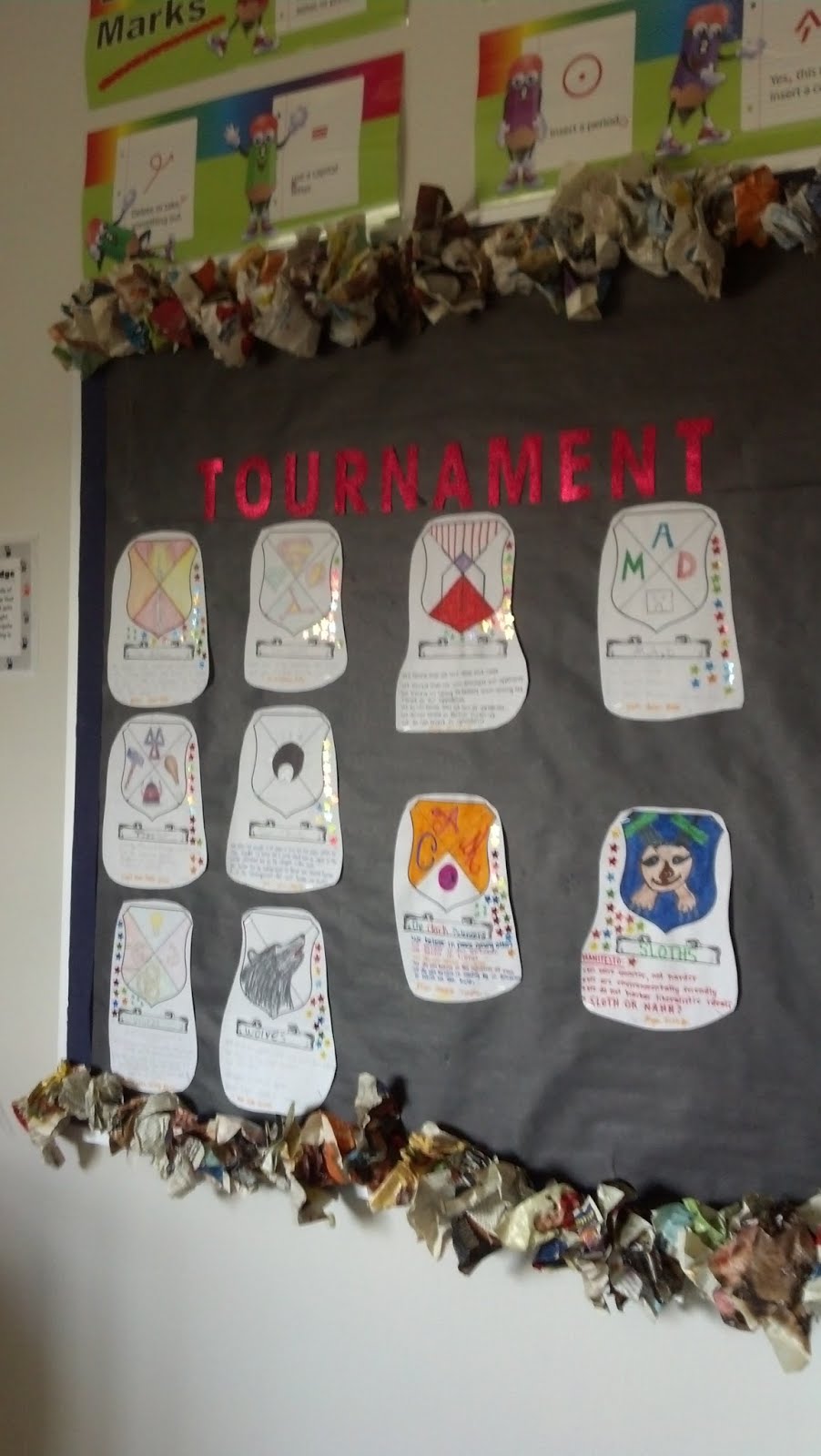
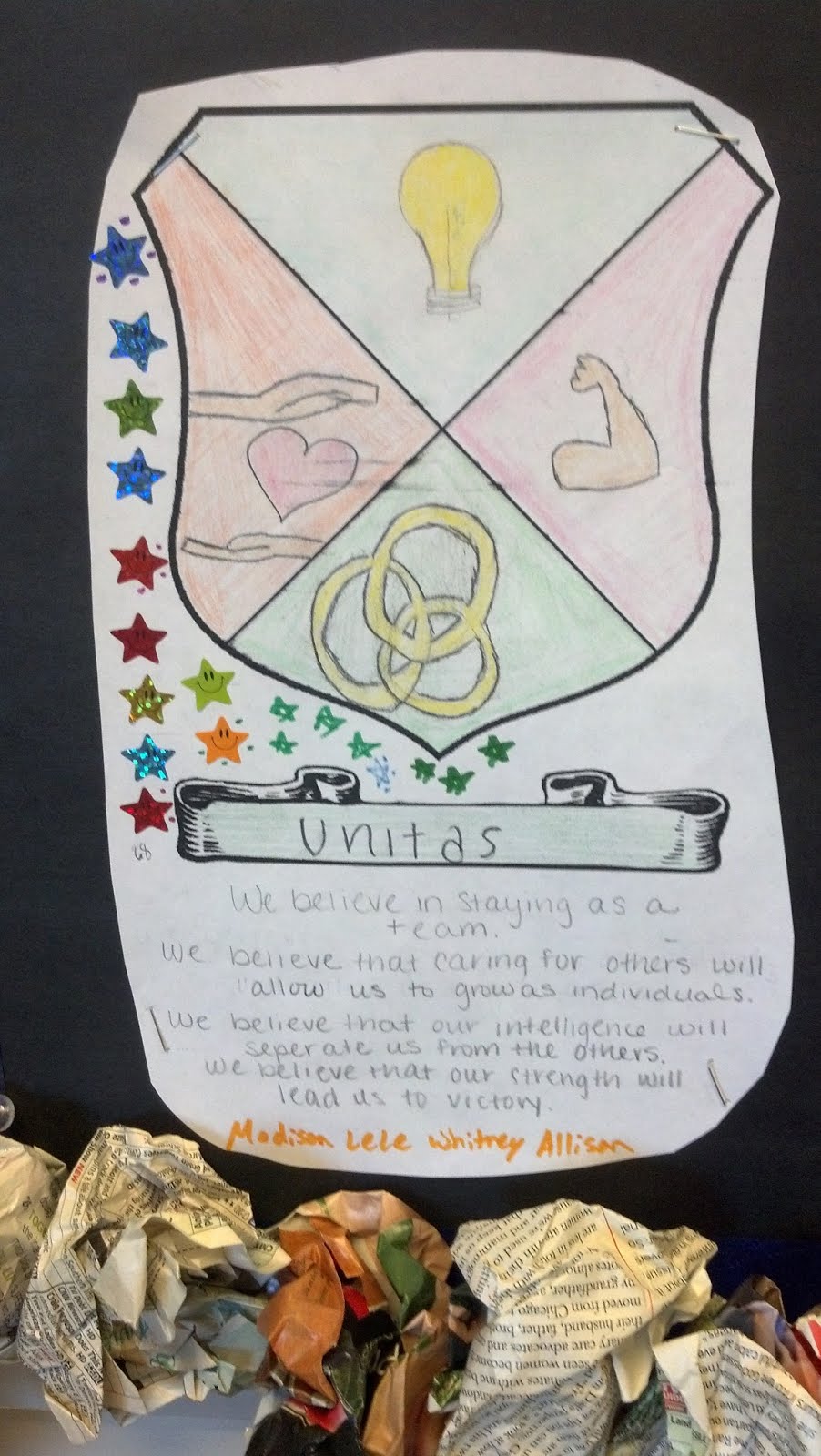
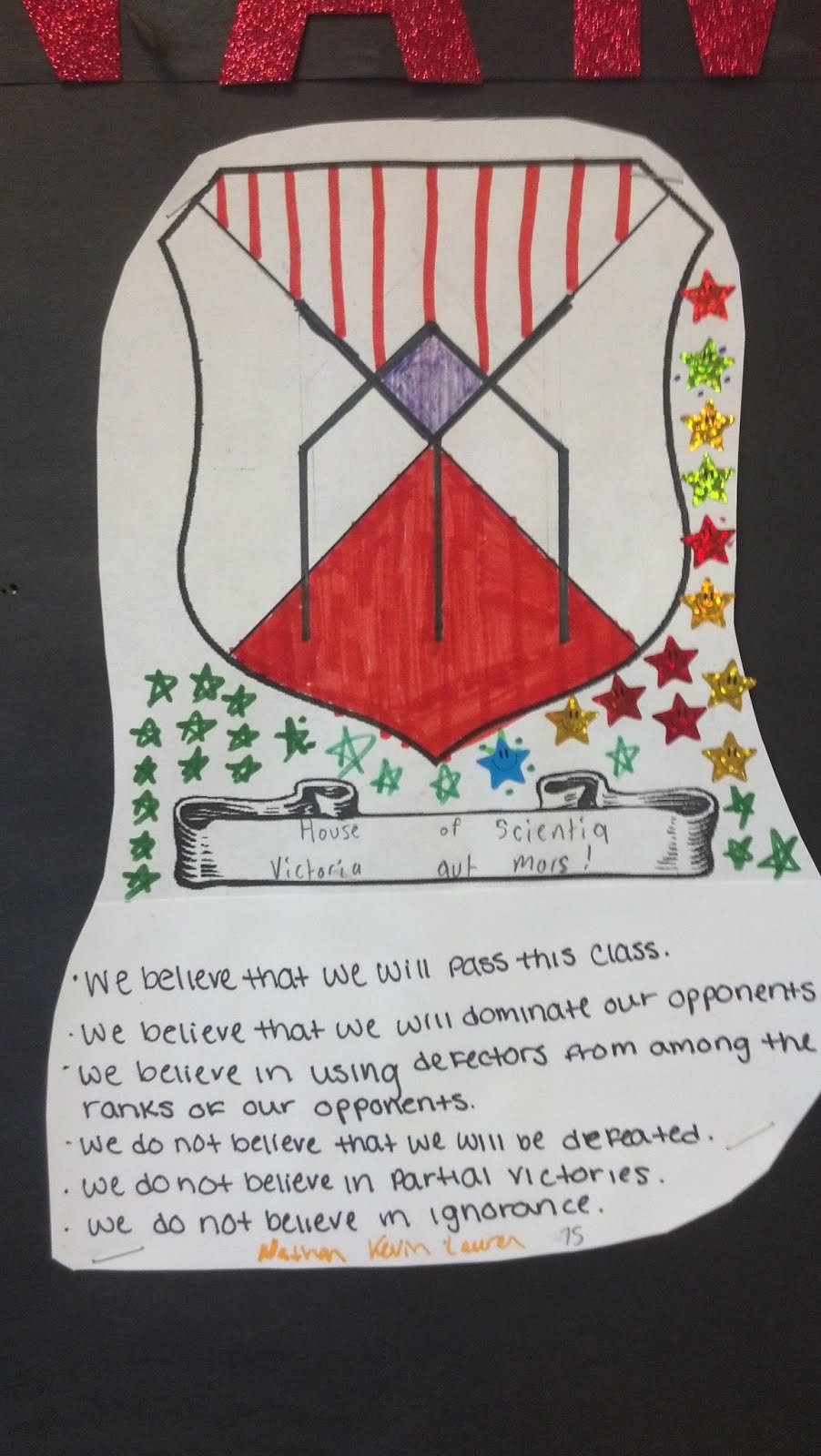
1.   Form Teams: During the first three days of class, students get to know one another and then form teams.  Teams then work together to create a coat of arms and to write a manifesto. (We used the ones from Veronica Roth’s Divergent series as examples.)  The completed team “shields” and manifestos are attached to a bulletin board at the front of the room.    


IMG_20140320_163118_255.jpg  IMG_20140326_092633_958.jpg  IMG_20140326_092711_696.jpg

2.   Earn Points and Set a Goal: Teams begin earning points in the tournament by correctly completing warm up challenges like word puzzles, critical thinking challenges, and the like.  Students are made aware of the tournament prize: the top ranking team at the end of 9 weeks will receive a pizza party which they may choose to share with one of their allies, if they wish.


3.   Use ClassDojo: At the end of the first week, I introduce ClassDojo.  Students are permitted to log on and change their avatars to suit their tastes, and we play around with the program to see and hear what earning and losing points sounds like.


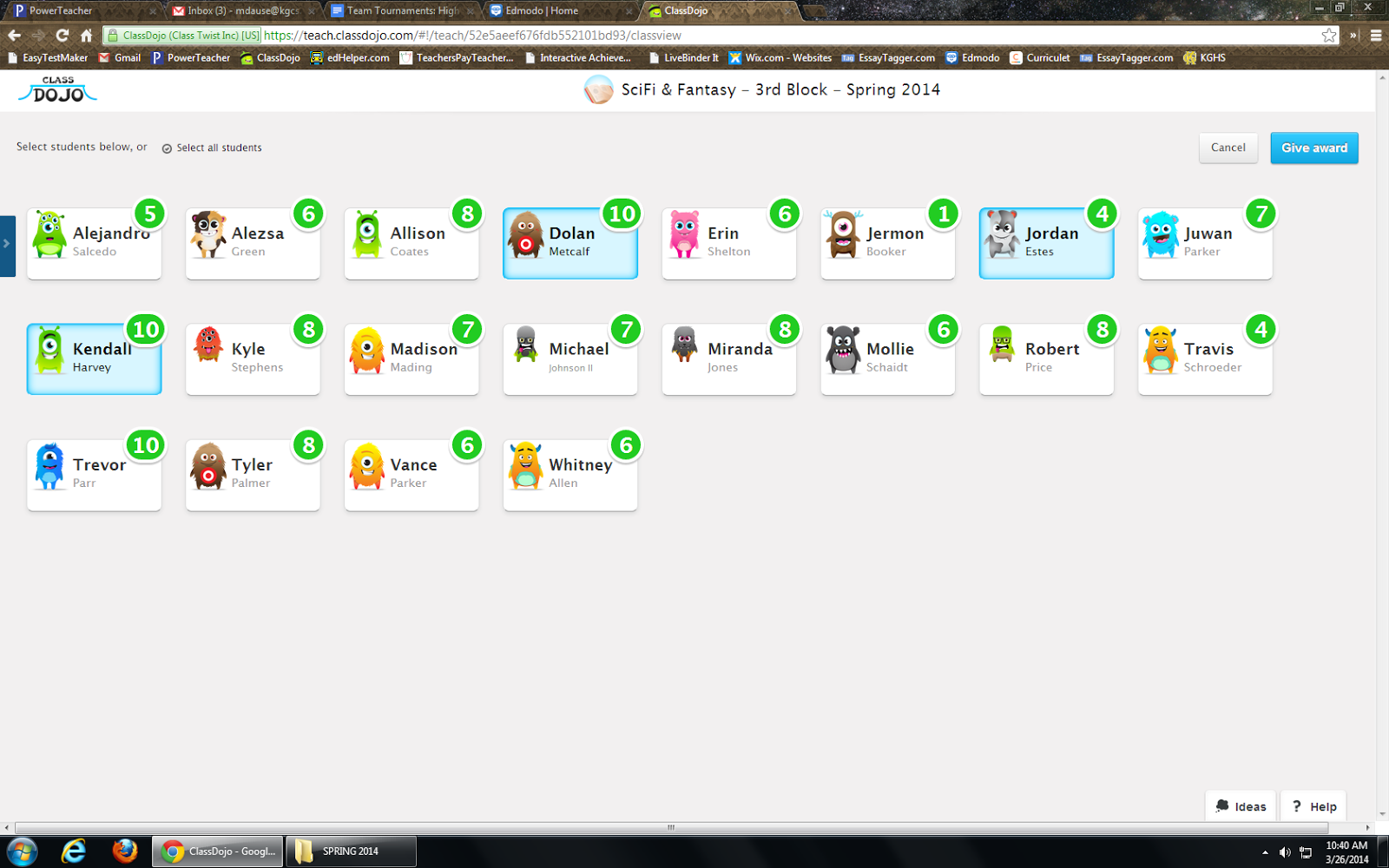
4.   Utilize competition/positive peer pressure: From the second week onward, I enter points in ClassDojo while students work on in-class assignments and projects.  Every other day or so, I display the “points board” so that students may see how many points they (and their teammates) have earned.  This usually leads to some good-natured nagging from team leaders and members, who push each other to do better and earn more points without any instruction from me to do so.


5.   Total points: At the end of each week, I total the points earned by the members of each team and award stickers to represent the progress made that week.  In the screenshot below, for example, the members of a student team called “Tiza” have earned a combined total of 24 points.  With stickers representing 5 points each, that’s 4 stickers plus 4 tick marks on the team’s shield.  


When students come to class on Fridays, they know that all of the team shield totals will be up to date, and that gets them extraordinarily excited for…


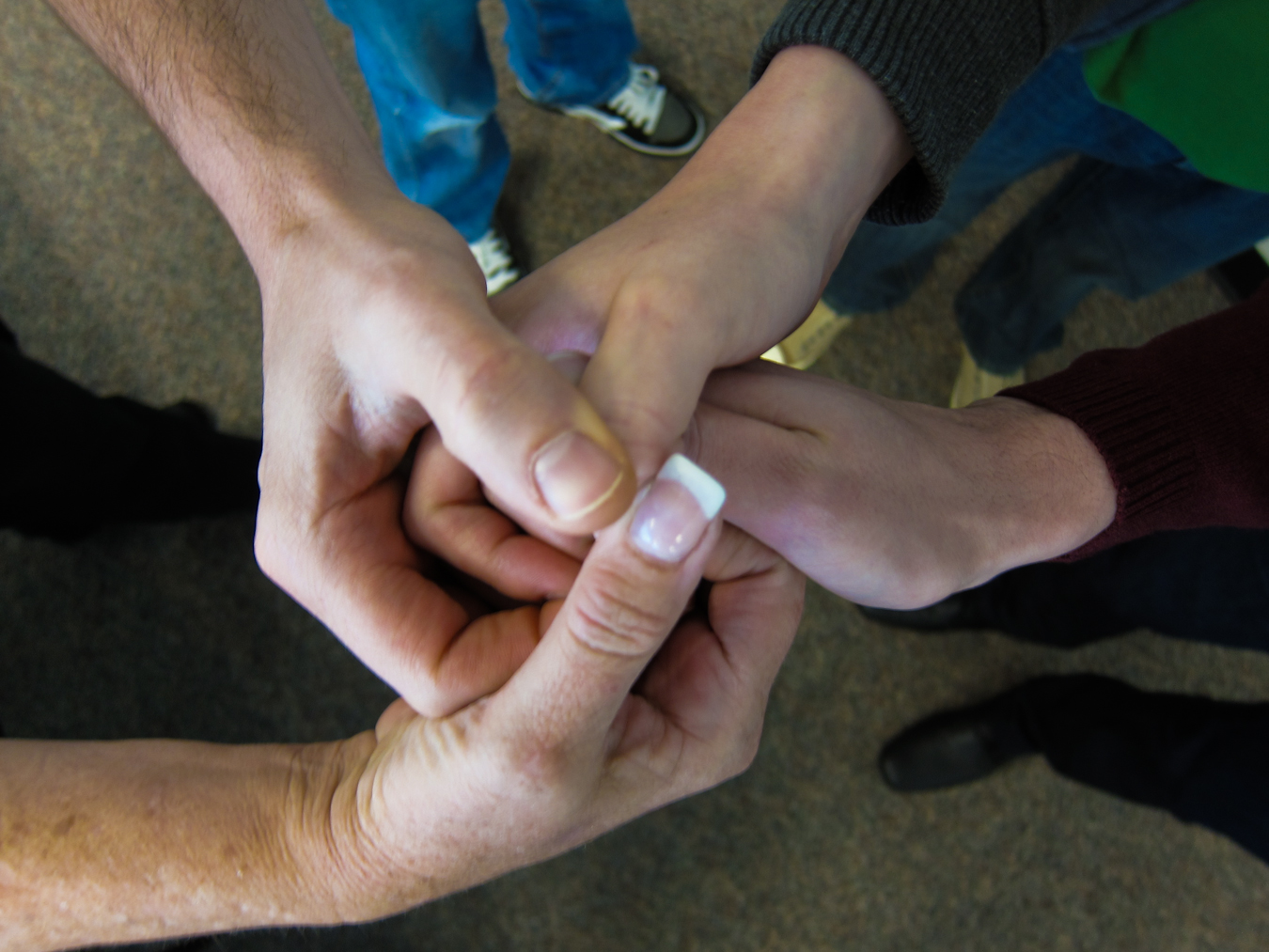
6.   Head to Head Challenges: This is our chance to be silly together, as well as incredibly competitive.  On Fridays, the team that is in the lead challenges one other team to a head to head competition.  The rules for our class are that each team must send up one representative (sometimes I let them send up two, or call for help from a team they choose as an ally that week), and no student may compete in a Head to Head two weeks in a row.  Head to Heads are worth anywhere from 10-30 tournament points for the winning competitors’ teams.  Also, the teams never have any idea what the challenge will be.  I try to switch back and forth between mental and physical challenges, so one week might be a Jeopardy or Family Feud-style contest, while the next week might be thumb wrestling, hula hooping, or a staring contest.  We play games from Whose Line Is It, Anyway? and do silly stunts from Jimmy Kimmell Live.  The kids LOVE it, and I really think that it is the Head to Heads, more than the promised pizza party, that keeps them engaged with earning points on Dojo during the week.  Of course, you could make your Head to Head challenges address specifically academic content; I would still suggest adding a large dose of “silly” or “game” to those curriculum-driven contests, though.  Students of all ages will go a mile in exchange for an inch of teacher-encouraged silly or fun time.  (Just make sure they go the mile before rewarding them with the inch!)


7.   Ultimate Reward:  At the end of the nine weeks, I do follow through with my promise of a pizza party during lunch for the winning team and their chosen ally.  Limiting the number of students who are directly rewarded maintains the competitive drive for the rest of the semester (we reboot the tournament in the middle of the semester with new teams and different types of challenges), and it also saves me a good bit of cash.  The key, though, is to manufacture the amount of points available to be earned each week and especially the number of points earned in Head to Heads so that every team has a fair shot and winning up until the very last few weeks of the tournament.  Students will always know exactly who’s in the lead, but it helps keep them interested in the competition if they know that there will be a chance for them to “rebound” and catch up on Fridays.


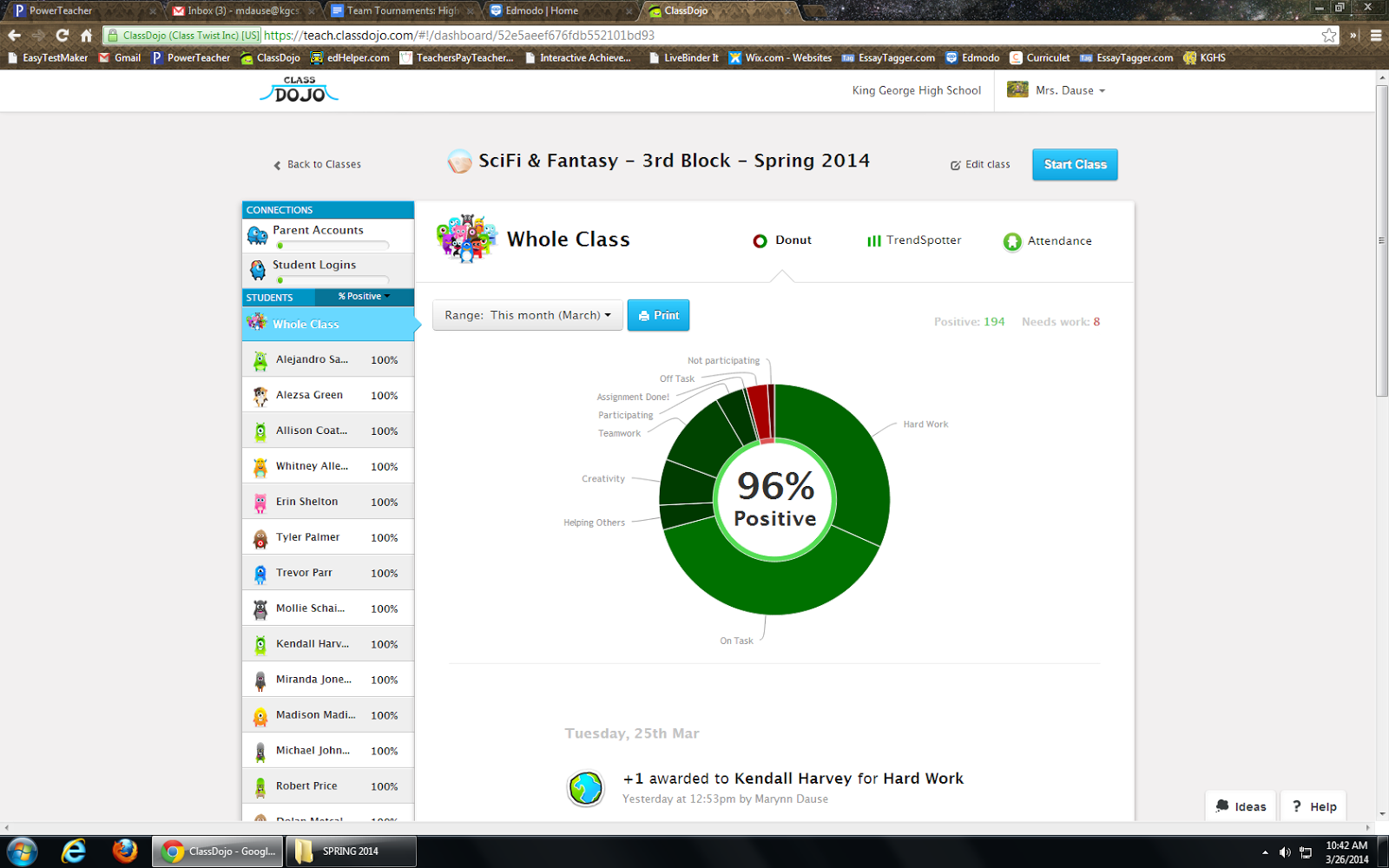
With the Tournament Team structure in place, it’s very easy for me to motivate my students to do practically everything that is needed in class!  ClassDojo keeps track of points earned over time and provides me with neat charts that show general trends in the classroom, so I’ve been able to watch our classroom behavior and engagement patterns trend upward as the Tournament continues.  At this point in the semester, I almost never have to “write up” or punish students in these classes; a pointed look towards their team shield is usually sufficient to get their attention, and they absolutely hate hearing the “down” sound from ClassDojo when they lose a point.  It’s revolutionized my experience of classroom management, making me much more confident in myself as a “game master” and optimistic about spending time with each of these classes, and I hear the students talking in the hall about what they’re going to do today “to get more of those points.”  You might say gamification + ClassDojo + pizza = Finally enjoying the toughest part of my job.


I'd like to thank Mrs. Dause for sharing her expertise with my readers.  You, too, can connect with her on Edmodo and her website


BIG ANNOUNCEMENT from ClassDojo: App Messaging

Displaying ClassDojo_Logo-1200px.png
ClassDojo iOS and Android apps now include ClassDojo Messaging — a new feature enabling teachers and parents to easily and meaningfully communicate about student progress. Users of Class Dojo and BYOD advocates will appreciate the ease with which they can keep parents connected to the classroom. Take a look at the screenshots below showing how ClassDojo Messaging will look on a personal device. 


I'll be honest, I struggle with maintaining contact with my parents.  I do the best I can between phone calls, email and Edmodo, but unfortunately I most often initiate specific contact when something negative has occurred.  I really like that ClassDojo promotes positive interactions. ClassDojo Messaging users can blast out messages to the whole group of parents or direct message individuals, and with read-receipts there is no question that parents are looking at the messages.  I also like that it is an app I can use on my personal device so I can walk around the room and not be tethered to my computer.

I have to applaud ClassDojo for working to bridge the edtech gap between home and school, making all students, teachers, and parents, connected to learning.


Friday, March 21, 2014

Using Curriculet for Short Reading Texts & PARCC Prep

My all time favorite tool for digital reading is Curriculet because of its versatility and ease of use (oh, and the price: FREE!). I can assign novels, poems, short stories, and current event articles for my students to read, and they can answer Common Core aligned questions and quizzes in the text.  Since it is web-browser based, Curriculet can be used on any device or computer which is a must for my BYOD, 1:1 one day a week with Chromebooks classroom.


Whether you are signing in with your own email, using the Edmodo app, or signing in with Google, accessing your Curriculet is simple. Go to the website and log in or in Edmodo, launch the Curriculet app.


While Curriculet can be used in the Language Arts classroom for flipping reading instruction of novels, any subject area teacher can use Curriculet for implementing Common Core aligned reading of short texts.

Since many titles, especially in the current event section, are ready to use curriculets with questions and annotations already in embedded, I don't have to spend extra prep time creating them. I can just assign and let my students read! No matter the subject area, there is no easier tool for implementing reading instruction in your class. My students are reading more, more often, and I can see their progress and performance.


In addition, the digital literacy and navigation skills they are using while reading with Curriculet helps prepare my students for the PARCC testing that is coming (ugh.).  While the visual design is different, the skills the students need for being able to navigate through the digital PARCC tests can be practiced using Curriculet.

I can get my students acclimated to digital reading and writing without stressing them out.  By increasing the frequency with which we read online, the students will perform better because they are more comfortable with the technology. I can also scaffold the process and increase the difficulty level of the texts so that when they get to difficult passages and questions on the PARCC they won't shut down, but instead use the strategies I have taught them for breaking down the text and finding the answer.  While I am not in favor of testing or teaching to a test, I can unobtrusively prepare my students by getting them reading more often with Curriculet.

I can't stop stop talking about Curriculet (seriously), and if you swing by the Curriculet booth at CUE 2014 (PLEASE DO!!!), I will personally show you how Curriculet has transformed my classroom and revitalized my reading instruction. 


Thursday, February 13, 2014

3 Tools for Speaking & Listening

Working in a large school district and being the mom of two girls in elementary school, I'm exposed to numerous germs everyday, and while I know I've built up a strong immunity over the years, sometimes I get sidelined with an ailment. Well, for the first time EVER in 15 years of teaching, I have contracted  conjunctivitis (aka pink-eye). I will spare you the details, but know that it is gross, hurts, and my eye looks like it could be a zombie extra in a Walking Dead episode. I can't wear contacts; my eyes are light sensitive; I can't see that well, but my brain still is working. So, using the proverbial lemons to make the proverbial lemonade, I got to thinking about tools that could help the visually impaired and bolster auditory and speaking skills.


Voice Dictation

Searching the Chrome Webstore for voice keyboards, I came across this Chrome app, Voice Recognition. The navigation is easy to use, and as long as you have a webcam microphone built in, there is no need for an external mic. I also like that I can export my dication to Google Drive and Dropbox or save to computer or send via email. Accuracy, as with any voice recognition program, is dependent on speed and articulation. While I would want the dictation to be highly accurate, it does provide an opportunity for a lesson in revision of text. Pair up students with one doing the dictation and the other doing the editing, and you have an opportunity for a lesson on voice (literally) and intention in writing.

Screenshot of Voice Recognition
While I have to use Voice Recognition in the app, I'd like to find a tool that could be used in any browser window or program on a Chromebook or computer.  On personal devices, I like using the Google Voice keyboard on my Samsung Galaxy S3  dictate into an open Google doc, but I haven't come across anything similar for Chromebooks/computers.  Please share if you know of such a tool!


Read to Me

SpeakIt! is a Chrome extension where you highlight text that you would to have read aloud. After adding the extension to your browser, highlight the text, and click the icon in your browser tool bar. A little pop up box appears and you hear the text being read aloud.  For the visually impaired, this extension is not as easy to use since you have to select text and click on a small icon, but for those who like being read aloud to and to reinforce reading skills, this extension is useful.

SoundGecko is site that will read an entire webpage article to you. Simply visit the site, paste in the URL and your email address, and start listening. SoundGecko can be used on any device or computer using a browser window. I can see (even with my pink eye) using SoundGecko during listening activities, asking students to listen and answer questions based on what they heard. Teachers could also use SoungGecko for BYOD stations where students practice listening skills.


Whether visually impaired or not, these three tools are useful for practicing speaking and auditory skills. Know of others? Please share! 


Saturday, February 8, 2014

Edmodo Quizzes: Tips & Tricks

Edmodo's quiz feature is a versatile tool that saves teachers time. Whether used for quick informational checks or unit tests, the quiz feature enables teachers to assign formative and summative assessments with ease.  I use Edmodo Quizzes for assessing students' knowledge acquisition, practicing PARCC related digital literacy skills, and demonstrating students' application of knowledge learned through out the marking period. I will never grade a multiple choice quiz/test by hand ever again, and Edmodo quizzes provide a paperless way for me to easily read and score open ended, paragraph responses.

Formative Chunks

When my students are learning large amounts of information such as vocabulary words or types of literary
devices, I break the list up into smaller chunks and assign quick, no more than 8 questions quizzes. Leading up to the final test, students take one quick quiz per day and get immediate feedback on what they know and do not know. I will use multiple choice, fill-in-the-blank or matching type questions for my quick quizzes.


A note about fill-in-the-blank, you may run into issues with misspellings or students not providing the exact phrase/word. I don't mind encountering the errors/issues on the quick quizzes because I want students to learn from their mistakes and understand why they didn't get the correct answer. For quick quizzes, I usually do not use the short answer format because I want students to receive immediate feedback rather than wait for me to score their answer.


Summative Assessments

Summative unit tests can easily be given using Edmodo's quiz feature. I prefer to use the multiple choice and short answer formats because it avoids any issues with fill-in-the-blanks or matching and requires students to focus on the content of the assessment.

I can also link resources to specific quiz questions to assess high-level thinking skills.  On the summative test for our drama unit, I linked pictures of specific scenes from West Side Story, Romeo and Juliet, and Pygmalion and during our Odyssey unit, I included images from Odysseus' journey added to questions so that students had a colorful visual to refer to. For assessing visual analysis skills, Edmodo quizzes are much more effective than paper tests that included black and white  photocopied images.

My summative tests are open resources (book, notebook, web, etc), but my students quickly learn that they must know the material prior to the test because time is paramount. I purposely design tests with time in mind; students should spend approximately 30 seconds on multiple choice questions. If students are organized and prepared beforehand, they can quickly locate an answer they can't remember with out wasting too much time. While my summative tests do assess content knowledge, I'm also assessing and reinforcing organization and time management skills.


Time Management for Teachers 

Short Answer Response as First Question
To help speed up your grading time, when writing the Edmodo quiz, put your open-ended, paragraph response questions as the first questions on your quiz and then follow with your multiple choice, true/false, matching questions. I then select "randomize questions" so that the short answers are not usually the first questions the students encounter. How does this speed up my grading time? Well, when I open up each student's test responses, I have few clicks to get to the short answer responses I have to score.


When the short answer is last, I must click on MORE then
scroll down to last one to review responses.

At this time, students can take quizzes on either computers, Chromebooks, or iPads, but they cannot take a quiz on a smartphone or other personal device.  However, teachers CAN grade responses on any device. I've scored short answer responses while on my smartphone, iPad, Chromebook, home laptop, and school computer.


Edmodo also banks all questions that teachers create. When I want to create a new quiz, I can easily load questions from previous quizzes by searching using keywords. So I can reuse questions from my formative quick quizzes and include them on summative tests.


Edmodo Quiz is All I Need

Despite the plethora of online quiz tools available on the web, Edmodo is my go-to quiz creator: all quizzes are organized in the "Progress" area (gradebook), there is easy to see data analytics available, and, best of all, it saves me time creating and scoring assessments. While quizzes and tests are not my only method of assessing students, Edmodo makes it easy to do so when needed.

Saturday, November 30, 2013

Animoby: Animated Learning for Anybody

For those of you looking for a whiteboard video creation tool to use on any tablet,  check out Animoby.

Android App

Apple App

Similar to other whiteboard screencast tools, Animoby lets users create multipaged screencasted videos.


Take a look at this demonstration from Animoby:


Features:
  • Use on Apple or Android devices
  • Variety of tools and colors
  • Connects to Dropbox
  • Import PDF's from email or Dropbox
  • Able to insert images
  • Able to zoom in and out
  • Save as compact files
  • Share and email projects
  • Various background templates
  • Share to Facebook, Twitter, Google+

New users will appreciate the extensive video tutorial menu on Animoby's website. The videos are easy to understand and demonstrate use of the app. While the interface is intuitive and easy to navigate, having the tutorials available is a positive. Also, visit Animoby's homepage to view what other users have created.

Students could use Animoby to demonstrate understanding of concepts taught in class. Imagine screencasts of students solving equations-- talk about showing your work! Students could also demonstrate active reading skills by recording themselves talking through reading a text on a PDF or picture taken of an excerpt from a book. Music and Math teachers will appreciate the preloaded backgrounds available: from blank sheet music to various styles of graph paper, subject area teachers will easily be able to create screencasts to use in their classes.   I'm partial to the white lined paper background, as you will see in this example I created: http://www.animoby.com/a/3214


I used the Animoby app on my iPad to create this screencast of the literary device, Personification. I did a quick Google search for images, saved them in my camera roll, and added them to the presentation, cropping the images as needed. Animoby's save feature allows me to start a project, save it unfinished, and return to as needed before recording and publishing it to the web.

Recording was simple, and the quality is excellent. I really like that I was able to zoom in and out of each image while recording. You'll hear my dog Charlie barking at the neighborhood cat in the background, but I can still be easily heard over the noise. I could have deleted it and re-recorded the audio, but I chose not to for the sake of demonstration. After the final product is published, I emailed it to rmyself to generate a URL from which I can get the embed code or share to Facebook, Twitter, or Google+. The embed code could also be used for adding the Animoby projects to blogs or Edmodo posts. 

What I would like to see is Animboy be able to connect to Google Drive.  I use Google Drive more so than Dropbox, and having this option would be a major plus. It would also be nice to have the option to include background music. While Animoby works great on tablets, I wonder if a paired down version could be available for smartphones. Teaching in a BYOD district with most of the students using smartphones, having a screencasting tool for a smartphone would be an asset.

Animoby is versatile and easy, and I'll be sure to recommend it to colleagues and students.