Showing posts with label Google docs. Show all posts

Thursday, December 15, 2016

Digital Portfolios with Google Tools

I realized that I was over complicating matters and making things too complex when it came to creating digital portfolios with my 9th grade ELA students. I am passionate about technology integration in my class, but I am mindful of how/why we use the technology. As I flip the learning in my class, it is easy to get inundated with the myriad of edtech tools and sites that are available. So, keeping things very simple, and sticking with what we know, I decided to capitalize on the power of Google Docs and hyperlinks to create digital portfolios with my students.

The portfolio is one Google Doc on which the student will list and link to each of the writing pieces, as well as write a brief reflection of what was learned about the process of writing.

The Quick Steps:

  1. In Google Docs, create a template hyperdoc of the portfolio.
  2. In Google Slides, create a slide deck that walks students through the set-up process.
  3. In Google Classroom create an assignment and attach the slide deck ("anyone can view") and template doc ("generate an editable copy for each student"). 
  4. Allocate time in class for students to work on the portfolio. 
  5. Score the portfolio each marking period.

The Template

If you haven't picked up a copy of The Hyperdoc Handbook, you better do so NOW. Author Lisa Highfill and all share strategies for creating Google Docs with an enhanced visual design.  The template I created for the portfolio is organized by inserting tables to create title areas and lists of assignments. Also, I changed the background color of the page and the fill color of each table section. By changing the visual design from the usual white Google Doc, I am influencing students' initial reaction to the doc: because the portfolio doc looks differently than the other docs they've seen, they will react to it differently.

Students are allowed to personalize the doc and change the fonts and colors, but I want to make sure that they have a consistent theme to their visual design.  Color palette generator such as Coolors  and other activities that teach students about visual design facilitate the process.
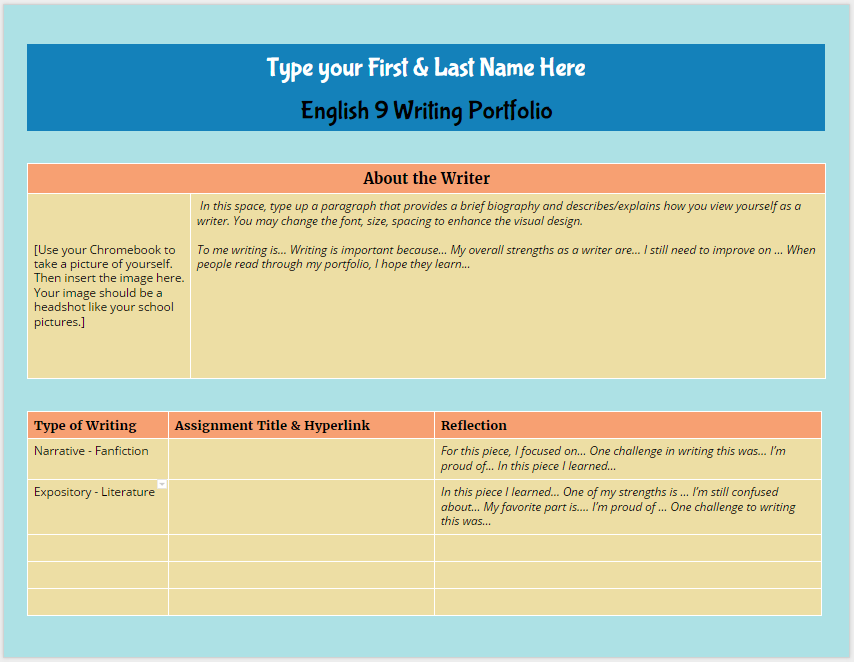
Open the doc and go to FILE, MAKE A COPY to create
your own editable version of my template.


The sections of the portfolio doc include a heading area for the student's name, an about the Author section, and a list of the assignments that include a label for the type of writing, the assignment title and link to the student's writing piece, and an area for reflection on the specifics of the writing task. The most important area is the reflection. If I want students to act like authors, then I need them to think about the intention of their writing and reflection on the process of creation. 


Setting Up the Portfolio

To lead students through the set up process in a flipped instructional manner, I created this slide deck that walks students through the process.


You'll notice that I also included the rubric for scoring the portfolio with in the slide deck. More on scoring later in this post.


Google Classroom Assignment

If you aren't using Google Classroom yet for your Google Docs workflow with students, you are missing out! Google Classroom makes managing student docs so much easier.  For each assignment I create, I can attach resources and templates. Each attachment can be set to view only or editable by all, or I can have Google generate an individual copy for each student that has the file name and sharing permissions automatically created. No more untitled docs!

For the Digital Writing Portfolio Assignment in Google Classroom, I attached the slide deck (set to view only) and had Google generate an editable copy of the portfolio doc for each individual student.  All docs created are housed in the folder for this assignment in my Classroom folder in my Google Drive. 


As we finished up individual writing pieces, I allocated class time so that students could add the latest assignment. The beauty of using hyperlinks for each assignment is that my students are not just limited in creating Google docs of their assignments: anything that they create that is housed on the web can be linked to their digital portfolio doc.

Scoring the Portfolios

At the end of each marking period, I give students time to finalize their digital portfolio. In Google Classroom, the students click DONE to submit their assignment, thus removing editing privileges on the doc. I score the portfolio with the rubric below using the Doctopus and Goobric add-on in Google Sheets. After all portfolio docs are scored, I return the files to the students. At the end of the next marking period, they revise the portfolio doc and hit DONE on the same assignment I first created-- no need to create a new assignment for each marking period! 

Philosophically, I am against putting grades on writing, but working within a system that mandates grades on assignments, I focus on providing feedback and ample opportunity to revise assignments until the student (and I) feel that the piece has met the objectives while also finding a way to get a numeric grade on the assignment. 


If you notice, the rubric adds up to 100 points, but the columns for scoring are equivalent to a specific percentage and letter grade that aligns with the grade breakdown of my district:

A = 100-92
B = 91-83
C = 82-75
D = 74-70
F =  69-0

20/20 = A
18/20 = B
15/20 = C
12/20 = F

I do not give half scores or use other numbers for each column listed above. The numbers are the numbers, but you will see a greater range of scores when you look at the permutations of the possible rubric scores and what score shows mastery versus lacks proficiency.


Rubric design and scoring will have to be saved for another post. But, if you look at the permutations above, because I made set each column score to a specific number that aligns on the 100 percent/point scale, I've allowed for more possible passing scores than failing scores. As Rick Wormeli will tell you, the 100 point scale (especially in my district with 100-70 as passing) puts way too much emphasis on failing grades. My scoring flips this dynamic and puts the emphasis on the upper range.


BUT, the whole purpose of the digital writing portfolio is to de-emphasize grades and focus on publishing student work in a manner that is organized, reflective, and on-going, and using Google Docs as the housing system of students assignments is a method that is simple and sustainable. I don't have to worry about a special website or an app closing down in a few years, and students can easily replicate this process after high school graduation with their own personal Google Doc accounts to create portfolios for college and career.


Friday, February 5, 2016

Snow Days & Stomach Bugs in the Paperless Classroom

You may have noticed that it has been a while since I last blogged... since November... which coincides with the start of swim season (look for a future post on what edtech stuff I'm doing with the swimteam).  Between practices, meets, and keeping up with the other day-to-day activities of teaching and family, I've neglected my blog, but today's surprise snow day offers up some "free" time to write.

Germs & Bugs
I've been wondering about the unintended effects of having a paperless classroom.  Up until this week, I've been fairly healthy this school year, but I was stricken with a stomach bug Tuesday morning, which just so happened to be the day after I collected a stack of department-mandated Quarterly exams from every one of my freshman English students on Monday.  Could this be a mere coincidence? Probably not, considering students have been absent for the same reason. So this begs the question, how germ-ridden are student papers? While grading papers may make some teachers metaphorically sick, I wonder if grading papers makes teachers literally sick due to germ and virus transmission.  I'm being serious!

I saw a post the other day on social media about the 23 things you'll understand when dating a teacher and thought back to the years when I started teaching and was sick with bronchitis, pneumonia, and strep or the years when my husband and I first started dating, and he was constantly coming down with something. Granted our immunity has improved over the course of my 17-year career, but in the past three years of bringing Chromebooks into the classroom and flipping my assessment techniques, I've seen a decrease in the frequency with which I've contracted an illness.

Less-Paper Assessment
So what am I doing differently with assessment?  How am I going paperless?  I still give my students papers (ask them about Baker's infamous packets), but the key is I don't collect them to assess them.  Since flipping my classroom, I am freed from the spotlight of the stage at the front of the room.  Structuring the period with student-centered learning activities, I can walk from desk to desk, ask students to show me their paper to read, ask them to flip the page over so I can continue reading, and then make quick marks and provide verbal feedback with my pen, never laying my actual finger on the paper. Plus, by speaking directly to the student face to face, the student has the opportunity to ask questions immediately.  I was always so frustrated when students would give a cursory glance to the comments I spent hours making on their papers back in the days I collected, scored, and redistributed their work.

Using Edmodo and Google Classroom, students are turning in their work electronically.  From submitting links to Edmodo discussion posts to turning in typed outlines on Google Docs, my students are generating an informal online portfolio of the work that can be accessed at anytime with a mobile device or computer.  Assignments are never misplaced in the bottom of a bookbag or lost after a folder has exploded in a crowded hall.

It has taken me a bit of trial and error, as well as help from online colleagues to figure out the most efficient ways to score online assignments.  Pairing Google Classroom assignments with the Doctopus and Goobric Add-ons seems to be the most efficient system I've come across:  few clicks to make, links and scores organized on a spreadsheet, rubrics pasted in to the Google Doc, scores emailed to students. I had tried out Doctopus prior to Google Classroom and it just didn't work for me, but NOW... holy moly guacamole!

Doctopus & Goobric Set-Up

  1. Create your rubric for an assignment on a Google Sheet.  The first column will be the focus areas of your rubric, while the first row will be for numeric values.  Type in your qualities for each focus area and score.                                                                                                   
  2. On a new, blank Google Sheet, go to the Add-on menu and select Get Add-ons, then locate Doctopus.                                                                                                                       
  3. Open Doctopus and follow the directions in the side panel, selecting "Ingest Google Classroom Assignment,"  then selecting your Classroom Class and Assignment, and then attaching a Goobric (your rubric that you made in Google Sheets).  The add-on will fill in all the information on the Google Sheet, listing students' names, email addresses, links to the scoring screen, and the student documents, as well as scores as you enter them in on the scoring sheet. I've purposely hidden student names and email addresses on the screenshot below.  You will need to enter in the SUM or similar formula to calculate the total scores in the Grade column. For those of you who do proficiency based scoring, you can use conditional formatting to color-code the scores in the spreadsheet (which I didn't do in this screenshot below).
  4. To score student work, click on the hyperlink in the Goobric Link column and the scoring screen will appear in a new tab.  
  5. On the scoring screen, you can see the rubric for entering scores, a dashboard for submitting and advancing to the next student, and the student's document where you can enter in comments as needed.                                                                                       
  6. After scores are submitted, the spreadsheet automatically updates and you can set it so that students are sent an email with the scores and the rubric is pasted at the bottom of the Doc with the appropriate cells highlighted to signify the scores.                      


So why do I like this system?  Well, after set-up, scoring takes place on one screen, and I have minimal clicking to get through the class set and students are immediately sent their scores.

If you'd like more information on setting up Doctopus and Goobric, take a look at this public Google Doc and make sure you send a thank you tweet to Andrew Stillman, the mastermind of Doctopus and Goobric.

Snow Day Papers
So here I am at home on a snow day, happily blogging.  But, I've also found another reason for going paperless.  Remember those department-mandated Quarterly Exams I collected on Monday?  Guess where they are sitting right now.  Yup, that's right... on my desk at school.

After being out on Tuesday and Wednesday, I was busy catching up on all the things from being absent and left them on my desk, thinking I will get to them on Friday.  Well, it looks that groundhog was wrong and the weather-folks underestimated this "brush" of a snow storm because here I am sitting home on a snow day without my stack of papers to grade.  Guess I'll have some catching up to do again....


Saturday, November 14, 2015

Flipping ELA-- More than Students Reading Books at Home


I had the wonderful privilege to present at the 2015 NJEA Convention in the Flipped Learning Theater with the pioneering Jon Bergmann and the ever-enthusiastic Marc Seigel. I presented two sessions:  Flipping the English Language Arts Classroom and Technology Tools for Flipped Reading.


My slide decks are below. I'm really proud of my visual design for these slides! Slide Carnival has some excellent templates that can be customized. Be sure to click on the hyperlinks within the slides for access to resources. Lots of goodies!


Speaking with Jon Bergmann at the convention for his BAM radio show, "The Flip Side," the question was broached, "Well, isn't English already flipped?  Read at home and come to class ready to apply?"  My answer is a resounding NO! For some students, reading is the difficult task, and I want to be present with my students for the difficult tasks. I can Flip 101 (aka replace live, direct instruction with video or tech tool) many things in the classroom, including reading, but I need to make sure that students are adept at the skills when we are face to face before I send them home with flipped tasks to complete.  The "face-to-face before do at home" time will vary depending on the content.  For some material, I need 5 minutes to make sure students are adept, but for other skills or content, my students may need multiple class periods to demonstrate that they are proficient independent learners.

I am a big fan of the "in-class" flip:  allow students to practice self-pacing and independent learning in class rather than at home.  Remember, the primary premise of Flipped Learning is to make the best use of face-to-face time with your students. So if this means they need guided, independent learning (I know, such an oxymoron) prior to unsupervised, independent learning (I know, redundant), then that is what I will do.  The flip at home will not be successful, and we will lose precious face-to-face time if I don't scaffold the process and gradually release control to the students.

The Flipping ELA Slide Deck features some activities and resources for how to Flip 101 and Mastery Flip an English Class. I've learned so much from my Flipped ELA peeps that I can not take credit for all the things in the slides. While I use what I share on the slides with my students, the original ideas may have come from one of the phenomenal flipping ELA teachers listed towards the end of the slide deck.


The Tech Tools for Flipping Reading will provide some examples of Flip 101 screencasts for modeling close reading, as well as edtech tools such as Booktrack Classroom and Curriculet for flipped reading instruction.  And make sure you listen to the interview with Jon Bergmann because I share how my students practice close reading using Google Docs as we Explore-Flip-Apply author's purpose and literary devices in texts.


Be sure to reply in the Comments to this post with your strategies for flipping your class or any questions you may have about how to flip!


Wednesday, July 8, 2015

#ISTE2015 Peer Evaluation & a BAM Radio Interview

So, this happened.....  Jon Bergmann, flipclass pioneer, interviewed me about my peer evaluation techniques at ISTE.

How did that happen???  Well, after chatting about what I do during lunch with Jon Bergmann, Aaron Sams, and Crystal Kirch, Jon says, "I need to interview you right now for my radio show!"  Say, what?!  I didn't even have time to process his statement.  Next thing I know, Jon finds a quiet spot, whips out his phone and starts recording and asking me questions. You can listen to the podcast of the interview with Jon Bergmann here.

That was on Sunday. On Tuesday, I presented my ISTE session, "Best Practices & Digital Tools for Feedback, Assessment, & Evaluation," to a packed room. No open seats and folks were even sitting on the floor!


To learn how/why I got started with peer evaluation, read this.


Since my student teaching days, I've been refining my peer evaluation process, and with Google Apps for Education, the process has become paperless. Google Classroom makes it easy to manage the workflow. Keep in mind, the following steps take place over the course of a week or so. Students get their writing evaluated by classmates, and then the writers evaluate their evaluators. The objectives of this process are centered on fostering a community of writers and having a dialogue about student work. Students are engaging in an analytical, reflective, and metacognitive process.


GOOGLE CLASSROOM STEPS:
  1. Create an assignment in Google Classroom for students to turn in their writing.
  2. Create a Google Form for the peer evaluation.  I use a combination of rubrics: checklist of requirements, numerical qualities, and Outstanding/Satisfactory/Unsatisfactory (OSU) to assess quality. 
  3. Share the writing pieces with the class. Classroom will automatically put all student work in to an assignment folder which you can share with the class. I prefer to set the permissions to "Anyone with link can COMMENT." When you change the folder settings, it will change every document in the folder to match the sharing permissions of the folder. 
  4. Create an announcement where you provide the link to the shared folder and the Google Form for evaluation. Students open folder, select essays to read and evaluate on the Google Form. I encourage students to do at least 5 different evaluations. 
  5. Create another Classroom assignment for analyzing the evaluations. I create a template Google Doc with guiding questions and have Classroom create a copy for each student and I attach the master spreadsheet for the students to copy/paste their particular data. Students analyze their data and agree/disagree with the itemized evaluations as well as the whole evaluation. They must provide evidence to support their agreement/disagreement with the evaluations. 
  6. Create another Google Form for the Evaluation of the Evaluator.  Writers will fill out the form providing their evaluator with feedback on the quality of the evaluation. I've also used the Autocrat add-on to auto deliver the feedback to a Google Doc for each evaluator instead of doing the next step. 
  7. Create another Classroom assignment for analyzing the evaluation of the evaluator with another Google Doc template (again set it so Classroom generates a copy for each student to edit) and the link to the spreadsheet attached. Students copy/paste their corresponding data on to their Google Doc and analyze/reflect on how well they evaluated their classmates.

Throughout this entire process, I am monitoring the students and checking the spreadsheets.  If I see something out of joint (someone isn't pulling his/her weight), I will speak directly to the student and provide redirection.  Students are also allowed to talk to one another while working on the evaluations. I keep an ear on the conversations and will jump in as needed.


So I know this process is an overwhelming amount to digest at once.  I do not do all of this right away.  I scaffold the process and gradually ease students into this. Here is my instructional design:

Marking period 1: Foster an open community by getting students accustomed to sharing their work.  Everything from worksheets to quick writes is shared with a neighbor.  I also have students post their finished work to our Share Our Work small group and Scribe City group in Edmodo (more on the Edmodo groups in another blog post).  We do quick peer evaluation activities on paper to start and by the end of the marking period use Google Forms. We have discussions on how to evaluate each other's work with students writing self-evaluations. No formal evaluations of the evaluator just yet.

Marking period 2: We maintain our open community, but the writing tasks and peer evaluations have increased in complexity and length. We no longer use paper to evaluate, everything is on Google forms.  Students still complete self-evaluations and begin to use Google Forms to evaluate the evaluator.

Marking period 3: Pull it all together!  Students engage in the entire process completing formal evaluations of writing tasks and the evaluators. Everything is on Google Forms and in Classroom.

Marking period 4: Continue. Continue. Continue.  As a final project, students write up a final self-reflection as a writer and evaluator examining their growth through out the entire year.


So that is it in a nutshell.  Did I lose you through all of this?  Need clarification?  PLEASE, share and let me know what you do with your students.  I am continually tweaking this process, so I value your contributions!

Sunday, March 8, 2015

Literally Up in the Air with Google Cloud Printing

So I am on my way to the #SxSWEdu conference and I'm typing this post while sitting in seat 34C on a Delta airplane.  In the mad dash to get out of the house on time (ugh, 5:30 am), I didn't have a chance to write up information about family schedules and lunches for my husband who will be running the show while I'm gone.

I splurged ($16) for the Go-Go Inflight wifi access, and thank heavens I did! Working on the plane, I typed up the schedule and notes for school in a Google Doc, shared it with my husband so he could read it on his phone, and sent the doc to our home printer on which I had previously set up the Google Cloud Printing services.  With a quick text message to my husband to make sure the printer was turned on, I sent it off from 10,000 feet in the air. And, wa-la, magically the document was printed!

Google Cloud Printing is literally a life saver helping to make sure things run smoothly at home.


Thursday, April 25, 2013

Voice Comments on Google Docs!

Check out this video, fellow teacher Carolyn P. and I made introducing Voice Comments as a cool tool for the 21st Century. Primarily used for the teacher to record voice comments on a student's Google doc, I anticipate that the capabilities will expand to include use for peer editing with classmates, and, as you will hear, use for classes that require audio.  Major props to Sam Patterson for sharing this tool with me! Just search the Chrome Web Store for Voice Comments, connect the app to your Drive, and begin using.


I am very excited to use this tool for providing students feedback on their writing.  The process is much quicker than red penning or creating screencasts of each doc, and I like that comments are linked directly to the document instead of using an MP3 voice recorder app to email a voice message to a student.

This tool is ridiculously easy to use and set up, and as an English teacher who has lots of writing to grade and critique, I'm ecstatic to use it.... wait, did I just say I'm ecstatic to grade?! This must be a cool tool!

Enjoy!

Saturday, April 20, 2013

#OdysseyExperts & Showcasing Student Work

In my last post, I discussed that academic writing needs to be put on display and showcased to motivate students to write well. Writing is meant to be read, not to be locked up in a folder in a file cabinet or later tossed in the trash after the grade received.  Students think that when they turn in the assignment and meet the teacher's due date, the writing is good & done.  My other posts address my frustrations with grading the "got it done" academic writing:


But what if teachers steered students in another direction and away from the impending due date? By telling students that their work will be published, instead of graded, they will (hopefully, fingers crossed) write a better final product than the "good enough, got it done" essay, and then once the essay has been written, peer edited, and then published, the teacher can go through the work and assess if the objectives of the assignment were met. While I'm not a fan of putting grades on student writing, I get it: teachers need to follow the rules or expectations of school districts and have grades in their grade book.  With the red-pen system students only see the negative and the grade, but by using a showcase approach, teachers can arrive at the same destination but in a more positive manner.  In a way, it is tricking the students to write better the first time than waiting for the grade on the paper.


Student Showcase: #OdysseyExperts


The Design

One of the Topic Pages with Links to Student Essays
Teaming up with Sam Patterson and using Google Sites, I created a place for my students to showcase their Odyssey essays and receive feedback from Sam's classes and anyone else who visits the site.  The process was fairly easy:

  1. Create the site.
  2. Organize the essays by topic.
  3. Embed each essays on subpages to the topic page.
  4. Create a Google Form for comments and embed the form on each essay page.
  5. Embed the spreadsheet on the comment page.
  6. Create a page for comments from Sam's classes and embed a shared folder.
  7. Share, share, share with my PLN.

The Feedback Display


Sam's classes had two options for submitting their feedback:


  • complete the form on a chosen essay page or 
  • save their comments document in a shared folder.  


Public Comments Spreadsheet
Only owners and collaborators on a Google Site may comment on the pages, so as a work around, I embedded the same form on each student subpage and created a public comment page where all the comments will appear.  I was initially going to do a comment form and spreadsheet for each student, but that meant 65 separate forms for each essay on the site, and the more I thought about it, the more sense it made to have a public comments page where the students would have to read through the comments to
find their own. The point of this project was to make student writing and feedback visible, so I want all students to see all essays and all comments.

Shared Folder of Collection of Comments
While the shared folder doesn't allow for complete visibility of feedback because my students will have to open each document in the shared folder to see all comments, students would still be able to see 1 or 2 other comments for other students because each of Sam's students wrote comments for more than 1 student on the document. In addition, some of Sam's students made videos and screencasts of commentary for my students. #EduAwesome!


After 14 years of teaching, I'm just tired of student writing being hidden and dying a death in a dusty folder in a locked file cabinet, and students thinking that the only relevant audience for their work is the teacher. I want the writing to breathe and live. By putting academic writing on display and allowing for interaction, students will see their work and the work of others and gain a better understanding of their potential and abilities for writing.


Please visit the #OdysseyExperts site, read, comment, and share. The students need to see that their writing is alive. 


Saturday, April 6, 2013

Writing about Grading Writing (Again)

I'm constantly writing about the dilemmas of student writing and how to grade student academic writing in an efficient and effective manner. This is probably borderline obsessive... but, I am the type of learner who when faced with an issue/problem/question, obsesses until ... ...  ....


Options for Grading Writing:

  1. Traditional: teacher does all the grading and marking up of students' writing. 
  2. Progressive:  students peer edit and self assess using guided structure provided by teacher
  3. Techie Traditional: teacher uses Google forms with the Autocrat, Doctopus, and  Goobric scripts, as well as other online rubric tools to assess student work.
  4. Techie Progressive:  teacher designs the rubric and assessment process on a Google form using the Autocrat script and the students peer edit each other.
  5. Ungraded: the teacher does not grade the writing.

Options #1-3 require time and effort in class and by the teacher.  I have happily peer edited on paper with my students, but there was just too much paper and it took up time in class.

Option #4 can be completed in and out of class, but it takes time to set up the forms, feedback docs, and scripts. BIG HUGE THANKS to Cheryl, Karl, Troy & all the Twitter peeps (Again & AGAIN) for walking me through creating this process, and the creator of the Autocrat script, Andrew Stillman, for answering my gazillion questions. I'm working on ways to better streamline the process (and not split my infinitives), but trust me, it is well worth the effort to guide students through troubleshooting their writing.

But, Option #5 I'm stealing (again) from Cheryl Morris. :-)


Un-grading Student Writing


In our #ElaFlip Hangout talking about assessing writing, Cheryl stated that she tries to detach grades from student writing. I forgot to ask if she was talking about creative writing or academic writing, but should it matter? 


Art & Academic Writing


Picture from J. Kronenber'g's Blog Post "I Can't Explain  It"
I completely agree with not scoring creative writing. I have never been comfortable putting a grade on creativity and therefore have never sought out teaching a creative writing course-- it is art and art is subjective: one critic might give Ellsworth Kelly's Blue Panel an A+ and another might give it an F. The simplest question in assessing the art is, "Does it hold meaning for me as the viewer?" The same subjective scoring can be used on student creative pieces.

I know, I know, some will say, rubrics make the scoring objective, but really? Rubrics turn writing into objects that sit on shelves. Rubrics are limiting!   Students only strive to hit the points on the rubric and not beyond.  They become complacent when they get the grade, and whose grade is it when the teacher designed the rubric?

I know, I know, I could get my ninth grade students to design the rubric with me, but they are just learning how to write, so do they know what to even put on the rubric? And me leading them for what to put on the rubric is still me, the teacher, controlling the rubric. I could use my O-S-U rubric (again) or use standards based grading and score for mastery, but does the grade on the paper push the student to continue writing? No! As Cheryl and the other ELA flippers (Andrew, Katie, Dave, & many more) will agree, as soon as a student receives the grade, he/she thinks the process is done. The point should be about keeping students writing until ...  ... ...

I fondly remember the yearly high school trip to The Metropolitan Museum of Art in NYC, and every time we flew through the exhibits just to sit in front of that blue panel and "critique" it.  My naive teenage friends and I would mimic high brow folks and comment in horrendously fake British accents on the composition, scale, and other fancy art terms, nicknaming it, "The Blue Rhombus of Life". Granted, our obsession with this painting was seemingly in a joking manner, but the fact remains that painting is still hanging in Gallery 915.

"I have worked to free shape from its ground, and then to work the shape so that it has a definite relationship to the space around it; so that it has a clarity and a measure within itself of its parts (angles, curves, edges and mass); and so that, with color and tonality, the shape finds its own space and always demands its freedom and separateness."- Ellsworth Kelly

But, this got me thinking: is this why I've had so much trouble scoring student academic writing? Every method I have used, revolves around my expectations: how well did the student follow my directions, display the knowledge I taught, and use the conventions the students have been taught throughout their academic career? I can lead the students through trouble shooting and revising their essays. I can score them on participation  meeting checkpoints, and being held accountable for the process, but do I, the teacher, really have to put a final grade on the essay?

During the #ELAFlip hangout, Katie Reagan explained that her students peer edit with other classes and students not at her school.  Getting students out of their comfort zone certainly motivated them to perform. What about an even greater audience on the web?  What about publishing their work for a bigger audience than my two hazel eyes to see? Wouldn't that "grade" the piece? It is so simple:  Is the writing ready for publication and to be "hung in a gallery"? And wouldn't that prospect motivate the student to perform well? Isn't that better than any grade I could put on the page or in my gradebook?

To adapt Kelly's words, writing is also about playing with the "color and tonality" of words so that words take shape and have a "definite relationship" that has "clarity and measure". Creative writing is an obvious form of art, and academic writing should also be considered no less an art, but many teachers and students drown in the red ink and forget the art of academic writing.

So, stop grading and focus on crafting, molding, and painting with words. 

Turn your student writers into artists.


Post Script:  Check out my next post, #OdysseyExperts, because I put into practice my ideas about showcasing writing.


Wednesday, April 3, 2013

Online Mentoring via Edmodo & Google

In December, Dean Shareski, professor at the University of Regina in Saskatchewan, Canada, put a call out on Twitter for teachers who would be willing to pair with his pre-service student teachers for a virtual mentoring project. While I've mentored pre-service teachers in person (and in New Jersey), doing so online was new for me, and I jumped on the opportunity. Using Edmodo for the virtual classroom space, teachers and students connected from 1,972 miles away.


SRHS to University of Regina = 1,972 mi, approximately 30 hrs driving

I've had the privilege and honor to work with Jozette Sherstabitoff the past few months. Joz connected with students on Edmodo and worked with them on collaborative Google Docs. Joz and I communicated via Edmodo, Gmail and Google Hangouts.  I have thoroughly enjoyed working together, but what is more important are her thoughts on the experience....


Mentoring

My mentoring teacher, Kate, asked me to write a guest post for her blog. Check out Kate’s blog @ http://kbakerbyodlit.blogspot.ca/.
When I first entered into this mentoring program, I was a little hesitant. First off, I am a middle years person and Kate teaches senior English. I was a little intimated to start, not knowing what I could offer her. However, as the semester progressed, I realized that the difference between our teaching levels did not necessarily matter. I was still able to learn many new things that can be applied to my level of teaching.
Here are some reflections on what we have done and what we have learned.
What have Kate and I been doing this semester?
  • Commenting on assignments in Edmodo
  • Commenting on papers in Google Docs
  • Having a Google Hangout with the students
  • Making a video for students to watch
  • Creating a quiz on Edmodo for students to complete after watching my video
What are the benefits of being mentored?
  • Learning new tools. The biggest thing I took out of mentoring is Edmodo. Edmodo is like an online classroom, where Kate can upload videos, assignments and quizzes. It is a great way to have students collaborate online and outside of the classroom. Edmodo is also great for reducing paper use!
    • I can use Edmodo in the middle years just the same way Kate uses it at the senior level. I could upload videos for students to watch during class and after class. Assessments can be taken online just the same as at the senior level.
  • Learning new teaching styles. I was exposed to the flip classroom idea through Kate. I have heard about the idea before and was able to see some models throughout her class. The exposure will benefit me in the future if it is a style I choose to adopt.
  • Learning new assessment techniques. Kate got me thinking about assessment in general and the styles I use.
    • The assessment she uses can be applied to middle years level. For example, Kate uses a rubric called OSU (outstanding, satisfactory, unsatisfactory) and gives students a mark from it. The rubric can be used to assess at the middle years level.
The main benefit of being mentored is the thinking that happens! Kate always had me thinking about what I would do differently, what I like, and what I do not like about her class and education in general.
What are the benefits of being a mentor?
  • Reflecting on assignments. Kate keeps me updated on the learning that is happening in her classroom. While telling me what is being taught, I believe she is able to reflect upon the significance of their tasks.
  • Getting another opinion. Kate explains what the students are doing and how she is assessing them. When Kate tells me about the assignments and assessments she is able to ask my opinion, what I would do differently, what I like, etc. Kate is able to see a different perspective through my answers, and justify her own reasons by explaining what she does to me.
  • Another set of eyes on her students. Kate asked me what I thought about her student’s online identity. Having another aspiring teacher look over student work is a pure benefit for the students. They have another proof reader to help them be successful.
The main benefit of being a mentor is the reflection that happens. I think Kate is able to reflect on her teaching by showing me what she does.
I would like to thank Kate for the experience she has given me. I enjoyed her, and her students very much. Thank you for taking me in!!! :)


In addition, check out our Google Hangout discussing technology integration in the classroom.


Be sure to follow Jozette Sherstabitoff on Twitter @jshersty and read about her other adventures in teaching on her blog http://misssherstabitoff.wordpress.com/
And as a culminating project for the teachers and students involved in this mentoring experience, Dean Shareski organized a virtual lip dub of Chris Hadfield and the Barenaked Ladies'  song, "Is Somebody Singing." Take a look at the locations of the participants. Pretty darn cool.


Thanks again to Joz & Dean for this opportunity, and Edmodo and Google for making it happen!  

Thursday, January 17, 2013

A Gaggle of Google Docs

My district has enabled students and teachers to begin using Google Apps for Education. HURRAY!!!! I know GAFE is old news for many of you, but this is a big deal for my district. The roll out process has been slow and methodical so that issues can be prevented and addressed.  I've been given the privilege of testing GAFE out with my 9th and 12th grade students, and I'm figuring out how to best keep the Google Drive organized.

If you, dear reader, have any additional tips or tricks PLEASE, oh PLEASE, share them!

Creating Class Lists

The first step in getting organized is creating class lists in my Google contacts. We use Genesis as our online grade book system, and by creating a student email report, I made a spreadsheet of students in my class, copy/pasted their email addresses into the groups I created in Google contacts. No need to search through the school directory: a  very quick copy/paste and my classes are listed in my Google contacts in less than 30 seconds. This is very helpful for sharing documents and folders: I just type in the name of the group and all the students are sent the document/folder.

Shared Folders

I created a shared folder for each of my classes for delivering collaborative class or group documents that are to be used during period. The shared folder is just for documents that I create and deliver to the students, not individual documents that they will turn in to me. Think of the class folder as a one way street. I also post the link to the document on the class page in Edmodo.  With multiple ways of finding the document, students have no reason not to get the task completed.

Following the instructions provided, shared folders can be customized to create class and student folders that have viewing and editing permissions automatically enabled.  While I like having the ability to do this, I am afraid of being inundated with folders.  Also, I use Edmodo for turning in all assignments and by having the students link their Google Drive account to their Edmodo backpack, I don't need the various drop box folders for students since Edmodo organizes assignments for me.


Google Doc Assignment Delivery

Using the Autocrat script in a Google spreadsheet, students can fill out a Google form that will delivery a Google doc that has the file name, heading, and sharing permissions already configured (Thanks Cheryl for helping me with the set up!).  For all the years we have been using word processing, my students have never internalized how to appropriately name a file. I have drilled and drilled them on using file naming conventions and there are always a few students who send me files named "Essay" or "English."  The Autocrat script prevents this from happening. Yes, I want students to learn how to properly name files and I'm hopeful that by seeing the process modeled using the Autocrat script that eventually they will internalize the file naming conventions. 

I'm am using Autocrat for two things:
  1. Delivering a general blank Google doc that student can type the assignment on. The Google form that delivers the document can be used infinitely ad nauseum. All student files will be organized in the same folder following the naming convention I specify: Pd Last First Assignment.
  2. Delivering a specific Google doc that includes a template (for example a chart) for the student to complete. A new form/spreadsheet will have to be created and the autocrat script configured for each specific Google doc. All student documents will be in a folder for each assignment and the naming convention is again completed for the students.
At first, I was very worried about having too many files in a folder when it came time to grade the assignment, but having the students link their Google account to Edmodo and then turning in the assignment through Edmodo keeps things organized for me when it comes time to grade.  I can insert comments and make changes on the Google Docs as I can in Drive, but I don't have to worry about searching the Drive folders for the specific assignment.

I'm also exploring how to use the same Autocrat script to provide individualized feedback on student assignments (Thanks Troy for sharing this!). I haven't played with this yet, but I am just realizing the possibilities!

What About Archiving?

What I haven't figured out yet is how to archive all the student files at the end of the year, and do I need to archive them?  I know I can just un-share the folder or delete the assignments within a folder at the end of the year, but the packrat in me is leery of just deleting all the students' work.

What do you, Sir and Madame Reader, recommend when the school year concludes? 


Monday, December 10, 2012

Integrating Technology in the Classroom

Using Screencast-O-Matic and Windows Live Movie Maker, here is a "quick" tour of how I integrate technology in my classroom.  Be sure to check out the complete list of projects and resources by clicking on the Integrating Technology tab.


Sunday, December 2, 2012

My EdcampNJ Highlights

On December 1st, 2012, educators from NJ and surrounding areas congregated at Linwood Middle School in North Brunswick for EdcampNJ's free day of professional development.


This is me talking about
 Infuselearning.com
during the Smackdown.
Photo Credit: Kevin Jarrett

High & Low-tech for Optimal Learning

Not only teachers able to share ways to integrate technology in the classroom, but I also learned some low-tech techniques as well. There is something for everyone at


Cellphones in the Classroom

For those of you looking for online organization of students using cellphones in class, take a look at Cel.ly. I use a mix of devices with some days in the class being BYOD and others using the school's computers and netbooks (as available). I already use Edmodo as my online hub, but Cel.ly looks worth exploring more in depth.  I also use QR Codes, Socrative and InfuseLearning for other BYOD activities, and Today's Meet for backchanneling. 


Storytelling in the Classroom

Following the rule of two feet, I only caught the last 10 minutes of this session, but I wish I had caught the whole thing. Led by Bill Krakower's mom, Elsie, this session focused on story telling techniques for encouraging student presentation skills. For high-tech story telling, Skype with other classes or have students tell and record stories using their devices.


Rubber Bands for Desktop Alignment

The desks in my classroom are the kind with the chair attached to the desktop and are arranged in a modified U-shape with desks in the center in front-facing lines. The set up works well for a mix of classroom activities from partner work to group work to direct instruction, but by the end of the day, the desks have migrated out of formation because every time a student slides into his/her seat, the desk gets slightly pushed to the right. By the end of the day, the entire room is shifted to the right wall-- as if there were a gravitational force. Using rubber bands around desk legs may keep them better in line. Keep those eyes peeled at Edcamp-- resources can be found anywhere!


Body Talk

Paul Bogush (@paulbogush) lead a session on body language in the classroom, including teacher and student postures. I caught the last 20 minutes of this and I wish I had been there for the whole session. In addition to the collaborative notes on the session, Jerry the Cybraryman, has complied a list of additional resources on his web site. As one who can usually read people, this was a fascinating session!


How To Run Your Own Edcamp

I enjoyed listening to Kevin Jarret and others discuss the structure and design of Edcamps and how to start Edcamps as PD in one's own school.  Edcamp-type sessions can start as small as having a discussion over lunch where teachers share ideas or having a once-a-month "unmeeting" where teachers show and share best practices.  Here are additional links on how to run an Edcamp.


Tuesday, November 20, 2012

How to (Not) Fill a Blank White Page

Working with Ms. Morris, Mr. Lindgren-Streicher, and Mr. Thomasson back in August and similar in concept to Google's 20% time projects, the Blank White Page Project was conceived as a way to connect students and teachers through questioning and self-directed learning. While we are implementing this within the confines of the continental US, this project could be adapted to include classrooms around the globe.

The Process

  1. The class discusses types of questions and students make a list of questions they have always wondered about. The questions should be open-ended and require research and creativity to answer. 
  2. One of the teachers in the group creates a Google form for recording and a Google site for housing the questions. 
  3. Students go to the BWP site and record their questions.
  4. The teacher moves the questions entered by his/her students on the Google form to the various categories on the BWP site.
  5. Students return to the site and peruse the questions, choosing one to answer. 
  6. Students create "an answer" to the question, share it with the teacher, and the teacher posts it to the site. Answers can be in any form as long as they address the question.

Students can complete the BWP project individually or in groups comprised of members from their own school or elsewhere. Using Edmodo, Twitter (#BWP12), Skype or Google Hangouts, students can collaborate on creating and sharing answers. This process can be continually repeated throughout the year and additional teachers and classes can be added to the site. Additional participants could be found via networking on Twitter with other educators-- just pop into a #flipclass chat on Monday nights-- or via posting a request to one of the communities on Edmodo. I've met teachers online from all over the country, Canada, and Australia, many of whom are interested in connecting their classes.


Grading

Since this is project based learning, students could be scored with rubrics on the use of technology and creativity and effort in answering the chosen question. Self evaluation and reflection is also an important piece of the assessment process.  Students could also be additionally evaluated on their communication skills and ability to collaborate. The objective is for students to take ownership of their learning, so they should "own" the grade, not the teacher.


----------------------------------------------------------------------------------------

MY Implementation Issues


This has really been bothering me. I was so excited to begin this project (and I STILL AM excited to continue it), but I have met with some set-backs this year that have impeded the process and participation. I'm very frustrated by these set backs and not being able to better connect with the other teachers and classes.

  1. "Hey guys, wait for me!" Not all schools are on the same schedule. My collaborative colleagues began classes in August, and my school year did not begin until after Labor Day in September. I was the last one in the group to get my students started. Between mandatory diagnostic testing and getting the school year rolling, I wasn't able to get started on BWP until mid-September, a full month and a half behind the other participants. 
  2. "We can't get in the computer lab today."  While we have computer labs, media centers, and now a solid wi-fi infrastructure for BYOD in my district, we are not as far along with integrating technology on a daily basis in the classroom as compared to a 1:1 district. I am bound by scheduling constraints and access to the computers themselves. We have 6 computer and mobile labs for 2000+ students right now and students' home access is inconsistent.
  3. "What's a Google Site?"  I may be a MS Word wizard, but I haven't earned my wings yet flying through the cloud.  I didn't learn about Google Sites and how to create Google Forms until this summer and, other than using Microsoft programs, my students have also had limited exposure to technology in the classroom. This September was the first time many of my students have filled out a Google Form. My district is on the cusp of emerging from a ground-based school to one in the clouds as more teachers integrate web 2.0 tools in the classroom, and (after much delay) we are finally becoming a Google school and students will have their own Google Drive and access to collaborative apps. We are all learning as we go! 
  4. "We got walloped by a hurricane."  Seriously, walloped. I was all set three weeks ago to get students started on answering questions for BWP, and then we got hit by Hurricane Sandy and school was closed for two weeks to be an evacuation shelter for our regional community. Numerous teachers and students were and currently are displaced and the past week has been about the recovery efforts and supporting the community. I can't complain about a change in plans considering the circumstances. 


Thinking Ahead


For any collaborative project that extends beyond the bounds of the physical classroom, teachers need to consider the following logistics: 

  • Infrastructure: Does the school/classroom have the ability to connect to others? Does the school have available technology for completing the project and staying in contact?
  • Timing: How will the school calendars and schedules hinder communication and the process?  What are the timelines for the project?
  • Participants: Are all participants on the same page? Do all have the same expectations? Are all participants able to give the same level of commitment?  

If I've had issues on a national-scale, these could be compounded when applied to a global project. It is important to be proactive and prevent issues from occurring so that the project will be a success. I want the BWP to be a success because I know that it is a valuable self-directed project for my students, as well as myself. So, after much delay, we are ready to move ahead.


We all have so much to learn! 


"Be patient toward all that is unsolved in your heart and try to love the questions themselves. Do not now seek the answers, which cannot be given you because your would not be able to live them. And the point is to live everything. Live the questions." 
- Rainer Maria Rilke