Showing posts with label Google. Show all posts

Sunday, March 3, 2019

Quick, Paperless Lesson Planning with Google Calendar and Sites

I integrate technology into my personal and professional practices so that I can save time and function efficiently. For many teachers, lesson planning can be time consuming and cumbersome as they write, execute, and send the plans to administration. Utilizing Google Calendar and a class Google Site as part of G Suite for Education, lesson planning can be quick and efficient. And, as everything is curated online, I do not need to print out reams of paper when submitting my plans to administration or keeping parents and students informed of events in class.


Quick Steps:

1. Create a calendar for each prep taught.
2. Create an all-day event for the lesson plan of the day.
3. In the description area of the event, type in the plan and links for the day.
4. Set the calendar to public and share with appropriate administrators.
5. Create a Google Site with pages for each prep taught and embed the calendars.
6. Share links to the Google Site as needed.


Calendar Organization & Settings


The longevity of Google Calendar makes it an ideal platform for paperless lesson planning. I have been writing my lesson plans in Google Calendar since September of 2013 and can easily access a specific day, month, or year with a few clicks. I do not organize and name my calendars by period as my schedule from year to year may differ. Nor do I need multiple calendars for the same level or prep, as I will have the same plan for each. Instead, I name and color code my calendars by the title or level of the class and use the same calendar every year I am teaching that prep. I can compare previous years' plans to the current school year, as well as copy/paste/edit descriptions of plans I reuse.

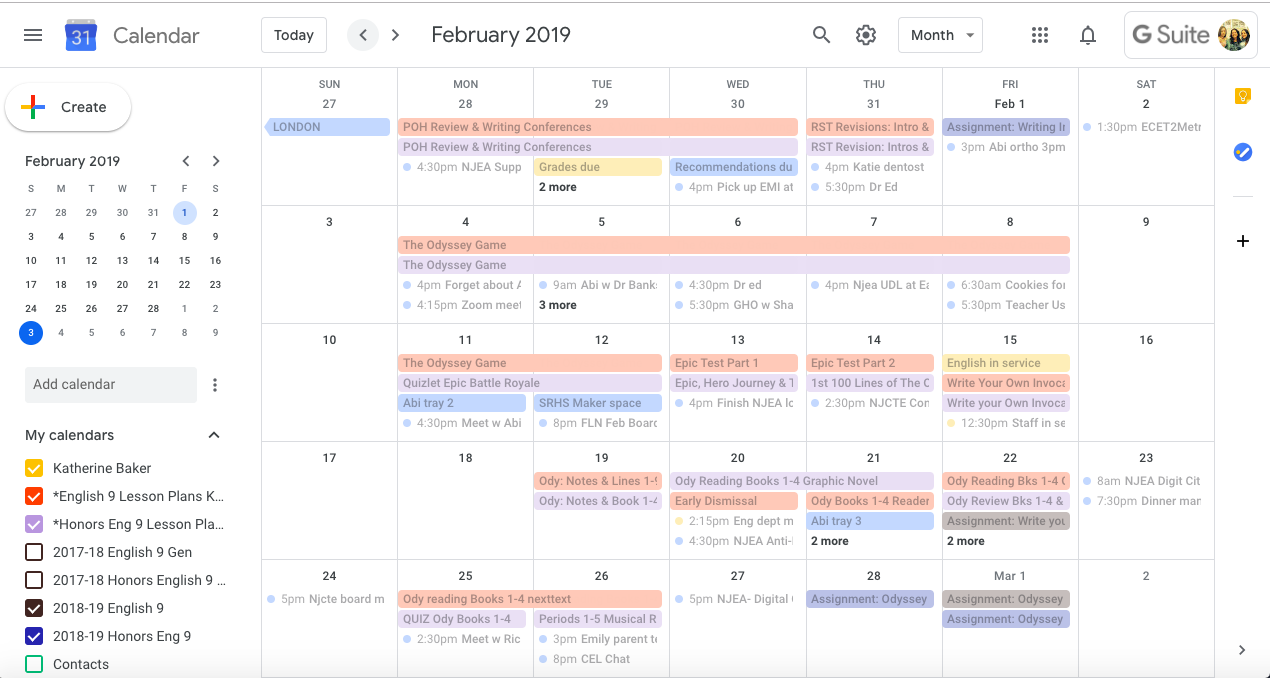
Here is a quick screenshot of my English 9 February 2018 and 2019 calendars. I can see that last year, I did not begin my Odyssey unit the end of the month, whereas this year, I am ahead of last year's pacing.


Writing the Plans


The day on which an event takes place is much more important the time it takes place. For each day I write plan, I create an all-day event. The time of event is irrelevant. I do not need my plans to be posted to a specific time because I am following the same teaching schedule every day, and it would be a waste of my time and energy to post the same plan for multiple times on a given a day since I am teaching the same plan for each class/prep period.


In the title area of the event, I will state what topic we are covering that day and be sure to select the appropriate calendar for that prep/class.  In the description area, I will type out an outline of the plan and include any links to resources. I keep the structure of the plan consistent with four main areas: Objectives, Tasks, Assessments, and Standards.


I can easily copy/paste the description and post it as a note in my Edmodo groups or Google Classroom (or other learning management site) for students to access at home. By posting it to my LMS groups, students can access any attachments and ask follow-up questions if needed. While I can add attachments to the event, I prefer to post the attachments in Edmodo for students to access as the Calendar is more of a static landing page to see classroom events and not an arena for discussion.


Publicizing the Calendar


In the settings of each lesson plan calendar, set the calendar to PUBLIC. This will make it visible when you embed it in a Google Site that will be visible by students, parents, and administration.

The new and updated version of Google Sites is ridiculously easy to create a class web page with an embedded calendar: create the site with a page for each class/prep taught, and from the Insert menu in the Site editor, simply click CALENDAR to embed a calendar on that page. Be sure to hit PUBLISH so that your site goes live!


I provide the link to the class Google Site to parents at Back to School Night as well as demonstrate how they can see the day to day plans by clicking on the event for that day. I also email the link to the Google Site to my administration when I am submitting lesson plans rather than printing out pages of plans.


Recap


Lesson planning with Google Calendar and Sites is an efficient and quick way to track and publicize your day to day teaching from year to year for students, parents, and administration.

Sunday, September 3, 2017

Digital Dashboard Document

This year I am trying a more transparent and strategic approach to my technology integration.  I've always been mindful of the purpose of the tool, but I wonder if I've consistently conveyed that purpose to my students and colleagues.  I have a plan. I know what I'm doing, but do others see it?

So, to get things started, I created a Digital Dashboard Google Document on which my students will see what sites we will be using consistently, the rationale for using that site, and an area in which they will type in login information---not their actual password, but hints or clues in case they forget. There are important class links to district sites, as well as extra rows for students to add additional sites they may choose to frequent.

Both Edmodo and Google Classroom give users the ability to generate an editable copy for each student with the file name and sharing permissions, so in the event that someone does not remember his/her password, the student can access the doc or I can offer clues.  Many of the tools we will employ in class allow the teacher to reset passwords, but I want students to be responsible for their accounts before I access my dashboard.

If you like this design, go ahead and snag a copy, customizing it for your students. In the comments for this blog post, please share how you convey the purpose of technology integration to your staff and students.


Sunday, April 10, 2016

Goldilocks and the 3 Bears of Productivity

Everyone knows the story of Goldilocks and the three bears. Goldilocks eats, sits and sleeps through the bears' house seeking what is "just right".

As I attempt to stay organized with being a mom, wife, teacher, presenter, and coach, I feel as if I am Goldilocks. This planner is too big. That bullet journal system is too long. This app is too complex. From Pinterest to Amazon to Google, I've searched for just the right organizational system that meets the needs of my Type B (but many times Type A) personality.


Planners, bullet journals, and productivity apps... Oh my!

I like the idea of a planner, but not the actual item. I don't want one more thing to carry, and I guarantee I won't always have it with me. A paper-based planner is also less appealing since I use Google Calendar and Outlook Calendar for personal and professional purposes,  both of which are synched together. I don't want to run the risk of forgetting something because either the planner or the digital calendars were not up to date.  I have multiple calendars in Google: two for lesson plans  (one for each level of my classes), another for family, and another for my events and tasks. School events listed in Outlook appear on my Google Calendar. And all of my bazillion calendars are synched to my Android phone where I can quickly view events listed on the month-view widget.

Akin to scrapbooks, bullet journals are visually appealing and can be a robust way to track everything from appointments to daily water intake to long-term goals. I also like the idea of a bullet journal, but I know I do not have the time nor personal diligence to follow through with using it proficiently.  I did spend numerous hours on Pinterest pinning bullet journal resources, so if you are interested, feel free to check out my board:


I've been poking around on Google Play searching productivity apps, but nothing seems to fit my needs just right: I don't need a complex app, I like to write lists, and I want simple, but appealing visual design. I also need something that is platform agnostic since I own both Android and iOS devices, Chromebooks, and Windows and Mac computers. I also want something fast that when a thought pops in my head, I can quickly locate where that thought needs to go for reference later. Google Keep has been the closest I've come to "just right."

If you, dear reader, have any recommendations for productivity apps, please leave a comment on this post!


Google Keep keeps me (mostly) organized.

I LOVE LOVE LOVE Google Keep for list writing, and while it fits most of my needs for organization, I am still tweaking my system.  I can create digital post-it notes and check-box lists in Google Keep. All notes can be tagged and color-coded. I can attach pictures and share notes with others. I can drag to reorder the notes and archive them as needed or even turn them into a Google Doc. If I think of something, I grab my phone and speak, type or draw a note in Google Keep.


I have two ongoing lists that I refer to everyday:

1. To Do
2. Grocery Shopping


My To-Do list is a running record of things that I should get done ASAP within the next few days. While I can prioritize by reordering the items, I can't categorize them individually. I could create separate lists by category, but I'm leery of having too many high-priority lists at the same time.


Grocery shopping is self explanatory.  I can't tell you how many times I wrote a list on paper only to forget it at home, or I forget to put numerous items on the list. I check and uncheck items on the master list as needed rather than deleting and retyping items. I also have this list shared with my husband in case he wants to add something--which he has yet to do digitally.


Organization can be a Bear.

Ultimately, the planner, journal, list or app itself won't make me more productive and organized. I must take action.  Productivity and effective organization can't just be a fairytale!

If you have a system or tips for organization that you'd like to share, please post a comment!


Tuesday, April 5, 2016

Google Voice Typing & 2nd grade Homework

My 2nd grade daughter is a whirling dervish.  She is sharp, intelligent, but she cannot sit still. Get her excited about something and she will talk... and talk.... and talk.... and talk about the topic. But I notice that when she is asked to write or type something, those quick thoughts fly away rather than travel down her arm on to the page.

When I reflect on why I like blogging, it has as much to do with my interest in the written word as it also does with the dexterity of my fingers and the voices in my head. My younger years of playing piano have transitioned from playing the ivory keys to flying over the QWERTY keyboard.  To be honest, I was never a virtuoso, but a very shy piano player, never truly confident in my abilities and reluctant to play for others. While I could play a classical piece of sheet music, I couldn't hear the music in my head if I was asked to improv for jazz band.  Relating this to writing, as my fingers fly over the keyboard, I can hear in my head the words I want to appear on the page. My thoughts quickly travel down my arm and out of my fingers on to the screen because I am a proficient typist.  My students are always wowed by this parlor trick:  I can type coherent sentences with correct punctuation and spelling without looking at the screen. It creeps them out when I'm looking at them as they talk to me, but typing something on the computer.

So last night, my 2nd grade daughter's homework included typing up a paragraph about rainforest
animals.  What could take me a few minutes to type up a paragraph would take my daughter eons to get on the screen.  What to do?  I wanted her to do the homework herself, rather than me typing it up for her, but her typing skills are not developed yet.  And as I'm trying to clean up dishes after a long day of school, it wasn't feasible to take the time for her to practice typing AND writing at the same time.  So using Google Voice Typing, we were able to separate the skills of typing and writing AND get the homework completed in a short amount of time.

Our Process:
  1. Open a new Google Document
  2. Go to TOOLS, select Voice Typing
  3. My daughter and I discussed the topic prior to hitting the record icon. Then when she knew what she wanted to say, she hit record.
  4. My daughter spoke her thoughts aloud and Google captured her words on the screen.
  5. Using the keyboard, my daughter edited her work, moved the cursor, hit record, and would clarify areas that needed revision. 
  6. When the paragraph was completed, she learned to use CONTROL-A to select all the text and chose a font to style her work.
Proud Mama captured the moments: 


When I think about my 9th grade ELA students who struggle with writing, I wonder if they have similar issues: their brains are working too quickly and their fingers can't write or type fast enough to capture the thoughts on the page. With Google Voice Typing on our class set of Chromebooks, students could record themselves or a partner answering an open-ended response question and once the words are on the page, they could work together to edit and revise the response. Due to time constraints, so much the writing process is condensed and by the time students get to high school they are expected to have proficient fine-motor skills to write or type quickly.  One look at any papers I may collect and you will be able to distinguish the proficient writers based on their penmanship and the words on the page. 

Google Voice Typing can help any fast-thinking, whirling dervish of a student to get his/her words on the page so that more time can be spent crafting their writing as opposed to recording it. 


Change that to "Click to Write!"


Saturday, February 15, 2014

FINALLY! Chrome Screencastify!

As a work around for not having screencasting capabilities on my Chromebook, I would do a Google Hangout by myself, capture to YouTube, and screenshare to record the screencast. Then I'd have to go back and edit out my initial clicking around to screenshare. While this worked, it was cumbersome and inefficient. I've been patiently waiting a Chrome screencasting app that doesn't use Java, and have instead been using Screencast-o-matic on my school and home computers. So imagine my excitement when Richard Byrne's post sharing Screencastify came across my newsfeed! After installing the extension in my Chrome browser, I immediately tried it out.


To record a tab, click on the icon in your browser and a window appears to access settings and start/pause/stop recording. To learn more about how to use Screencatstify, check out their YouTube video.


I had some issues with it dropping audio and frames and had to change the setting to 1FPS to record the following screencast and it wouldn't let me direct upload to YouTube.  Now I was using this on my home WiFi network which is limited in bandwidth, so I wonder if I would encounter the same issues at school on a better network, and I have 2 different Google log ins (one for school & one for home), so I wonder if the multiple log ins contributed to not being able to upload to YouTube. I was able to save the file to my Chromebook and then upload it manually to YouTube without issue.


Overall, I can't complain, and since Screencastify is still in Beta, I anticipate that any issues I have will be resolved with time as the developers receive feedback. I've waited this long, so I can be patient for just a bit longer.

Saturday, July 20, 2013

#EdcampHOME is Where the Heart is... for Learning

EdcampHOME demonstrated the power of organized mulitple Google Hangouts and educators' desire to learn. In the 3+ hours of the un-conference, I can honestly say I did not move from my seat. Despite all the amenities at home & ability to multi-task with housework, I sat glued to my spot the entire time. I did not want to miss one second of the action. And I was sad to see the organizers' GHO end.

I remember attending my first Edcamp in November and being awed by the session board: its masking taped grid on a cement block school wall and the giant post it notes used for session creation; the organizers on laptops furiously copying the schedule to a Google spreadsheet. Seeing the big session board for the first time showed me the power of messy, home grown, do-it-yourself professional development. I had been trained for years that teaching and learning was neatly and purposely sequenced in lesson plans and prepackaged by professional third-party developers....by the way, I always had the hardest time writing lesson plans because I felt like I was predicting the future and the students' demeanor (some days just aren't made for group work) and mandated professional development workshops were never my thing either because I like to pursue things on my terms, but I digress... That big huge wall of post it notes at EdcampNJ became a symbol for my epiphany to intentionally pursue my own professional development and my colleagues to do the same. As William Ernest Henley wrote in his poem, Invictus, "I am the master of my fate. I am the captain of my soul" or this case, my education.

When I saw EdcampHome first popped up on my Twitter feed, I did not hesitate to register, but I couldn't help but wonder if the power of the session board would be lost online-- boy, was I wrong. The website design and organization and using http://en.linoit.com/ for brainstorming sessions was mesmerizing to see-- the sticky notes appeared and covered and covered and covered each other. And despite the time it took to get the sessions organized, it was evident the participants had much they wanted to learn. As we all know and experienced today, learning is messy and we learn more from facing an obstacle, adjusting and adapting. To quote that English proverb, "A smooth sea never made a skilled mariner."

I did have a few frustrating moments when trying to sign up for the first session and not being able to do so on the log jammed Google doc (Karl saved the day!), but unfortunately the session didn't get going due to technical difficulties on the moderator's end. I was bummed to miss out on discussing class blogging, but I hope to connect with Elizabeth Buckhold via Twitter and can learn from her. Getting my Elizabeths mixed up, I did pop into the Global Collaboration Hangout with Elizabeth Goold for the last 5 minutes of session 1. Not realizing I wasn't where I intended to be, I launched right in chatting with the other ladies in the room and probably confused Elizabeth Goold with my explanation of why I was late. But my error was really a gain once I realized that now I can add 2 more Elizabeth's to my PLN.

I moderated session 2, talking about Creating Digital Workstations for Readers Workshop with Markette Pierce and Steph Hardinger which evolved into a conversation about digital tools for the English classroom. Can't complain about that! I hope to connect with these ladies more! Here's our conversation:


Wrapping up the day, I took the lead for contributing first for the SmackDown sharing one of my favorite tools for the English classroom, Gobstopper. During TeachMeetNJ in August of 2012, when I first heard the word "smackdown," I didn't think it was very complimentary: I had visions of people bad mouthing apps and really smacking others down, little did I know that it was a quickfire way to share resources. EdcampHome's smackdown really became a lifting experience with the participants sharing their initial trepidation about [Google] hanging out in an unconference and praising the organizers, David, Kelly, Shawn, and Karl for creating such a homey event. I'm awed by the experience and to be part of something that will revolutionize professional development.

Thanks again!


Thursday, April 25, 2013

Voice Comments on Google Docs!

Check out this video, fellow teacher Carolyn P. and I made introducing Voice Comments as a cool tool for the 21st Century. Primarily used for the teacher to record voice comments on a student's Google doc, I anticipate that the capabilities will expand to include use for peer editing with classmates, and, as you will hear, use for classes that require audio.  Major props to Sam Patterson for sharing this tool with me! Just search the Chrome Web Store for Voice Comments, connect the app to your Drive, and begin using.


I am very excited to use this tool for providing students feedback on their writing.  The process is much quicker than red penning or creating screencasts of each doc, and I like that comments are linked directly to the document instead of using an MP3 voice recorder app to email a voice message to a student.

This tool is ridiculously easy to use and set up, and as an English teacher who has lots of writing to grade and critique, I'm ecstatic to use it.... wait, did I just say I'm ecstatic to grade?! This must be a cool tool!

Enjoy!

Saturday, April 6, 2013

Writing about Grading Writing (Again)

I'm constantly writing about the dilemmas of student writing and how to grade student academic writing in an efficient and effective manner. This is probably borderline obsessive... but, I am the type of learner who when faced with an issue/problem/question, obsesses until ... ...  ....


Options for Grading Writing:

  1. Traditional: teacher does all the grading and marking up of students' writing. 
  2. Progressive:  students peer edit and self assess using guided structure provided by teacher
  3. Techie Traditional: teacher uses Google forms with the Autocrat, Doctopus, and  Goobric scripts, as well as other online rubric tools to assess student work.
  4. Techie Progressive:  teacher designs the rubric and assessment process on a Google form using the Autocrat script and the students peer edit each other.
  5. Ungraded: the teacher does not grade the writing.

Options #1-3 require time and effort in class and by the teacher.  I have happily peer edited on paper with my students, but there was just too much paper and it took up time in class.

Option #4 can be completed in and out of class, but it takes time to set up the forms, feedback docs, and scripts. BIG HUGE THANKS to Cheryl, Karl, Troy & all the Twitter peeps (Again & AGAIN) for walking me through creating this process, and the creator of the Autocrat script, Andrew Stillman, for answering my gazillion questions. I'm working on ways to better streamline the process (and not split my infinitives), but trust me, it is well worth the effort to guide students through troubleshooting their writing.

But, Option #5 I'm stealing (again) from Cheryl Morris. :-)


Un-grading Student Writing


In our #ElaFlip Hangout talking about assessing writing, Cheryl stated that she tries to detach grades from student writing. I forgot to ask if she was talking about creative writing or academic writing, but should it matter? 


Art & Academic Writing


Picture from J. Kronenber'g's Blog Post "I Can't Explain  It"
I completely agree with not scoring creative writing. I have never been comfortable putting a grade on creativity and therefore have never sought out teaching a creative writing course-- it is art and art is subjective: one critic might give Ellsworth Kelly's Blue Panel an A+ and another might give it an F. The simplest question in assessing the art is, "Does it hold meaning for me as the viewer?" The same subjective scoring can be used on student creative pieces.

I know, I know, some will say, rubrics make the scoring objective, but really? Rubrics turn writing into objects that sit on shelves. Rubrics are limiting!   Students only strive to hit the points on the rubric and not beyond.  They become complacent when they get the grade, and whose grade is it when the teacher designed the rubric?

I know, I know, I could get my ninth grade students to design the rubric with me, but they are just learning how to write, so do they know what to even put on the rubric? And me leading them for what to put on the rubric is still me, the teacher, controlling the rubric. I could use my O-S-U rubric (again) or use standards based grading and score for mastery, but does the grade on the paper push the student to continue writing? No! As Cheryl and the other ELA flippers (Andrew, Katie, Dave, & many more) will agree, as soon as a student receives the grade, he/she thinks the process is done. The point should be about keeping students writing until ...  ... ...

I fondly remember the yearly high school trip to The Metropolitan Museum of Art in NYC, and every time we flew through the exhibits just to sit in front of that blue panel and "critique" it.  My naive teenage friends and I would mimic high brow folks and comment in horrendously fake British accents on the composition, scale, and other fancy art terms, nicknaming it, "The Blue Rhombus of Life". Granted, our obsession with this painting was seemingly in a joking manner, but the fact remains that painting is still hanging in Gallery 915.

"I have worked to free shape from its ground, and then to work the shape so that it has a definite relationship to the space around it; so that it has a clarity and a measure within itself of its parts (angles, curves, edges and mass); and so that, with color and tonality, the shape finds its own space and always demands its freedom and separateness."- Ellsworth Kelly

But, this got me thinking: is this why I've had so much trouble scoring student academic writing? Every method I have used, revolves around my expectations: how well did the student follow my directions, display the knowledge I taught, and use the conventions the students have been taught throughout their academic career? I can lead the students through trouble shooting and revising their essays. I can score them on participation  meeting checkpoints, and being held accountable for the process, but do I, the teacher, really have to put a final grade on the essay?

During the #ELAFlip hangout, Katie Reagan explained that her students peer edit with other classes and students not at her school.  Getting students out of their comfort zone certainly motivated them to perform. What about an even greater audience on the web?  What about publishing their work for a bigger audience than my two hazel eyes to see? Wouldn't that "grade" the piece? It is so simple:  Is the writing ready for publication and to be "hung in a gallery"? And wouldn't that prospect motivate the student to perform well? Isn't that better than any grade I could put on the page or in my gradebook?

To adapt Kelly's words, writing is also about playing with the "color and tonality" of words so that words take shape and have a "definite relationship" that has "clarity and measure". Creative writing is an obvious form of art, and academic writing should also be considered no less an art, but many teachers and students drown in the red ink and forget the art of academic writing.

So, stop grading and focus on crafting, molding, and painting with words. 

Turn your student writers into artists.


Post Script:  Check out my next post, #OdysseyExperts, because I put into practice my ideas about showcasing writing.


Wednesday, April 3, 2013

Online Mentoring via Edmodo & Google

In December, Dean Shareski, professor at the University of Regina in Saskatchewan, Canada, put a call out on Twitter for teachers who would be willing to pair with his pre-service student teachers for a virtual mentoring project. While I've mentored pre-service teachers in person (and in New Jersey), doing so online was new for me, and I jumped on the opportunity. Using Edmodo for the virtual classroom space, teachers and students connected from 1,972 miles away.


SRHS to University of Regina = 1,972 mi, approximately 30 hrs driving

I've had the privilege and honor to work with Jozette Sherstabitoff the past few months. Joz connected with students on Edmodo and worked with them on collaborative Google Docs. Joz and I communicated via Edmodo, Gmail and Google Hangouts.  I have thoroughly enjoyed working together, but what is more important are her thoughts on the experience....


Mentoring

My mentoring teacher, Kate, asked me to write a guest post for her blog. Check out Kate’s blog @ http://kbakerbyodlit.blogspot.ca/.
When I first entered into this mentoring program, I was a little hesitant. First off, I am a middle years person and Kate teaches senior English. I was a little intimated to start, not knowing what I could offer her. However, as the semester progressed, I realized that the difference between our teaching levels did not necessarily matter. I was still able to learn many new things that can be applied to my level of teaching.
Here are some reflections on what we have done and what we have learned.
What have Kate and I been doing this semester?
  • Commenting on assignments in Edmodo
  • Commenting on papers in Google Docs
  • Having a Google Hangout with the students
  • Making a video for students to watch
  • Creating a quiz on Edmodo for students to complete after watching my video
What are the benefits of being mentored?
  • Learning new tools. The biggest thing I took out of mentoring is Edmodo. Edmodo is like an online classroom, where Kate can upload videos, assignments and quizzes. It is a great way to have students collaborate online and outside of the classroom. Edmodo is also great for reducing paper use!
    • I can use Edmodo in the middle years just the same way Kate uses it at the senior level. I could upload videos for students to watch during class and after class. Assessments can be taken online just the same as at the senior level.
  • Learning new teaching styles. I was exposed to the flip classroom idea through Kate. I have heard about the idea before and was able to see some models throughout her class. The exposure will benefit me in the future if it is a style I choose to adopt.
  • Learning new assessment techniques. Kate got me thinking about assessment in general and the styles I use.
    • The assessment she uses can be applied to middle years level. For example, Kate uses a rubric called OSU (outstanding, satisfactory, unsatisfactory) and gives students a mark from it. The rubric can be used to assess at the middle years level.
The main benefit of being mentored is the thinking that happens! Kate always had me thinking about what I would do differently, what I like, and what I do not like about her class and education in general.
What are the benefits of being a mentor?
  • Reflecting on assignments. Kate keeps me updated on the learning that is happening in her classroom. While telling me what is being taught, I believe she is able to reflect upon the significance of their tasks.
  • Getting another opinion. Kate explains what the students are doing and how she is assessing them. When Kate tells me about the assignments and assessments she is able to ask my opinion, what I would do differently, what I like, etc. Kate is able to see a different perspective through my answers, and justify her own reasons by explaining what she does to me.
  • Another set of eyes on her students. Kate asked me what I thought about her student’s online identity. Having another aspiring teacher look over student work is a pure benefit for the students. They have another proof reader to help them be successful.
The main benefit of being a mentor is the reflection that happens. I think Kate is able to reflect on her teaching by showing me what she does.
I would like to thank Kate for the experience she has given me. I enjoyed her, and her students very much. Thank you for taking me in!!! :)


In addition, check out our Google Hangout discussing technology integration in the classroom.


Be sure to follow Jozette Sherstabitoff on Twitter @jshersty and read about her other adventures in teaching on her blog http://misssherstabitoff.wordpress.com/
And as a culminating project for the teachers and students involved in this mentoring experience, Dean Shareski organized a virtual lip dub of Chris Hadfield and the Barenaked Ladies'  song, "Is Somebody Singing." Take a look at the locations of the participants. Pretty darn cool.


Thanks again to Joz & Dean for this opportunity, and Edmodo and Google for making it happen!