Showing posts with label #ELAFlip. Show all posts

Sunday, March 10, 2019

Teaching (Digital) Literacy: Driving Students to the Intersection of Reading, Writing, & Discussion

Part of my job as an English teacher is to teach students how to read, analyze, talk, and write about texts in both paper-based and digital formats. According to the American Psychological Association (APA) in article published in August of 2018, "In recent years, less than 20 percent of U.S. teens report reading a book, magazine or newspaper daily for pleasure, while more than 80 percent say they use social media every day." Furthermore, “Compared with previous generations, teens in the 2010s spent more time online and less time with traditional media, such as books, magazines and television,” said lead author Jean M. Twenge, PhD, author of the book iGen and professor of psychology at San Diego State University, “Time on digital media has displaced time once spent enjoying a book or watching TV.” While students are reading plenty of digital texts, I wonder how well they are able to analyze, talk, and write about them.  By integrating such edtech tools as Edpuzzle, Formative, Actively Learn, and the G Suite for Education in to teaching practices, we can drive students to the intersection of reading, writing, and discussion so that they can practice skills that they can use both in and out of the classroom.

I had the opportunity to collaborate with the venerable and uber-intelligent Natalie S., the senior researcher from Actively Learn on a workshop session that we gave at CUE and NCTE-CEL in 2017. The above linked article from APA reinforces the importance of teaching digital literacy skills to my students. We cannot assume that student are proficient digital natives.  The activities showcased in the slides provide teachers with lesson examples that cover a range of assignments:

  • Quick, Do Now annotation of an image with Formative
  • Flipped Learning style audiobooks that include checks for understanding with Edpuzzle
  • Daily reading lessons that include checks for understanding and opportunities for annotation and digital discussion with Actively Learn
  • Extended writing tasks that integrate annotated texts with Google Docs


Check out our slides and learn how you, too, can drive learners to the intersection of reading, writing, and discussion.


Saturday, November 14, 2015

Flipping ELA-- More than Students Reading Books at Home


I had the wonderful privilege to present at the 2015 NJEA Convention in the Flipped Learning Theater with the pioneering Jon Bergmann and the ever-enthusiastic Marc Seigel. I presented two sessions:  Flipping the English Language Arts Classroom and Technology Tools for Flipped Reading.


My slide decks are below. I'm really proud of my visual design for these slides! Slide Carnival has some excellent templates that can be customized. Be sure to click on the hyperlinks within the slides for access to resources. Lots of goodies!


Speaking with Jon Bergmann at the convention for his BAM radio show, "The Flip Side," the question was broached, "Well, isn't English already flipped?  Read at home and come to class ready to apply?"  My answer is a resounding NO! For some students, reading is the difficult task, and I want to be present with my students for the difficult tasks. I can Flip 101 (aka replace live, direct instruction with video or tech tool) many things in the classroom, including reading, but I need to make sure that students are adept at the skills when we are face to face before I send them home with flipped tasks to complete.  The "face-to-face before do at home" time will vary depending on the content.  For some material, I need 5 minutes to make sure students are adept, but for other skills or content, my students may need multiple class periods to demonstrate that they are proficient independent learners.

I am a big fan of the "in-class" flip:  allow students to practice self-pacing and independent learning in class rather than at home.  Remember, the primary premise of Flipped Learning is to make the best use of face-to-face time with your students. So if this means they need guided, independent learning (I know, such an oxymoron) prior to unsupervised, independent learning (I know, redundant), then that is what I will do.  The flip at home will not be successful, and we will lose precious face-to-face time if I don't scaffold the process and gradually release control to the students.

The Flipping ELA Slide Deck features some activities and resources for how to Flip 101 and Mastery Flip an English Class. I've learned so much from my Flipped ELA peeps that I can not take credit for all the things in the slides. While I use what I share on the slides with my students, the original ideas may have come from one of the phenomenal flipping ELA teachers listed towards the end of the slide deck.


The Tech Tools for Flipping Reading will provide some examples of Flip 101 screencasts for modeling close reading, as well as edtech tools such as Booktrack Classroom and Curriculet for flipped reading instruction.  And make sure you listen to the interview with Jon Bergmann because I share how my students practice close reading using Google Docs as we Explore-Flip-Apply author's purpose and literary devices in texts.


Be sure to reply in the Comments to this post with your strategies for flipping your class or any questions you may have about how to flip!


Wednesday, July 8, 2015

#ISTE2015 Peer Evaluation & a BAM Radio Interview

So, this happened.....  Jon Bergmann, flipclass pioneer, interviewed me about my peer evaluation techniques at ISTE.

How did that happen???  Well, after chatting about what I do during lunch with Jon Bergmann, Aaron Sams, and Crystal Kirch, Jon says, "I need to interview you right now for my radio show!"  Say, what?!  I didn't even have time to process his statement.  Next thing I know, Jon finds a quiet spot, whips out his phone and starts recording and asking me questions. You can listen to the podcast of the interview with Jon Bergmann here.

That was on Sunday. On Tuesday, I presented my ISTE session, "Best Practices & Digital Tools for Feedback, Assessment, & Evaluation," to a packed room. No open seats and folks were even sitting on the floor!


To learn how/why I got started with peer evaluation, read this.


Since my student teaching days, I've been refining my peer evaluation process, and with Google Apps for Education, the process has become paperless. Google Classroom makes it easy to manage the workflow. Keep in mind, the following steps take place over the course of a week or so. Students get their writing evaluated by classmates, and then the writers evaluate their evaluators. The objectives of this process are centered on fostering a community of writers and having a dialogue about student work. Students are engaging in an analytical, reflective, and metacognitive process.


GOOGLE CLASSROOM STEPS:
  1. Create an assignment in Google Classroom for students to turn in their writing.
  2. Create a Google Form for the peer evaluation.  I use a combination of rubrics: checklist of requirements, numerical qualities, and Outstanding/Satisfactory/Unsatisfactory (OSU) to assess quality. 
  3. Share the writing pieces with the class. Classroom will automatically put all student work in to an assignment folder which you can share with the class. I prefer to set the permissions to "Anyone with link can COMMENT." When you change the folder settings, it will change every document in the folder to match the sharing permissions of the folder. 
  4. Create an announcement where you provide the link to the shared folder and the Google Form for evaluation. Students open folder, select essays to read and evaluate on the Google Form. I encourage students to do at least 5 different evaluations. 
  5. Create another Classroom assignment for analyzing the evaluations. I create a template Google Doc with guiding questions and have Classroom create a copy for each student and I attach the master spreadsheet for the students to copy/paste their particular data. Students analyze their data and agree/disagree with the itemized evaluations as well as the whole evaluation. They must provide evidence to support their agreement/disagreement with the evaluations. 
  6. Create another Google Form for the Evaluation of the Evaluator.  Writers will fill out the form providing their evaluator with feedback on the quality of the evaluation. I've also used the Autocrat add-on to auto deliver the feedback to a Google Doc for each evaluator instead of doing the next step. 
  7. Create another Classroom assignment for analyzing the evaluation of the evaluator with another Google Doc template (again set it so Classroom generates a copy for each student to edit) and the link to the spreadsheet attached. Students copy/paste their corresponding data on to their Google Doc and analyze/reflect on how well they evaluated their classmates.

Throughout this entire process, I am monitoring the students and checking the spreadsheets.  If I see something out of joint (someone isn't pulling his/her weight), I will speak directly to the student and provide redirection.  Students are also allowed to talk to one another while working on the evaluations. I keep an ear on the conversations and will jump in as needed.


So I know this process is an overwhelming amount to digest at once.  I do not do all of this right away.  I scaffold the process and gradually ease students into this. Here is my instructional design:

Marking period 1: Foster an open community by getting students accustomed to sharing their work.  Everything from worksheets to quick writes is shared with a neighbor.  I also have students post their finished work to our Share Our Work small group and Scribe City group in Edmodo (more on the Edmodo groups in another blog post).  We do quick peer evaluation activities on paper to start and by the end of the marking period use Google Forms. We have discussions on how to evaluate each other's work with students writing self-evaluations. No formal evaluations of the evaluator just yet.

Marking period 2: We maintain our open community, but the writing tasks and peer evaluations have increased in complexity and length. We no longer use paper to evaluate, everything is on Google forms.  Students still complete self-evaluations and begin to use Google Forms to evaluate the evaluator.

Marking period 3: Pull it all together!  Students engage in the entire process completing formal evaluations of writing tasks and the evaluators. Everything is on Google Forms and in Classroom.

Marking period 4: Continue. Continue. Continue.  As a final project, students write up a final self-reflection as a writer and evaluator examining their growth through out the entire year.


So that is it in a nutshell.  Did I lose you through all of this?  Need clarification?  PLEASE, share and let me know what you do with your students.  I am continually tweaking this process, so I value your contributions!

Monday, February 16, 2015

Mentor Texts & Writing

Recently, during my English department meeting, we discussed ways to incorporate more nonfiction writing, especially writing that is research based, in our classrooms. Many of us agree that the 8 week research paper unit in which skills are taught in isolation to the rest of the curriculum is not an effective strategy, and while I've done well with integrating research skills into daily tasks, I know my students are still weak at pulling it all together into a cohesive writing piece.

In the beginning of the school year, I introduced my students to Joseph Campbell's Hero Journey concept and used the short stories read in class as mentor texts for fiction writing.  Rather than having my students write an original hero journey story (which would be a novel!), students drew a plot diagram for an original concept of a story and wrote one scene as if ripped from the pages of a book.  The students attempted to emulate the writing techniques of Richard Connell, Edgar Allan Poe, and Richard Peck in their original stories.  Using the short stories as mentor texts provided my students with models of effective writing techniques and the entire project was a success!  You can read some of their stories here, which we published on a website.

The mentor text strategy worked so well for fiction-based writing that I thought, "why not use this same strategy for nonfiction writing?" Students can read nonfiction pieces from acclaimed authors, identify the writing techniques used, and then write a nonfiction piece attempting to use the same techniques.  Sounds good, right?  Ok, well this is where I need YOUR HELP.

I think using mentor texts is a very viable strategy, but I don't know where to start!  There are so many texts to choose from!  I started this collaborative Google Doc in the hope that we can crowdsource some ideas for using mentor texts for nonfiction writing.  PLEASE, oh PLEASE, click on this link and add your resources, texts, and writing task ideas to this page. You can view the document below.

THANK YOU!


Wednesday, August 13, 2014

#Flipclass Workflow: Differentiated Instruction

Chatting this morning with Stacy Dawes on Voxer in the #ELA Flip group, we were discussing ways in which we can differentiate and diversify our instruction for students, especially those who are ESL/ELL immersed in mainstream classes.  Thinking about how to use technology to differentiate instruction in the flipped ELA classroom, we came up with the following ideas:


  • In your main Edmodo class, create small groups in which the students are leveled, then post tailored assignments to each of the small groups.  If all students are working with the same content, they will not know that they are receiving different versions of the same assessment or activity. Resources to assist that particular group of students can also be posted. Students can be in multiple small groups, but they can only see the content posted to the groups they are members of. 
  • Use Curriculet to differentiate reading instruction. Much like Edmodo, in Curriculet, teachers can create multiple versions of layered annotations, quizzes, and questions for texts and all versions are saved in the teacher library. Teachers can assign canonical texts or upload documents from their files or the web into Curriculet's interface meeting both literature and informational text reading standards. To manage assigning the texts to the students, I recommend creating reading groups by level instead of traditional classes.  Managing classes in Curriculet is very easy and students can be in multiple classes from multiple teachers at the same time.  So rather than having a Period 2 class in Curriculet, name your Curriculet classes to differentiate the reading level. For example, Level I, Level II, or Reading Group A, Reading Group B, etc. Assign the the particular custom curriculet to the particular group and track student performance.
  • Newela could also be used to differentiate informational text reading instruction since articles can be adjusted to meet student lexile levels. Newsela is an excellent resource for differentiating current event articles. Where as Curriculet anchors the text with the question and quizzes being adjusted, Newsela enables the text itself to be adjusted to meet student reading ability.  Students also take quizzes to assess their reading comprehension. 

As far as classtime is concerned, students could complete differentiated instructional tasks on asynchronous working days or at home.  Teaching 9th graders, I do not give them free reign, but instead give them small chunks to work asynchronously, usually about 2-3 days at a time.  We will start a task in class and then homework becomes whatever the students need to finish.  If they were productive during classtime, then homework can be avoided.

While the above ideas are focused on ELA instruction, they could also be applied to all subject areas.  What ideas do you have for using technology to differentiate instruction?  Share

Tuesday, August 12, 2014

#Flipclass Workflow

With the start of the new school year looming, a favorite topic of discussion among #flipclass teachers is workflow.  Rookies want to know how to make flipping work with class procedures, and veterans are always tweaking what they do. Edmodo, Curriculet, and Google Drive are essential to productive workflow in my class.

Essentially, this is what I do:

  • Organize students into classes on Edmodo with all resources, agendas, links to edtech tools, assignments, and quizzes are completed in Edmodo.
  • Students go to Curriculet for reading texts.
  • Students use Google Docs for typing up essays and other assignments.


Edmodo

Edmodo is my online classroom space. Everything that I do face to face with students is also completed via Edmodo.  From posting the daily agenda to taking quizzes to connecting with others, everything is done in Edmodo as you can see from the list below and public folder of classroom examples.  

I create a main classroom group for each level I teach because I want to promote the online PLN experience.  So all of my Honors 9 students are in one group regardless of period and all of my English 12 students are in another group. Students interact with others that they may see in class or merely pass in the the hall. When I name my groups I always use the following naming convention:  School Year & Level.  For example, 2013-14 English 9 or 2014-15 Honors English 9. 

  • The daily agenda is posted as a Note with any attachments needed. I always date it and put a heading in all caps as well as a numbered list of activities for the day. I type up my lesson plans in a Google Calendar which is posted on my class website, and merely copy/paste from my plans to create the daily agenda.  Click here to see a sample.
  • All work is turned in via Edmodo Assignments.  Whether it is a final project or an online activity or a photo of a paper worksheet, students turn in their work on Edmodo because the assignment is automatically added to Edmodo's gradebook or Progress area which keeps a spreadsheet record of all assignments assigned to that group. This spreadsheet is my working gradebook and replaces the students' three-ring binder. Students still keep a notebook using any method they choose, but I no longer have to do paper-notebook checks.  When parents, counselors, or administrators have a question about a student's performance, I have a record of the student's work at my fingertips.  I can also see the student's performance in relation to other classmates. I transfer by hand scores to my district's gradebook as applicable.
  • Preparing for digital assessments, students complete quick Edmodo Snapshot assignments. Snapshot provides students with standards-aligned assessments for math and ELA. I can quickly choose the standards I want to assess and assign the questions to my students.  Edmodo takes care of the rest from selecting the passage to writing the questions. I set the due date and track student progress, assigning later Snapshots to address deficiencies. Snapshot will be a weekly automatic assignment for my students in the coming school year. 
  • Students access Edmodo apps for automated tasks or projects. The No Red Ink Edmodo app is added to my Edmodo groups so that I can quickly assign students grammar tasks without having the students log in to another site or make more work for me.  Students also have access to other apps such as Powtoon, Pixton, Audioboo, and Dogo News for other online projects. I often ask my student to "Show Me" what they know using any online tool. 
  • Students communicate and peer review in Edmodo small groups.  I break up each main classroom group into smaller sub groups.  I just go right down the roster and select students in alphabetical order.  The small groups then becomes a place to share work that is turned in or complete online small group tasks.  I may ask students to find a resource about parallel structure and post it to their small group or have them share copies of essays for peer review.  By posting in small groups, we are keeping the main classroom page relatively clean.
  • Students are added to other main groups throughout the year. I will create other Edmodo groups for collaborating with others or delivering content in an asynchronous manner. When collaborating with other teachers and students across the country or globe, I (or the collaborating teacher) will create a new main group to which we add our students for sharing their work or completing collaborative tasks.  I'm excited to try out a Writer's Corner group with California teacher Beth Oing and Maine teacher Natalee Stotz.  This group will be an informal space for students to share whatever they are writing for peer review and feedback.  For delivering content in an asynchronous manner, I will create a separate group for each unit.  Check out this post on how I gamified The Odyssey using Edmodo. 

Curriculet

Curriculet is my go-to tool for reading instruction.  From uploading my own documents or articles found on the web to reading canonical texts to preparing students for PARCC assessment, Curriculet is essential to tracking my students' reading progress online. I've successfully flipped reading Romeo and Juliet and A Tale of Two Cities with my students. We've also read Great Expectations, Pygmalion, and current event articles related to the Great Depression and The Olympics. With Curriculet's premium library of contemporary texts being released this Fall, I'm excited to get my students reading more.

To use Curriculet, I create classes and give my students the classroom code.  I'm not worried about my students having too many log ins because they click on the "Sign in with Google" button since we are a Google Apps for Education school. Their Google credentials can be used to create and sign into a Curriculet account.  I assign an entire text to my classes and post a reminder in Edmodo for students to access Curriculet.  The students read the text at home or in school on smartphones, tablets, Chromebooks, or computers, answering questions and quizzes embedded in the text to check their understanding.  To see the student view, watch this quick video.


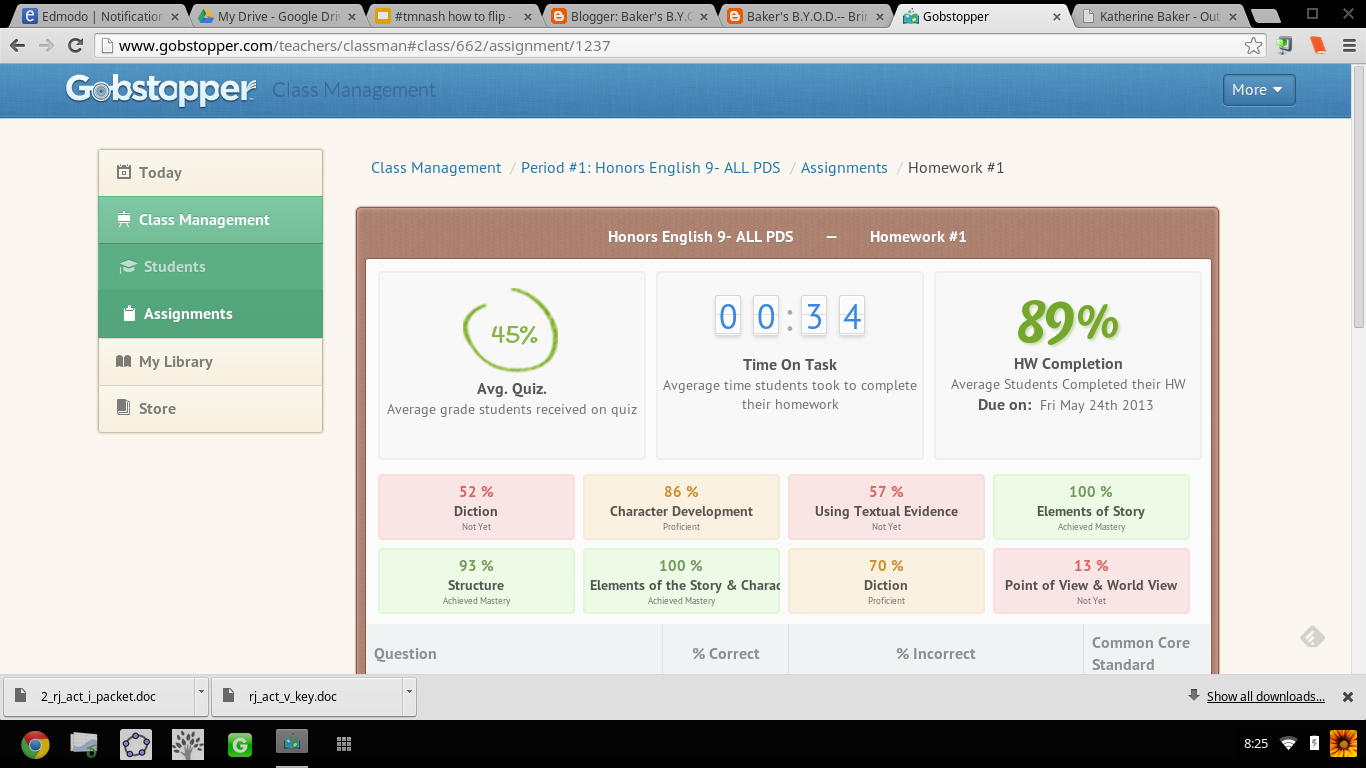
I use Curriculet's data analytics for formative assessment-- my students are allowed to make mistakes without too much penalty.  I take a look at their time on task and their accuracy for answering the questions and quizzes and give the students' a holistic score in my gradebook.  Using the OSU rubric, students receive Outstanding (100%) if they completed the task in an average amount of time and with an accuracy rate over 88%.  Students receive a score of Satisfactory (88%) if their accuracy was in the range of 78-87%, and Unsatisfactory (75%) if they completed the reading too quickly (ie. they clicked through the questions instead of reading) and scored below 78% on questions and quizzes. All summative assessments are completed in Edmodo as either an Edmodo Assignment or Edmodo Quiz. I allow students to have Curriculet open in another browser window while completing the summative assessments.

To see behind the scenes in my Curriculet account, view this video.


Curriculet is also available as an app in Edmodo, but since many of my students have smartphones as part of my district's BYOD initiative and Edmodo apps are only accessible on computers and iPads, I do not utilize the Edmodo app version of Curriculet at this time. For elementary schools or 1:1 iPad districts, I would recommend accessing Curriculet through Edmodo.


Google Drive

Google Docs has replaced Microsoft Word in my classroom. While I still access files I created in Word or PowerPoint, my students primarily create documents and slides using Google Apps.  We will have access to Microsoft 365 this year, but the simplicity and versatility of Google Apps have won my students over.  I needed a word processing option for students on smartphones and Google Drive fulfills the need. Students can complete notes, Do Now activities, quick writes or other journal writing on their smartphones through the Google Drive apps. 

We are a Google Apps for Education school, so the workflow is seamless. Students have accounts already created through school, so getting started is easy. Even though student Google Docs are shared with me, I still have my students turn in the link to their document in an Edmodo assignment.  Again, I keep a record of all things in Edmodo.  I'm excited to see what Google Classroom will do in terms of streamlining sharing documents with students, but in the meantime, this is how I used Google Drive with my students.

  • For assignments, I used Autocrat and Google Forms to deliver individual documents to students. Learn more by reading these posts: A Gaggle of Google Docs and Creating Certificates with Autocrat.
  • Daily directions, assignments, or Do Now activities are on Google Slides with the link to each presentation posted in Edmodo. Information is nicely chunked on each slide and it is easier for students to read than a lengthy Google Doc assignment.

Instructional Design

Edmodo is the hub of my classroom with Curriculet and Google Apps forming the spokes of our wheel of learning.  

The daily schedule may vary, but essentially I follow this routine in our 43 minute class periods:
  • 5 mins. Do Now Activity and review of answers-- as students walk into class they get started
  • 3 mins. recap of objectives and timeline
  • 25 mins. asynchronous activities or group work
  • 5 mins. wrap up 

This is my general plan per week:
  • Tuesday: introduce a new concept
  • Wednesday thru Thursday: work asynchronously or in groups applying the new concepts
  • Friday: whole class teacher-led activity reviewing and synthesizing  the material
  • Monday: assessment on the previous week's content

Last year I was 1:1 with the Chromebook cart on Mondays, so I liked having students take Edmodo quizzes or finish up individual digital work on Mondays because we had guaranteed access.  Sometimes I could get the cart mid-week, but it was never a guarantee as I shared the cart with four other teachers (each teacher taking a different day). So our mid to end of week activities featured BYOD, paper, and face to face tasks. While I do not let technology drive the learning in my class, technology is a vehicle for learning so our access to technology does factor in to our schedule.


I'm interested to read what others are doing with their students. So please reply with your questions, comments about #flipclass workflow methods.

Sunday, June 30, 2013

Edcanvas: The Art of Curating

One of my favorite tools for curating resources is Edcanvas. Over the summer, I've started creating "canvases" for each of the novels and topics I teach organizing links, documents, videos, and pictures as tiles on a grid.  Edcanvas has a very versatile free version and a paid version for collaboration and audio features. In addition, users can search the gallery for canvases created by others.

Blank Canvas


Edcanvas makes it ridiculously easy to find content by having search features as part of their interface, and by a simple click and drag, content is added to or moved around on the canvas.  The search features are easy to use for finding resources on the web, and with connections to Dropbox, Google Drive, Flickr, YouTube, Educreations, Gooru, adding your already created content to a canvas requires no artistic talent. Simple as finger painting!


Visual Appeal


As a visual learner and one who forgets I have things when they are put away out of sight,  Edcanvas is more appealing than LiveBinders for curation.  Choosing either color coding or plain black, each tile has a heading and brief description that is customizable.  Users can also choose from five layout templates for the canvas. While I can hide, I mean store, tons of content in the tabs of a LiveBinder, I think quality is more important than quantity in terms of how much I store. Canvases can be expanded and could have an infinite layout, but there isn't a need to go that big.  Items are embedded in the canvas and open when clicked on without having to go to a separate page. With YouTube videos automatically embedded, viewers can get away from the distractions and possible-inappropriateness in the YouTube comments. Each of my canvases are titled specifically for the content, and I like seeing everything cleanly laid out and can click on a tile to open.


Educational Uses


While I haven't used it yet since school is out of session, Edcanvas also has a quiz feature that can be added as a tile to each canvas.  I like the idea of using this as a formative assessment to check for understanding of the content.


Teachers can share resources or students could create projects on a topic. With multiple options for sharing via social media and QR codes and embedding in Edmodo and created webpages, Edcanvas is ideal for sharing with other educators and students in 1:1 and BYOD classrooms.


Sample Canvases

Demonstrating the options for sharing, take a look at three I've created... I got more in my gallery, and so will you, too. Once you start using Edcanvas, you will be an artist of visual curation!


Inspired by Romeo & Juliet


Odyssey Review

Reading Strategies


Thursday, May 30, 2013

May this Gobstopper (Now Called Curriculet) be Ever Lasting!


UPDATE AS OF 1/15/14:  
The company Gobstopper has changed its name to Curriculet, but this update hasn't changed how I use Curriculet with my students. The stories and information in the below post still hold true despite the change in company name.


While I've written quite a bit about assessing writing (ad nauseum) via digital means, reading instruction and assessment have remained a primarily paper-based enterprise in my class. While students can create projects, take quizzes, write responses digitally via BYOD and 1:1 using Google forms and docs, I've been missing a digital method for close reading of texts in my bag of instructional tricks. I've tried incorporating e-texts, PDF's, Google doc versions of texts and encouraged my students to use the Kindle Cloud Reader app on their devices and home computers, but I've been lacking a method for reading to be interactive as a whole class. I could not figure out a way to accomplish close textual analysis in an efficient and digital manner...  UNTIL NOW!


I can't tell you how ridiculously THRILLED I was when an article on Gobstopper appeared in my Techcrunch feed on Feedly.  I almost dropped my phone. Gobstopper is an e-reader platform that allows teachers to input and customize annotations, resources, questions, and quizzes linked to the Common Core Standards directly into a public domain text, and provides the students with immediate feedback, and the teacher with analytic data on student and class performance. Canonical texts found on the public domain are available in Gobstopper for FREE. And pair Gobstopper texts with FREE public domain Librivox audiobook recordings of the texts and you will strike gold with digital reading instruction.

Seriously?!  YES!  JACK.... POT!!! Don't believe me? Try out the student demo.

AND THERE IS MORE....  Gobstopper also offers a summer reading program. Available texts are already embedded with annotations, quizzes, and questions. The content creation is already done; all the teacher has to do is assign the books. No wonder Gobstopper's name alludes to Charlie and the Chocolate Factory, because this is SWEET!

From Flowergirl to Dutchess


Appropriate, considering the themes of identity and transformation in the play, I first used Gobstopper with Shaw's Pygmalion. While on the public domain, Pygmalion was not listed as a text in the Gobstopper store, with an email request to Gobstopper support, the text was quickly added and I could begin customizing the "curriculet" with my own annotations and questions. The process was fairly simple: highlight the text, choose the option, enter the content.  Questions, annotations, and quizzes can be loaded anywhere in the text and the teacher can choose to have the corresponding excerpt highlighted as well as select the appropriate Common Core Curriculum Reading Standard for each question. For annotations, I embedded  screencasts I've created, links to Librivox recordings,YouTube videos, Google Forms, Google Docs, webpages, Edcanvas ... the list is never ending; anything living on the web can be linked in an annotation. Quizzes for each reading section were also easy to create. Students received their reading assignment and due dates, and I would check on their progress and accuracy.

In addition to Pygmalion, my students also read Romeo and Juliet via Gobstopper. My instruction for both texts though differed: Pygmalion was read independently out of class while we watched excerpts of My Fair Lady and West Side Story in class, and Romeo and Juliet was read synchronously as a whole class.

Prior to Gobstopper, the students were given a packet of worksheets and materials for understanding Shaw's play and we focused more so on projects that connected to the theme of the play as opposed to close textual analysis. I was never really sure if the students actually read, truly understood Shaw's play or just opted for reading the Sparknotes and viewing the film online. Pairing the Librivox recording of Pygmalion with the enhanced Gobstopper text, I had clear indicators for student performance and understanding. By hearing the text, they were able to better read along and understand, and with the Gobstopper curriculet, they could demonstrate understanding while reading instead of having to answer questions on a worksheet at the end of each act.


"Never was a story of more woe..."


For Romeo and Juliet, prior to using Gobstopper,  students read the text that I put in a Word doc with arrows and boxes pointing to what I wanted the students to know. Students would pick parts (aka me coerce students into volunteering). We'd read together in class; I'd  try to get students to act their parts, and stop every page and scene to go over the answers to the questions in the boxes, as well as explain to them the nuances and artistry of the language. While we got through the reading, it wasn't until that I would show the movie clips that students "got it" and understood the language. WHY? Because Shakespeare is meant to be performed not read statically sitting in an uncomfortable student desk, and seeing the actors' movements solidified understanding. While I would encourage students to act their parts out, what that really amounted to was them standing in the front of the room reading monotonously from the text. I was asking them to do too much at once: read, comprehend, and synthesize into a performance. We were also taking at least 1 week to get through each act. With 5 acts in R&J, that amounts to 5 weeks of reading-- in case you didn't know, the play is only 2 hours long....   5 weeks vs 2 hours: no wonder students couldn't remember the opening brawl scene when we finally got to end, we were reading slower than Friar John riding a donkey in the Zeffirelli version.

Flipping the reading of Romeo and Juliet using Gobstopper and Librivox, students read asynchronously in class. I signed out the mobile lab and a class set of headphones, and assigned an act a day. What was not finished in class was for homework. I reviewed the class report the day at the beginning of the next class and clarified any misunderstandings, then let them return to reading independently.  If a student had a question in class, I was able to speak to him/her one on one and address his/her concerns as needed. This process was much more successful then demanding students to be compliant and pay attention as we read together. No longer did I hear complaints of "you're going too fast!" or "can't we just move on already?!" Now that the reading of the play took only a week, we had time for creative projects that included group performances of chosen scenes and skyping with an author (that's for another blog post!).

Gobstopper allows me to efficiently and effectively flip reading instruction from synchronous and static instruction to asynchronous, supported, and student paced. By embedding instructional elements in the text and linking it to an audiobook, students can listen to people read who already understand the text and control the pace of their learning while reading. Independent and whole-class reading of complex texts while aligning with Common Core Standards is no longer a Sisyphean endeavor when using Gobstopper.

I like Gobstopper so much, I shared it at #EdCampPhilly. Photo credit: K.Jarrett


-----------------------------------------------------------------------------------------------------

UPDATE UPDATE UPDATE UPDATE as of 8/8/2013

I will be writing more about using Gobstopper in the very near future, but I couldn't wait to share this...

Curriculets are now share-able   Let me SHOW YOU!
Sign up/in to Gobstopper first, then click on this link, and you can see the curriculet I made for A Midsummer Night's Dream.

...AND, the feature I have been waiting for! Gobstopper is MOBILE!
That is some sweet candy to have in your pocket! 


Gobstopper employs some awesome people, too! I got to meet Jason, Sean, and Marika at EdmodoCon 2013. A highlight of my experience!

From Left to Right: Sean, Marika, and I at the EdmodoCon
after party.  Where's Jason? 


Saturday, April 20, 2013

#OdysseyExperts & Showcasing Student Work

In my last post, I discussed that academic writing needs to be put on display and showcased to motivate students to write well. Writing is meant to be read, not to be locked up in a folder in a file cabinet or later tossed in the trash after the grade received.  Students think that when they turn in the assignment and meet the teacher's due date, the writing is good & done.  My other posts address my frustrations with grading the "got it done" academic writing:


But what if teachers steered students in another direction and away from the impending due date? By telling students that their work will be published, instead of graded, they will (hopefully, fingers crossed) write a better final product than the "good enough, got it done" essay, and then once the essay has been written, peer edited, and then published, the teacher can go through the work and assess if the objectives of the assignment were met. While I'm not a fan of putting grades on student writing, I get it: teachers need to follow the rules or expectations of school districts and have grades in their grade book.  With the red-pen system students only see the negative and the grade, but by using a showcase approach, teachers can arrive at the same destination but in a more positive manner.  In a way, it is tricking the students to write better the first time than waiting for the grade on the paper.


Student Showcase: #OdysseyExperts


The Design

One of the Topic Pages with Links to Student Essays
Teaming up with Sam Patterson and using Google Sites, I created a place for my students to showcase their Odyssey essays and receive feedback from Sam's classes and anyone else who visits the site.  The process was fairly easy:

  1. Create the site.
  2. Organize the essays by topic.
  3. Embed each essays on subpages to the topic page.
  4. Create a Google Form for comments and embed the form on each essay page.
  5. Embed the spreadsheet on the comment page.
  6. Create a page for comments from Sam's classes and embed a shared folder.
  7. Share, share, share with my PLN.

The Feedback Display


Sam's classes had two options for submitting their feedback:


  • complete the form on a chosen essay page or 
  • save their comments document in a shared folder.  


Public Comments Spreadsheet
Only owners and collaborators on a Google Site may comment on the pages, so as a work around, I embedded the same form on each student subpage and created a public comment page where all the comments will appear.  I was initially going to do a comment form and spreadsheet for each student, but that meant 65 separate forms for each essay on the site, and the more I thought about it, the more sense it made to have a public comments page where the students would have to read through the comments to
find their own. The point of this project was to make student writing and feedback visible, so I want all students to see all essays and all comments.

Shared Folder of Collection of Comments
While the shared folder doesn't allow for complete visibility of feedback because my students will have to open each document in the shared folder to see all comments, students would still be able to see 1 or 2 other comments for other students because each of Sam's students wrote comments for more than 1 student on the document. In addition, some of Sam's students made videos and screencasts of commentary for my students. #EduAwesome!


After 14 years of teaching, I'm just tired of student writing being hidden and dying a death in a dusty folder in a locked file cabinet, and students thinking that the only relevant audience for their work is the teacher. I want the writing to breathe and live. By putting academic writing on display and allowing for interaction, students will see their work and the work of others and gain a better understanding of their potential and abilities for writing.


Please visit the #OdysseyExperts site, read, comment, and share. The students need to see that their writing is alive. 


Saturday, April 6, 2013

Writing about Grading Writing (Again)

I'm constantly writing about the dilemmas of student writing and how to grade student academic writing in an efficient and effective manner. This is probably borderline obsessive... but, I am the type of learner who when faced with an issue/problem/question, obsesses until ... ...  ....


Options for Grading Writing:

  1. Traditional: teacher does all the grading and marking up of students' writing. 
  2. Progressive:  students peer edit and self assess using guided structure provided by teacher
  3. Techie Traditional: teacher uses Google forms with the Autocrat, Doctopus, and  Goobric scripts, as well as other online rubric tools to assess student work.
  4. Techie Progressive:  teacher designs the rubric and assessment process on a Google form using the Autocrat script and the students peer edit each other.
  5. Ungraded: the teacher does not grade the writing.

Options #1-3 require time and effort in class and by the teacher.  I have happily peer edited on paper with my students, but there was just too much paper and it took up time in class.

Option #4 can be completed in and out of class, but it takes time to set up the forms, feedback docs, and scripts. BIG HUGE THANKS to Cheryl, Karl, Troy & all the Twitter peeps (Again & AGAIN) for walking me through creating this process, and the creator of the Autocrat script, Andrew Stillman, for answering my gazillion questions. I'm working on ways to better streamline the process (and not split my infinitives), but trust me, it is well worth the effort to guide students through troubleshooting their writing.

But, Option #5 I'm stealing (again) from Cheryl Morris. :-)


Un-grading Student Writing


In our #ElaFlip Hangout talking about assessing writing, Cheryl stated that she tries to detach grades from student writing. I forgot to ask if she was talking about creative writing or academic writing, but should it matter? 


Art & Academic Writing


Picture from J. Kronenber'g's Blog Post "I Can't Explain  It"
I completely agree with not scoring creative writing. I have never been comfortable putting a grade on creativity and therefore have never sought out teaching a creative writing course-- it is art and art is subjective: one critic might give Ellsworth Kelly's Blue Panel an A+ and another might give it an F. The simplest question in assessing the art is, "Does it hold meaning for me as the viewer?" The same subjective scoring can be used on student creative pieces.

I know, I know, some will say, rubrics make the scoring objective, but really? Rubrics turn writing into objects that sit on shelves. Rubrics are limiting!   Students only strive to hit the points on the rubric and not beyond.  They become complacent when they get the grade, and whose grade is it when the teacher designed the rubric?

I know, I know, I could get my ninth grade students to design the rubric with me, but they are just learning how to write, so do they know what to even put on the rubric? And me leading them for what to put on the rubric is still me, the teacher, controlling the rubric. I could use my O-S-U rubric (again) or use standards based grading and score for mastery, but does the grade on the paper push the student to continue writing? No! As Cheryl and the other ELA flippers (Andrew, Katie, Dave, & many more) will agree, as soon as a student receives the grade, he/she thinks the process is done. The point should be about keeping students writing until ...  ... ...

I fondly remember the yearly high school trip to The Metropolitan Museum of Art in NYC, and every time we flew through the exhibits just to sit in front of that blue panel and "critique" it.  My naive teenage friends and I would mimic high brow folks and comment in horrendously fake British accents on the composition, scale, and other fancy art terms, nicknaming it, "The Blue Rhombus of Life". Granted, our obsession with this painting was seemingly in a joking manner, but the fact remains that painting is still hanging in Gallery 915.

"I have worked to free shape from its ground, and then to work the shape so that it has a definite relationship to the space around it; so that it has a clarity and a measure within itself of its parts (angles, curves, edges and mass); and so that, with color and tonality, the shape finds its own space and always demands its freedom and separateness."- Ellsworth Kelly

But, this got me thinking: is this why I've had so much trouble scoring student academic writing? Every method I have used, revolves around my expectations: how well did the student follow my directions, display the knowledge I taught, and use the conventions the students have been taught throughout their academic career? I can lead the students through trouble shooting and revising their essays. I can score them on participation  meeting checkpoints, and being held accountable for the process, but do I, the teacher, really have to put a final grade on the essay?

During the #ELAFlip hangout, Katie Reagan explained that her students peer edit with other classes and students not at her school.  Getting students out of their comfort zone certainly motivated them to perform. What about an even greater audience on the web?  What about publishing their work for a bigger audience than my two hazel eyes to see? Wouldn't that "grade" the piece? It is so simple:  Is the writing ready for publication and to be "hung in a gallery"? And wouldn't that prospect motivate the student to perform well? Isn't that better than any grade I could put on the page or in my gradebook?

To adapt Kelly's words, writing is also about playing with the "color and tonality" of words so that words take shape and have a "definite relationship" that has "clarity and measure". Creative writing is an obvious form of art, and academic writing should also be considered no less an art, but many teachers and students drown in the red ink and forget the art of academic writing.

So, stop grading and focus on crafting, molding, and painting with words. 

Turn your student writers into artists.


Post Script:  Check out my next post, #OdysseyExperts, because I put into practice my ideas about showcasing writing.