Showing posts with label Google Calendar. Show all posts

Sunday, March 3, 2019

Quick, Paperless Lesson Planning with Google Calendar and Sites

I integrate technology into my personal and professional practices so that I can save time and function efficiently. For many teachers, lesson planning can be time consuming and cumbersome as they write, execute, and send the plans to administration. Utilizing Google Calendar and a class Google Site as part of G Suite for Education, lesson planning can be quick and efficient. And, as everything is curated online, I do not need to print out reams of paper when submitting my plans to administration or keeping parents and students informed of events in class.


Quick Steps:

1. Create a calendar for each prep taught.
2. Create an all-day event for the lesson plan of the day.
3. In the description area of the event, type in the plan and links for the day.
4. Set the calendar to public and share with appropriate administrators.
5. Create a Google Site with pages for each prep taught and embed the calendars.
6. Share links to the Google Site as needed.


Calendar Organization & Settings


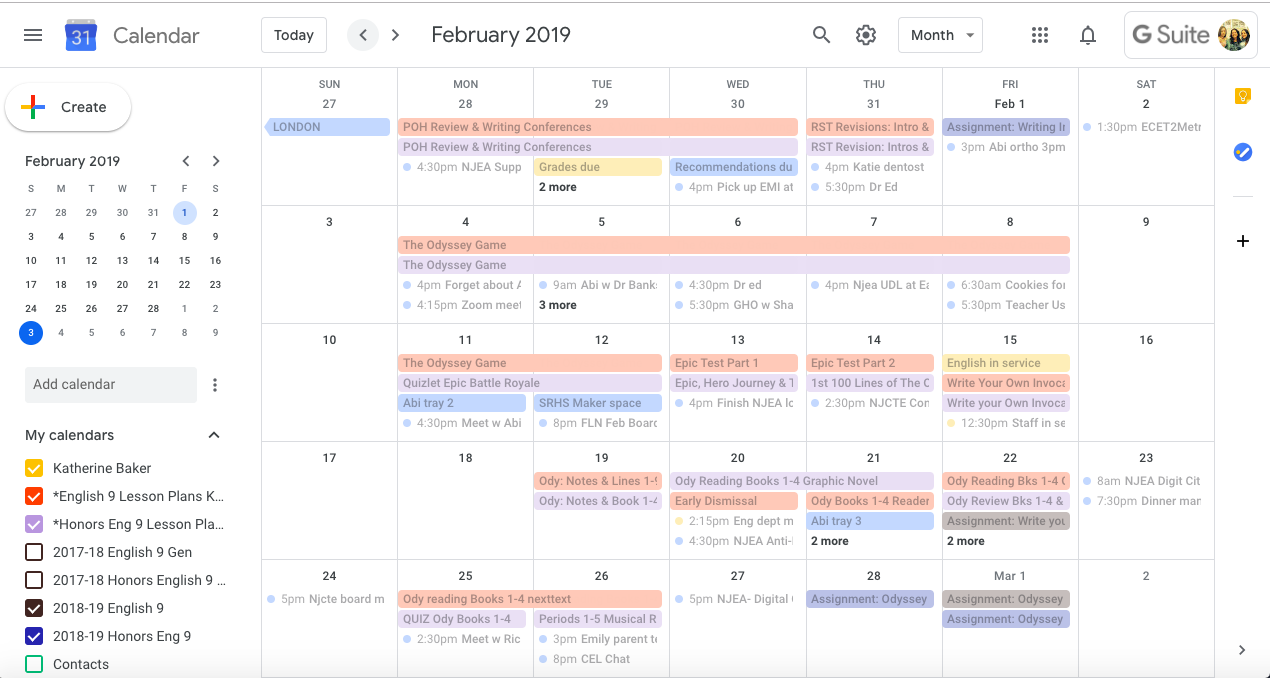
The longevity of Google Calendar makes it an ideal platform for paperless lesson planning. I have been writing my lesson plans in Google Calendar since September of 2013 and can easily access a specific day, month, or year with a few clicks. I do not organize and name my calendars by period as my schedule from year to year may differ. Nor do I need multiple calendars for the same level or prep, as I will have the same plan for each. Instead, I name and color code my calendars by the title or level of the class and use the same calendar every year I am teaching that prep. I can compare previous years' plans to the current school year, as well as copy/paste/edit descriptions of plans I reuse.

Here is a quick screenshot of my English 9 February 2018 and 2019 calendars. I can see that last year, I did not begin my Odyssey unit the end of the month, whereas this year, I am ahead of last year's pacing.


Writing the Plans


The day on which an event takes place is much more important the time it takes place. For each day I write plan, I create an all-day event. The time of event is irrelevant. I do not need my plans to be posted to a specific time because I am following the same teaching schedule every day, and it would be a waste of my time and energy to post the same plan for multiple times on a given a day since I am teaching the same plan for each class/prep period.


In the title area of the event, I will state what topic we are covering that day and be sure to select the appropriate calendar for that prep/class.  In the description area, I will type out an outline of the plan and include any links to resources. I keep the structure of the plan consistent with four main areas: Objectives, Tasks, Assessments, and Standards.


I can easily copy/paste the description and post it as a note in my Edmodo groups or Google Classroom (or other learning management site) for students to access at home. By posting it to my LMS groups, students can access any attachments and ask follow-up questions if needed. While I can add attachments to the event, I prefer to post the attachments in Edmodo for students to access as the Calendar is more of a static landing page to see classroom events and not an arena for discussion.


Publicizing the Calendar


In the settings of each lesson plan calendar, set the calendar to PUBLIC. This will make it visible when you embed it in a Google Site that will be visible by students, parents, and administration.

The new and updated version of Google Sites is ridiculously easy to create a class web page with an embedded calendar: create the site with a page for each class/prep taught, and from the Insert menu in the Site editor, simply click CALENDAR to embed a calendar on that page. Be sure to hit PUBLISH so that your site goes live!


I provide the link to the class Google Site to parents at Back to School Night as well as demonstrate how they can see the day to day plans by clicking on the event for that day. I also email the link to the Google Site to my administration when I am submitting lesson plans rather than printing out pages of plans.


Recap


Lesson planning with Google Calendar and Sites is an efficient and quick way to track and publicize your day to day teaching from year to year for students, parents, and administration.

Sunday, April 10, 2016

Goldilocks and the 3 Bears of Productivity

Everyone knows the story of Goldilocks and the three bears. Goldilocks eats, sits and sleeps through the bears' house seeking what is "just right".

As I attempt to stay organized with being a mom, wife, teacher, presenter, and coach, I feel as if I am Goldilocks. This planner is too big. That bullet journal system is too long. This app is too complex. From Pinterest to Amazon to Google, I've searched for just the right organizational system that meets the needs of my Type B (but many times Type A) personality.


Planners, bullet journals, and productivity apps... Oh my!

I like the idea of a planner, but not the actual item. I don't want one more thing to carry, and I guarantee I won't always have it with me. A paper-based planner is also less appealing since I use Google Calendar and Outlook Calendar for personal and professional purposes,  both of which are synched together. I don't want to run the risk of forgetting something because either the planner or the digital calendars were not up to date.  I have multiple calendars in Google: two for lesson plans  (one for each level of my classes), another for family, and another for my events and tasks. School events listed in Outlook appear on my Google Calendar. And all of my bazillion calendars are synched to my Android phone where I can quickly view events listed on the month-view widget.

Akin to scrapbooks, bullet journals are visually appealing and can be a robust way to track everything from appointments to daily water intake to long-term goals. I also like the idea of a bullet journal, but I know I do not have the time nor personal diligence to follow through with using it proficiently.  I did spend numerous hours on Pinterest pinning bullet journal resources, so if you are interested, feel free to check out my board:


I've been poking around on Google Play searching productivity apps, but nothing seems to fit my needs just right: I don't need a complex app, I like to write lists, and I want simple, but appealing visual design. I also need something that is platform agnostic since I own both Android and iOS devices, Chromebooks, and Windows and Mac computers. I also want something fast that when a thought pops in my head, I can quickly locate where that thought needs to go for reference later. Google Keep has been the closest I've come to "just right."

If you, dear reader, have any recommendations for productivity apps, please leave a comment on this post!


Google Keep keeps me (mostly) organized.

I LOVE LOVE LOVE Google Keep for list writing, and while it fits most of my needs for organization, I am still tweaking my system.  I can create digital post-it notes and check-box lists in Google Keep. All notes can be tagged and color-coded. I can attach pictures and share notes with others. I can drag to reorder the notes and archive them as needed or even turn them into a Google Doc. If I think of something, I grab my phone and speak, type or draw a note in Google Keep.


I have two ongoing lists that I refer to everyday:

1. To Do
2. Grocery Shopping


My To-Do list is a running record of things that I should get done ASAP within the next few days. While I can prioritize by reordering the items, I can't categorize them individually. I could create separate lists by category, but I'm leery of having too many high-priority lists at the same time.


Grocery shopping is self explanatory.  I can't tell you how many times I wrote a list on paper only to forget it at home, or I forget to put numerous items on the list. I check and uncheck items on the master list as needed rather than deleting and retyping items. I also have this list shared with my husband in case he wants to add something--which he has yet to do digitally.


Organization can be a Bear.

Ultimately, the planner, journal, list or app itself won't make me more productive and organized. I must take action.  Productivity and effective organization can't just be a fairytale!

If you have a system or tips for organization that you'd like to share, please post a comment!